Dropping into Urzikstan with stuttering frames is a quick trip to the Gulag. You need maximum frames without making the map look terrible. Let us explore the best Call of Duty Warzone 2 settings on RTX 5060 Ti for peak performance. We will help you push high frame rates while keeping enemy visibility crystal clear.
Why the RTX 5060 Ti Shines 🚀
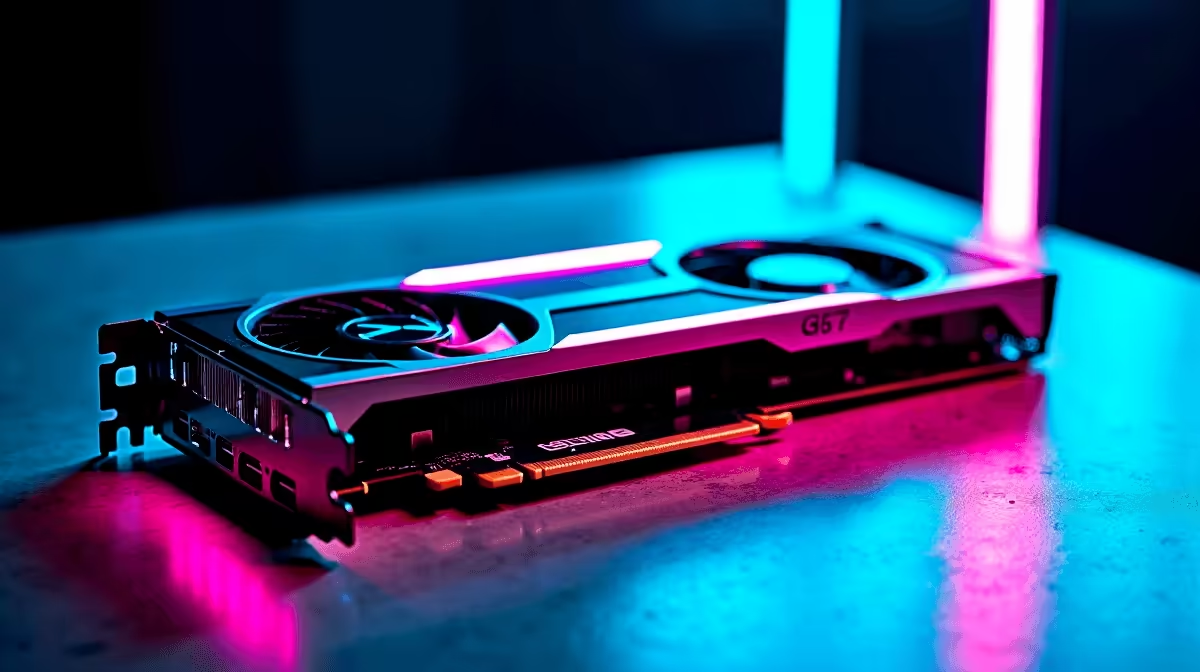
Nvidia has packed serious power into their newer architectures. The RTX 5060 Ti handles modern battle royales with absolute ease. You just need to optimise the graphical options correctly. If you are shopping around for the latest graphics cards, this GPU hits the sweet spot. It balances price and raw rendering power perfectly for South African gamers.
Display and Upscaling Options
Your display resolution dictates your baseline performance. For 1440p monitors, you want to rely on DLSS technology. Set Nvidia DLSS to the 'Quality' preset. This boosts your frames significantly without blurring distant sniper glints. Even if you play on high-end gaming laptops, DLSS remains your best friend. Make sure Nvidia Reflex Low Latency is set to 'On + Boost'. This reduces input lag when you finally pull the trigger.
Core Quality Settings 🔧
Now let us dive into the texture and detail options. You want to maximise visibility while maintaining high FPS. Set your Texture Resolution to Normal. High eats up valuable VRAM with minimal visual gain. Keep Texture Filter Anisotropic on High. This keeps ground surfaces looking sharp at an angle. Turn Particle Quality down to Low. Explosions still look fine on low and save massive frame drops.
If you run one of our premium pre-built PCs, you might have extra RAM to spare. However... keeping these settings balanced ensures a highly stable frame rate during chaotic final circles.
Shadows and Lighting Tweaks
Shadows are notoriously heavy on your system resources. They can drain your Call of Duty Warzone 2 settings on RTX 5060 Ti performance quickly. Set Shadow Map Resolution to Low. You do not need ultra-realistic shadows to spot moving enemies. Keep Spot Shadow Quality on Low as well. Turn Ambient Occlusion completely Off. This makes dark corners slightly brighter... which is perfect for spotting campers.
Finding the best gaming PC deals means getting hardware that pushes 144Hz displays. These specific shadow tweaks ensure your GPU actually hits those high refresh rates consistently.
Managing VRAM and Temperatures
Warzone is incredibly demanding on system memory. You want to keep your Video Memory Scale around 80 percent. This leaves enough overhead for background applications like Discord. It also prevents annoying micro-stutters during intense firefights. Good airflow is just as important as good settings. A cooler GPU maintains higher boost clocks for longer periods.
Post-Processing and Visibility ✨
Blur is the ultimate enemy of competitive gaming. Turn World Motion Blur and Weapon Motion Blur completely off. Set your Film Grain to zero. You want the image as crisp and clean as possible. Depth of Field should also be disabled immediately. When aiming down sights, you need your peripheral vision to stay perfectly sharp.
Warzone Visibility Pro Tip ⚡
Navigate to the interface settings and change your colour customisation. Apply 'Filter 2' to both the world and interface. Turn the intensity up to 100. This makes enemy operators pop against the dull map backgrounds.
Upgrading on a Budget
Upgrading your setup does not have to drain your bank account. You can save thousands of ZAR by shopping smart in South Africa. Keep a close eye on our weekly specials to find massive discounts on top components. A steady and smooth 144fps in Warzone is completely achievable. You just need the right hardware and these exact performance settings.
Ready to Dominate the Warzone? Dropping in hot requires serious firepower. For maximum frames, choice, and value in South Africa, Evetech is hard to beat. Explore our massive range of gaming PC specials and find the perfect machine to conquer your lobbies.