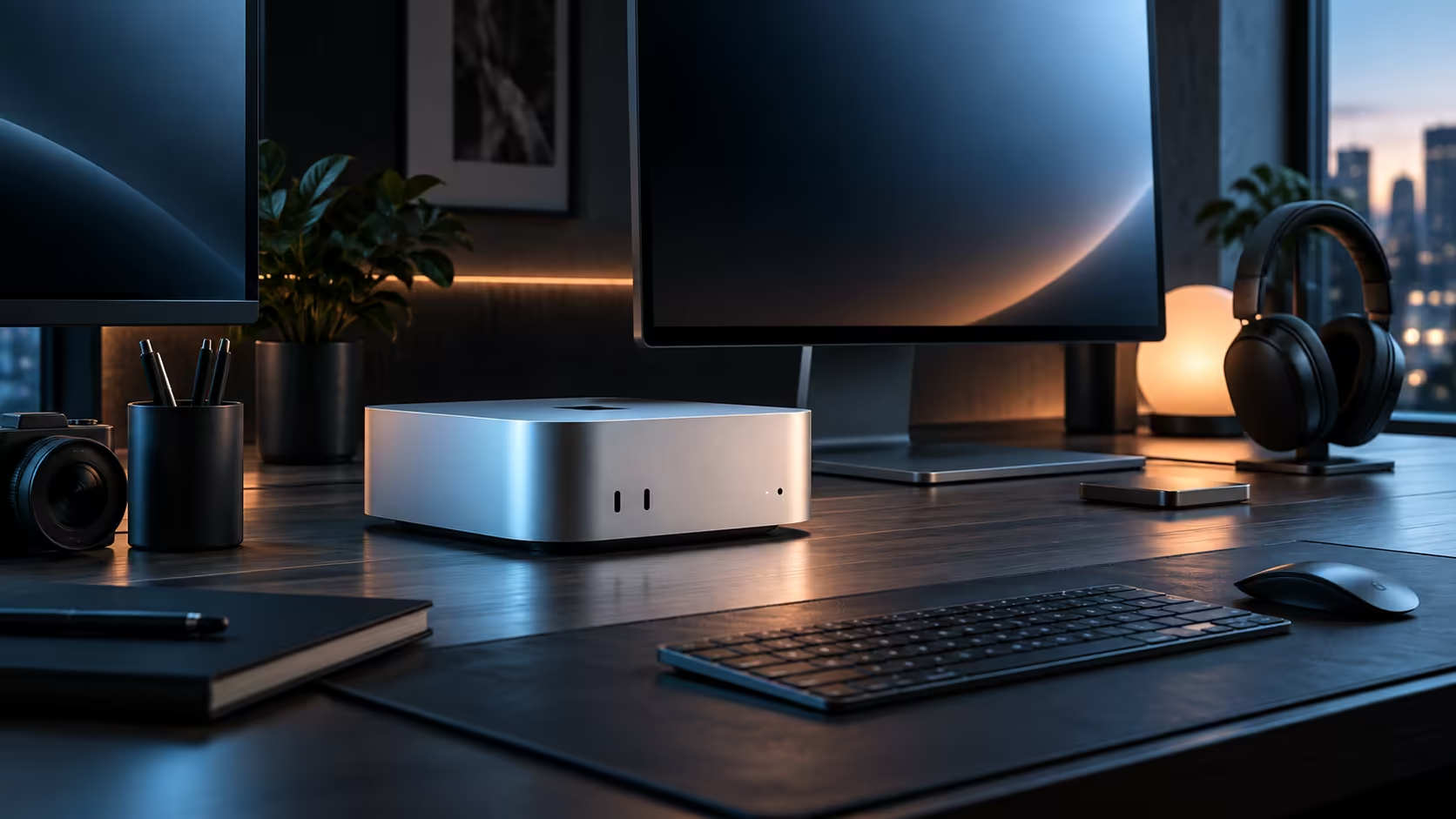
Picture a typical Mac Mini M6 desk fully wired up, screen, input devices, a drive and a wired connection all plugged in at once. That single scenario touches every port type on the case, which makes it the clearest way to actually understand what each socket is for.
Quick Answer
The monitor takes a Thunderbolt 4 port or the HDMI output; the keyboard and mouse sit happily on the two plain USB-C sockets; the external drive gets a second Thunderbolt port for real speed; and the network cable plugs into the dedicated 2.5Gb LAN port. All of it comes standard at R21,699, since a compact case trades internal expansion for exactly this port selection.
🖇️ Walking through a fully wired desk, port by port
Start with the monitor: if it has USB-C video input, a Thunderbolt 4 port carries the picture along with data and charging in one cable; if not, the dedicated HDMI output takes it directly with zero setup. The keyboard and mouse receiver, or their cables, take the two plain USB-C ports, since neither device benefits at all from Thunderbolt's extra bandwidth.
💽 Where the external drive actually belongs
Plugging a fast external SSD into a plain USB-C port instead of a Thunderbolt one is the single most common way people accidentally halve their own transfer speeds. Give it a dedicated Thunderbolt 4 port and it runs at genuinely fast, sustained speed rather than being bottlenecked by a socket built for a keyboard.
🌐 The network cable most desks never use
A 2.5Gb Ethernet port sits on the back specifically for this scenario, and it is easy to forget entirely on a machine most people just connect to Wi-Fi. It speeds up transfers to other devices on your own network only, such as a NAS, and has no effect whatsoever on internet speed, which comes down to your fibre or LTE package alone.
🧰 What happens once the desk grows past five devices
A sixth device, a second monitor, a card reader, an audio interface, needs a docking station built for Thunderbolt bandwidth, since that expands one port into several without sacrificing speed on whatever plugs into it.
Check Mac Mini for every tier Apple currently sells, and browse mini PC if a non-Apple machine ends up the better match for how your desk is wired.
📏 One detail that trips up a first-time cable order
A Thunderbolt 4 cable longer than about 0.8 metres needs to be an active cable to carry full bandwidth; a passive cable beyond that length still charges and transfers data, just at a reduced rate that a fast external drive will notice immediately. Measure the actual desk distance before ordering, since a 2-metre passive cable bought on price alone is the single easiest way to end up blaming the port for what is really a cable limitation.
Frequently Asked Questions
What is the single biggest port mistake people make on this machine?
Plugging a fast external drive into a plain USB-C port rather than Thunderbolt 4, which quietly halves the transfer speed the drive is actually capable of.
Does the monitor need to go on Thunderbolt specifically?
Only if it needs the extra bandwidth or charges through the same cable; a simple screen runs perfectly well over HDMI instead.
Is the 2.5Gb port worth using if I only have one other device on the network?
Yes, for large transfers to that one device specifically, though the benefit scales with how often you actually move large files between them.
Does plugging a phone into a plain USB-C port charge it slower than Thunderbolt?
No, a phone draws far less power than either port can supply, so charging speed is set by the phone and its own cable, not by which of the two port types it lands on.
Ready to wire up your Mac Mini desk the smart way? Give your fastest drive a Thunderbolt port before anything else claims it.