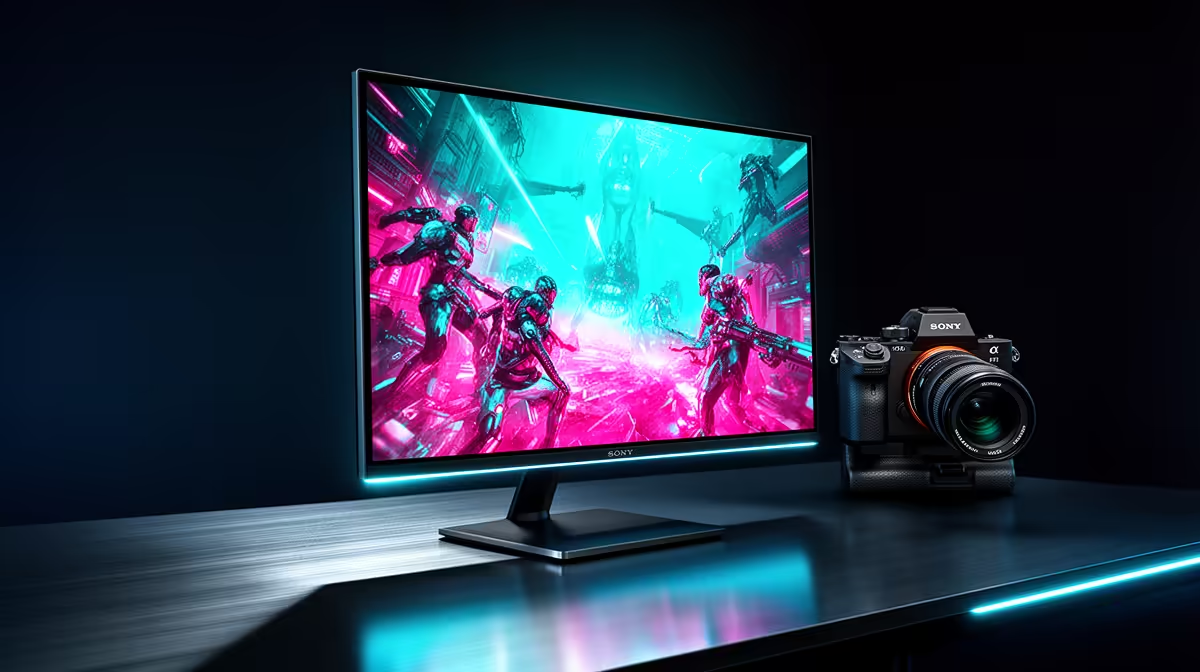
Just unboxed your shiny new OLED monitor? The incredible contrast and vibrant colours are mind-blowing, right? But hold on... before you jump into a marathon session of Helldivers 2, you need to know this: your monitor's default settings are probably holding you back. We’re talking hidden input lag and colours that aren't quite right. Let’s fix that and find the best OLED settings for gaming, unlocking the performance you paid for. 🚀
Why Your Default OLED Settings Aren't Enough
Manufacturers typically ship monitors in a "torch mode" designed to look amazing under the harsh lights of a retail store. These settings crank up the brightness and saturation, but they often crush details in shadows, introduce input lag by enabling heavy image processing, and can lead to inaccurate colours. For gaming, you need speed and accuracy, not just flashy visuals.
Optimising your panel is a critical step for any serious gamer. It ensures you're getting the lowest latency and the most accurate picture, giving you a competitive edge. The good news is that finding the optimal OLED gaming settings is easier than you think, and it applies across the entire range of PC monitors.
The Core OLED Settings for Gaming You Must Tweak
Grab your remote or navigate your monitor's on-screen display (OSD) and let's get to work. While menus vary between brands like LG, Alienware, and Samsung, the core principles remain the same.
Game Mode & Picture Presets
This is your starting point. Always select "Game Mode" or a similar preset. Why? This mode instantly disables most of the unnecessary post-processing that adds input lag. It's the single most important step to making your display feel responsive. From here, we'll fine-tune the other settings.
Brightness, Contrast & HDR
For an OLED, "Brightness" controls the light output of each individual pixel.
- For SDR Gaming: Start with the brightness set to a comfortable level for your room. A good target is around 150-200 nits, which often corresponds to a setting of 35-50 in the menu.
- For HDR Gaming: When HDR is active, the monitor takes over. Your job is to calibrate it properly within your console or Windows settings. The incredible per-pixel local dimming on stunning 4K monitors makes HDR content look breathtaking, with bright highlights and perfect blacks existing side-by-side. ✨
Colour and Gamma
For the most accurate and natural-looking image, set your Colour Temperature to a "Warm" preset (often called Warm1 or Warm2). The "Cool" settings tend to make whites look too blue. For Gamma, the universal standard for SDR content is 2.2. Stick to this unless you have a specific reason to change it. Getting this right enhances the immersion, especially on the latest curved monitors that wrap the action around you.
Pro Tip: Black Stabiliser 💡
Many gaming monitors have a "Black Stabiliser" or "Shadow Boost" setting. Use this sparingly! While it can help you see enemies lurking in dark corners, turning it up too high will wash out the image and ruin that famous OLED contrast. Start at a low setting and only increase it if you feel you're at a disadvantage in a specific game.
Advanced Settings for Peak OLED Performance
Ready to go a step further? These adjustments provide the final polish for a truly optimised experience.
Calibrating for Motion and Response Time
OLED panels have near-instantaneous pixel response times, which is fantastic for eliminating ghosting. However, you might have an "Overdrive" or "Response Time" setting. Usually, the "Standard" or "Fast" setting is the sweet spot. The highest setting can sometimes introduce "inverse ghosting" (overshoot), so test it in a fast-paced game to see what looks cleanest.
Preventing Burn-In
This is the big fear for many OLED owners, but modern panels have excellent built-in mitigation tools. To keep your screen healthy for years, make sure these features are enabled:
- Pixel Shift/Screen Shift: Subtly moves the entire image by a few pixels periodically to prevent static elements from "sticking."
- Logo Luminance Adjustment: Automatically dims static logos, like a channel logo or in-game HUD elements.
- Screen Saver: Use a black screen saver and set your PC to turn the display off after a few minutes of inactivity.
Taking these simple steps ensures your investment remains pristine, whether you're browsing through all our gaming monitors for an upgrade or enjoying your current one.
Your Quick-Start Checklist 🔧
Feeling a bit overwhelmed? Don't be. Here are the essential steps to get the best OLED settings for gaming:
- Select Game Mode: Your non-negotiable first step.
- Set Gamma to 2.2: The standard for SDR accuracy.
- Choose a Warm Colour Temp: For natural whites and colours.
- Calibrate HDR: Use the built-in tools in Windows or your console.
- Enable Burn-In Protection: Activate Pixel Shift and Logo Dimming.
- Find Your Ideal Brightness: Adjust for your room's lighting in SDR.
Whether you're gaming at home, bringing one of the latest portable monitors to a LAN, or just looking for an upgrade, these settings will ensure you get the absolute best performance. And if you're in the market for a new screen, be sure to check out the best PC monitor deals to find a panel that fits your budget.
Ready for the Ultimate Visual Upgrade? Dialing in the perfect settings is one thing, but it all starts with the right hardware. If you're ready to experience true blacks and lightning-fast response times, you're in the right place. Explore our incredible PC monitor deals and find the perfect display to conquer your game.