Is your fibre connection feeling a bit... sluggish? You're paying for high-speed internet, yet the moment someone starts streaming in 4K while you're trying to game, everything grinds to a halt. That dreaded buffering wheel appears, turning movie night into a frustration fest. The good news? The problem might not be your ISP. Often, the solution is hidden within your router's settings, waiting to be unleashed. Let's dive in and fix this. 🔧
Why Your Wi-Fi Chokes on 4K Streams
Before we tweak anything, it's crucial to understand the battlefield. A single 4K Ultra HD stream from a service like Netflix or Showmax needs a steady 25 Mbps connection. Now, multiply that by a few devices. Your smart TV, a tablet, a gaming console, and a couple of smartphones all competing for bandwidth creates a digital traffic jam.
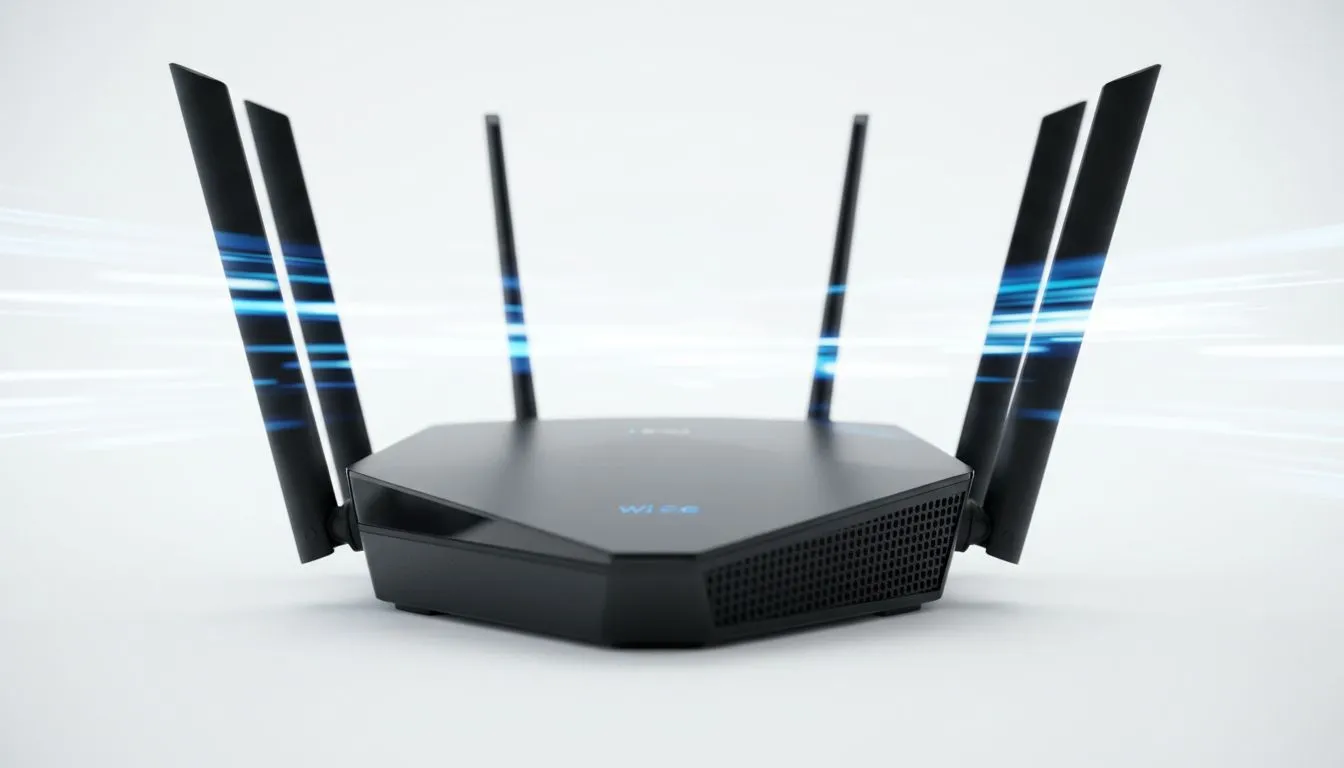
Your router is the traffic controller in this scenario. An older or poorly configured router simply can't manage the load, dropping packets and causing that infuriating buffer. Optimising your router settings for 4K streaming on multiple devices is the first and most effective step to achieving a smooth, uninterrupted experience.
Unlocking Key Router Settings for Flawless 4K Streaming
Most routers have a web interface you can access by typing its IP address (often 192.168.0.1 or 192.168.1.1) into your browser. Once you're in, these are the settings that make the biggest difference.
Prioritise Your Traffic with QoS (Quality of Service)
QoS is your secret weapon. It tells your router which devices or applications are most important. By giving your smart TV or gaming PC priority, you ensure they get the bandwidth they need first, even when other devices are active.
Look for a "QoS" or "Traffic Management" setting. You can often set priority by device (using its MAC address) or by application type (like "Streaming" or "Gaming"). This single tweak is one of the most powerful router settings for 4K streaming.
Choose the Right Wi-Fi Channel and Band 🚀
Wi-Fi operates on different frequencies, primarily 2.4GHz and 5GHz.
- 2.4GHz: Slower speeds, but the signal travels further and penetrates walls better. It's also incredibly crowded, with neighbours' Wi-Fi, microwaves, and Bluetooth devices all competing for space.
- 5GHz: Much faster speeds and less interference, but with a shorter range. This is the VIP lane for your internet traffic.
For the best performance, connect your high-demand devices—like your 4K TV, Apple TV, or gaming console—to the 5GHz network. Leave less demanding devices like smart home gadgets and phones on the 2.4GHz band. Many modern wireless routers offer "band steering," which automatically does this for you.
Wi-Fi Detective Tip ⚡
Use a free Wi-Fi analyser app on your smartphone (like "WiFi Analyzer" for Android) to see which channels your neighbours are using. Log into your router and manually select a less congested channel for your 2.4GHz network (typically 1, 6, or 11) to significantly reduce interference and improve stability.
When Settings Aren't Enough: Upgrading Your Network
Sometimes, even the best software tweaks can't overcome hardware limitations. If your router is more than a few years old, it might not support the latest Wi-Fi standards (like Wi-Fi 6/6E) or have the processing power to handle multiple high-bandwidth streams.
If you've optimised your settings and still experience buffering, it might be time for an upgrade. For larger homes where the signal struggles to reach every corner, wireless range extenders can eliminate dead zones. Similarly, if your PC is far from the router, consider upgrading your PC's wireless adapter to one that supports the latest standards for a more robust connection. A faster router can make all the difference, ensuring your entire household enjoys a seamless online experience. Investing in your complete wireless networking setup is an investment in frustration-free entertainment. ✨
Ready to Banish Buffering for Good? Tweaking your router settings can work wonders, but the right hardware provides the ultimate foundation for a flawless 4K streaming and gaming experience. Explore our massive range of networking deals and find the perfect router to power up your home network.