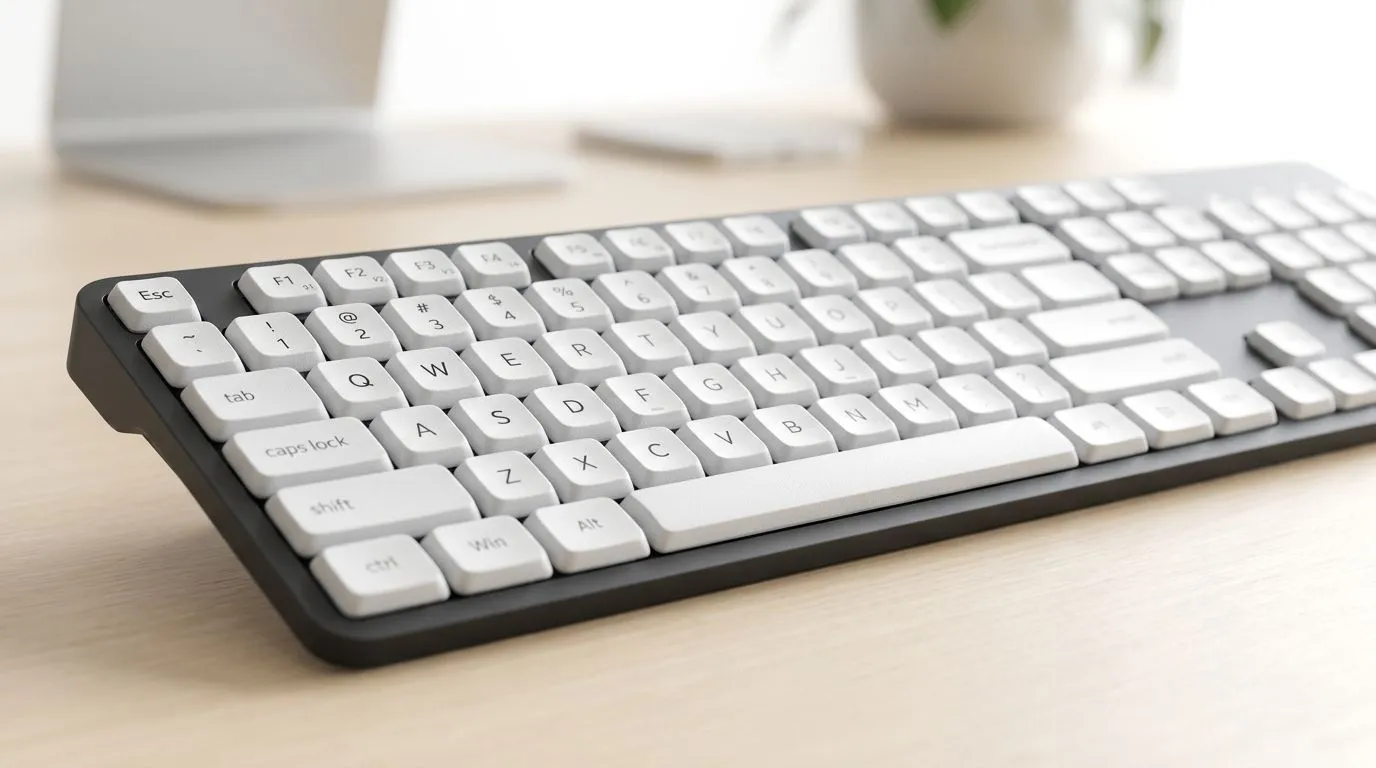
Wireless keyboard lagging? Fix input delay on 2.4 GHz and Bluetooth
If your wireless keyboard is missing keystrokes, doubling letters, or feeling a beat behind in Valorant, Excel, or even a quick Google search, you are not imagining it. Input delay is frustrating, especially when your setup should feel clean and cable-free. The good news? Most lag comes from a few fixable causes... and you can usually sort them without replacing everything 🔧
Wireless keyboard lagging? Start with the basics
Before you blame the keyboard, check the simple stuff. A weak battery can cause slow response or dropped inputs. Bluetooth can also struggle if your PC is packed with other wireless devices nearby. And 2.4 GHz dongles are not immune either. USB 3.0 ports, crowded hubs, and interference from Wi‑Fi routers can all affect signal quality.
A quick test helps. Move the receiver closer to the keyboard. Try a different USB port. Then reconnect the keyboard and test again. If the delay improves, you have already narrowed down the cause.
If you are still shopping, it helps to compare options by use case. Our best gaming keyboard deals are a solid place to start if you want performance without overspending. For buyers looking for the lowest entry price in ZAR, this page for the cheapest gaming keyboard options in South Africa is worth a look.
Fix wireless keyboard delay on 2.4 GHz
2.4 GHz keyboards usually feel faster than Bluetooth, but they still need a clean connection. Keep the dongle away from the back of a desktop tower if possible. The rear panel can sit in a noisy zone, full of metal shielding and other ports. A short USB extension cable can help move the receiver into a clearer spot.
Also check for signal congestion. Routers, wireless mice, headphones, and even some smart home gear can crowd the same band. If your keyboard only lags near your router, that is a useful clue.
What to try first
- Replace or recharge the batteries
- Re-pair the keyboard if it supports it
- Plug the dongle into a front USB port
- Avoid USB hubs for testing
- Keep the receiver visible and close
If you want a practical all-in-one option for a shared desk or home office, a keyboard and mouse combo can keep things neat and simple.
Fix Bluetooth keyboard input delay on Windows and laptops
Bluetooth is convenient, but it is often the first to feel sluggish when a system is under load. Power-saving settings can also interfere. On Windows, make sure Bluetooth is up to date, then remove the keyboard and pair it again. If you are on a laptop, test with the charger plugged in too. Some systems reduce performance on battery.
Keep in mind that Bluetooth keyboards are best for typing, browsing, and casual use. They can work for gaming, but lower latency setups are usually better for competitive play. If you are building a desk setup for speed and reliability, a wired gaming keyboard removes most wireless uncertainty. For users who still want the convenience of cables-free use, a wireless gaming keyboard may be the better fit.
Productivity Pro Tip ⚡
If your keyboard lags only in certain apps, close background software that hooks into input, like macro tools or RGB suites, then test again. It is a quick way to spot whether the issue is hardware or software.
Wireless keyboard lagging? Know when to replace, not repair
Sometimes the keyboard is simply past its best. If it disconnects often, misses keys across multiple devices, or still feels delayed after basic troubleshooting, the hardware may be the problem. Older models can struggle with crowded wireless environments, especially in flats, shared offices, or busy households.
That is where a sensible upgrade makes more sense than endless tinkering. South African buyers often need value, not just specs on a box. So choose based on how you actually use your PC. Competitive gaming, office admin, and home study all have different needs. A fast wired board suits one user. A tidy wireless setup suits another. The best choice is the one that fits your desk, your habits, and your budget in ZAR.
Wireless keyboard lagging? Final checklist before you buy
Before you spend more, run this quick checklist:
Quick diagnosis
- Battery fresh or fully charged
- Dongle moved closer
- Bluetooth re-paired
- USB port changed
- Interference reduced
- Software updated
If that still does not fix it, upgrading is probably the smarter move. Start with the keyboard type that matches your setup, then compare features, comfort, and value. A little planning now saves a lot of frustration later ✨
Ready to Find Your Perfect Match? The Mac vs Windows debate is complex, but for maximum power, choice, and value in South Africa, Windows is hard to beat. Explore our massive range of laptop specials and find the perfect machine to conquer your world.