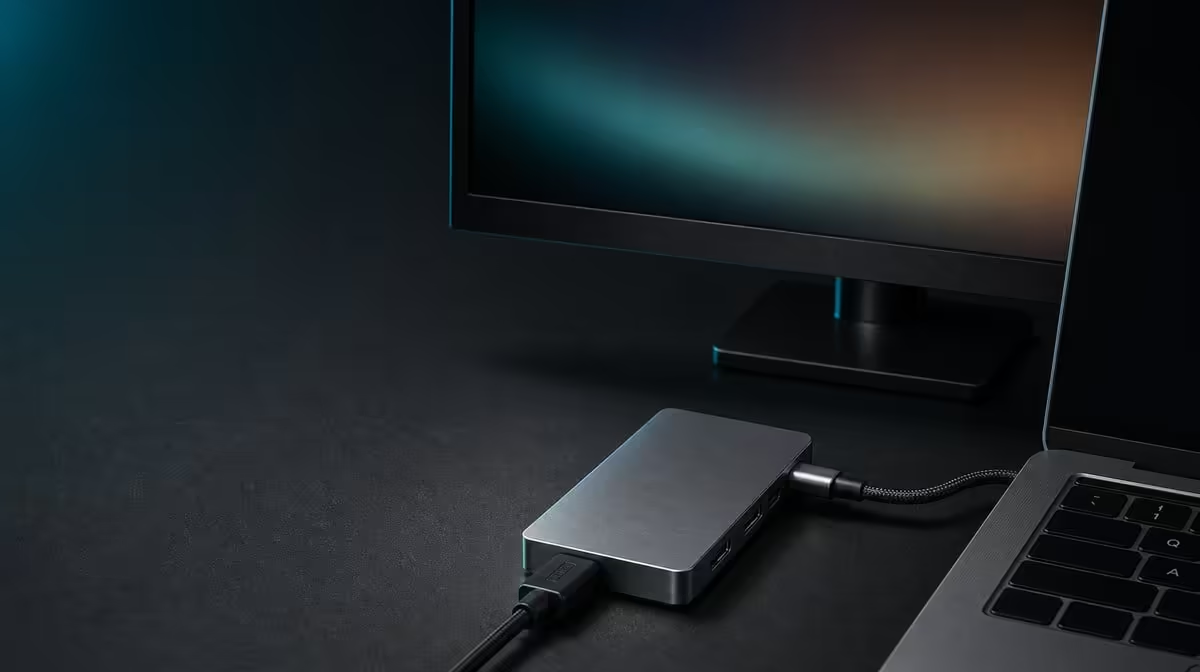
A blank 4K screen does not identify the failed link; it only says the route is incomplete. When a USB-C hub fails to output 4K video, reduce the setup to host, hub, cable, and monitor, then test capability, detection, input, and mode in that order.
Quick Answer
Confirm that the exact host USB-C port supports display output, use a suitable cable, select the monitor input, and check system detection before requesting 4K. The R399 UPERFECT UExtend states 4K video, but the host, cable, screen, and selected mode must all support the path.
🔍 Prove the source can send video
A USB-C socket may handle charging or data without carrying a display signal. Check the exact host port and avoid treating a working power connection as video evidence.
Evetech's USB hub options should be compared only after the laptop's display capability is known.
🖥️ Strip the route to essentials
Remove Ethernet, cards, and USB peripherals. Reconnect the UExtend, attach the appropriate display lead, select the screen input, and open display settings. Reseat one connection at a time.
If another supported resolution appears, keep that result while checking the full path before returning to 4K. Verify refresh behaviour through the complete host, hub, cable and display route.
🔋 Keep power diagnosis separate
The hub supports up to 60W passthrough, but charger power does not prove host video support. Test charging and display as independent routes before combining them.
A permanent desk with different requirements can be compared against Evetech's docking-station range.
🧪 Rebuild the normal workstation
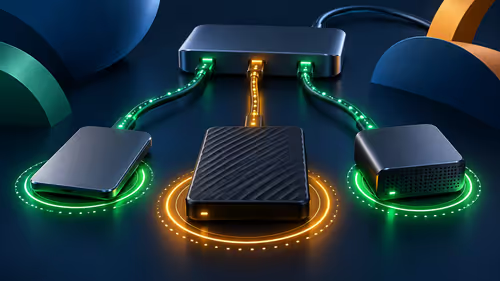
After the picture is stable, add 1000Mbps Ethernet, SD, and the two USB data devices individually. Restart once and confirm the saved screen arrangement returns.
Evetech's gaming-accessories category helps account for the attached peripherals. Recheck the R399 UExtend's current availability when the tested route fits.
Use the symptom to choose the next step
No monitor detection points towards the source port, physical connection, display lead, screen input, or required power. Detection at a different mode narrows the question to requested settings and path capability. A picture that disappears only after other devices connect suggests testing the combined workload and reconnection sequence.
Keep these states separate in a short log. "Blank", "detected without picture", "working below intended mode", and "unstable after wake" are different observations and should not trigger the same random cable swap.
Compare against a known-good route
If the source offers another confirmed video output, use it with the same monitor to establish that the screen and selected input can display a picture. Where possible, test the UExtend with another known video-capable host. Each comparison removes a question without pretending to prove the entire original path.
Once 4K output works, save the screen arrangement and restart. Then reconnect the network, SD card, and USB devices one at a time. Stop when the symptom returns and preserve the last successful state.
Label the display lead and document the host socket. This prevents a data-oriented USB-C cable or a different laptop port from being substituted later and mistaken for the connection that passed.
After restoring 4K, use the display for a normal session rather than stopping at the desktop. Open the target applications, choose comfortable scaling, and watch for loss during sleep, cable movement, or peripheral reconnection. A stable working period proves more than a momentary image.
Keep a spare diagnostic route only if it is known to work with the equipment. An untested replacement cable adds another uncertainty. The strongest recovery kit is small: documented host port, suitable display lead, correct screen input, and saved display settings.
Create a final known-good screenshot of the display settings and note the monitor input. If the image disappears later, compare the new state with this record before changing cables or modes. A recovery based on evidence is faster than rebuilding from memory.
After travel, inspect the display lead for strain and confirm it remains the same cable that passed. Similar-looking USB-C or video cables should not inherit the result of the tested one.
Store the screenshot and cable note where it can be reached during a blank-screen event, not on the external display that has disappeared.
Frequently Asked Questions
Does charging mean display output is supported?
No. Power and video are separate USB-C capabilities.
Why remove the network and drives?
A smaller setup makes a source, cable, input, or mode problem easier to isolate.
Can the hub add video to a data-only port?
No. The host must provide display output.
Should 4K be selected before detection?
No. First confirm that the operating system sees the monitor.
Ready to replace a blank screen with a tested connection path?
Compare Evetech USB hubs only after confirming the laptop port, display cable, monitor input, and supported video mode.