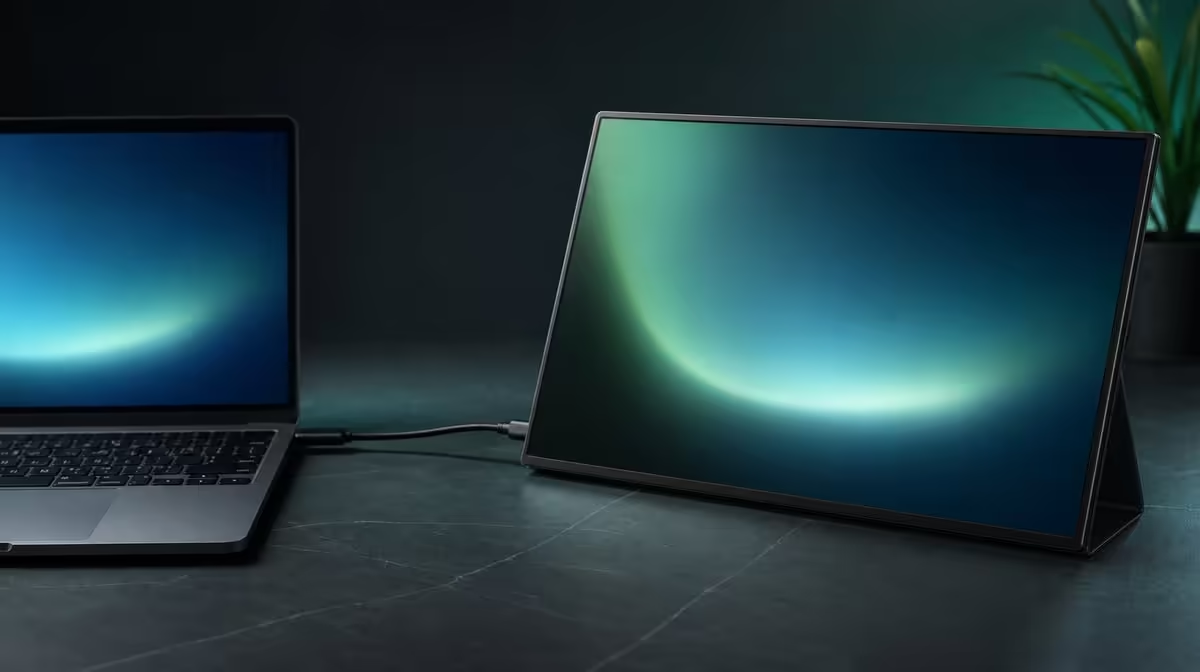
A familiar plug can still lead to a blank panel when the source never sends display video. A USB-C portable monitor with no image should be diagnosed from power and selected input through port capability, cable function, host detection, and resolution in a fixed order.
Quick Answer
On the R5,999 UPERFECT UColor J5, confirm power first, select USB-C, verify that the source port outputs display video, and use a cable that carries the required signal. If the 17.3-inch panel remains blank, check host display detection and test the J5's HDMI input through a known route to narrow the cause.
🔋 Separate power from picture
A monitor can receive power without receiving video. Look for the panel's power state, then confirm the active input. If the screen has no power indication, solve that path before changing display settings.
Do not assume a one-cable setup works with every host. USB-C capabilities vary, and the source, cable, and monitor must agree on the functions needed. Evetech's portable monitor selection helps buyers compare connection options before relying on one lead.
🔌 Verify the source port and cable
Check whether the exact USB-C socket supports display output. A laptop may have several identical-looking ports with different roles. Then confirm that the chosen cable carries video; charging alone does not prove display capability.
Connect directly for the first test and select the matching input. If another proven video-capable cable is available, change only the cable and repeat. This preserves a clear cause for any improvement.
The J5 uses a 3840 x 2160 IPS panel, but native resolution matters only after the host detects it. Evetech's PC monitor range provides context for alternative input arrangements.
🧪 Use HDMI as a diagnostic route
The UColor J5 also accepts HDMI. Connect a source with a known HDMI video output, include the required power, select HDMI, and check for an image. A working result shows that the panel can display a signal and shifts attention back to the USB-C source or cable.
If the computer detects the monitor but the panel is still blank, review the selected input, display arrangement, and output resolution. Avoid changing brightness, scaling, and cables together. Detection, image, native resolution, and readable scaling are separate checkpoints.
Evetech's monitor best sellers offer another current reference. The R5,999 price does not change because a setup needs diagnosis; preserve the correct product figure while checking current availability separately.
Build a small fault table during the test. Mark whether the panel powers on, which input is selected, whether the host detects another display, and whether HDMI produces an image. Four clear observations are more useful than repeatedly reconnecting the same cable.
If the USB-C route works on one laptop but not another, preserve both results. The cable and monitor may be capable while the second host port lacks the required display output. Device-specific evidence prevents a broad conclusion from one failure.
Once the picture appears, confirm native 4K, readable scaling, and stable operation through a normal task. A signal that flashes briefly or returns at the wrong size still needs the next checkpoint.
Save the working source, port, cable, input, and power combination. The next blank-screen incident can then begin from a proven route rather than from every possibility at once.
Test a full restart after saving the route. Shut down or disconnect cleanly, restore power and video, select USB-C, and wait for host detection. A repeatable return proves more than a picture recovered once.
If the monitor appears in display settings but not on the panel, check the arrangement and active output before replacing hardware. The host may be extending content in an unexpected direction or using a setting that needs correction.
Keep HDMI available as the control path. It lets the user continue working while the USB-C-specific difference is checked, and it prevents a blank connector route from becoming a verdict on the whole R5,999 monitor.
Once the image returns, reconnect only the accessories required for the normal desk. If the fault reappears, the last change provides a useful lead. This controlled rebuild is faster than repeatedly swapping every cable and setting at once.
Frequently Asked Questions
Can a USB-C charging port output a picture?
Charging capability alone does not prove display video support. Check the exact source port.
Why test power before the cable?
A panel without its required power cannot show the video signal, so the earliest checkpoint should be settled first.
What does a successful HDMI test prove?
It shows that the monitor can receive and display video through that route, helping isolate the USB-C path.
Should resolution be changed before detection?
No. First confirm that the host sees the monitor, then set native 3840 x 2160 and comfortable scaling.
Ready to replace a blank screen with a clear fault boundary?
Browse Evetech's portable monitors and match current USB-C and HDMI options to the proven outputs and cables on your devices.