USB-C problems become easier to isolate when power, detection and application workload are tested in that order. To fix USB-C power and display problems on the R4,299 UPERFECT Delta, approve the laptop path, reconnect with a clear desk and restore peripherals only after both Full HD panels are stable.
Quick Answer
Verify that the computer USB-C socket can output both external pictures and meet the Delta's power needs, then disconnect optional peripherals and reconnect the R4,299 monitor cleanly. Once both screens wake, set 1920 x 1080 and extend the desktop. Add other hardware one item at a time to reveal any recurring conflict.
⚡ Separate power from image
Observe whether neither, one or both panels wake. Record the state before changing software.
A powered screen with no desktop still needs display-path diagnosis. A completely dark monitor keeps power and source capability central.
Write down the starting symptom: dark, powered without an image, detected and unstable, or present only after reconnecting. Those states point to different layers and stop every USB-C complaint from becoming one vague problem. Also note whether one or both panels are affected, because the Delta contains two independent displays.
Use the laptop's normal power arrangement during the baseline. The objective is to recreate a reliable working state, not to prove that the monitor can survive an unusual temporary combination of adapters and accessories.
Browse Evetech portable monitors only after the intended host path is understood.
🔌 Reset the cable path
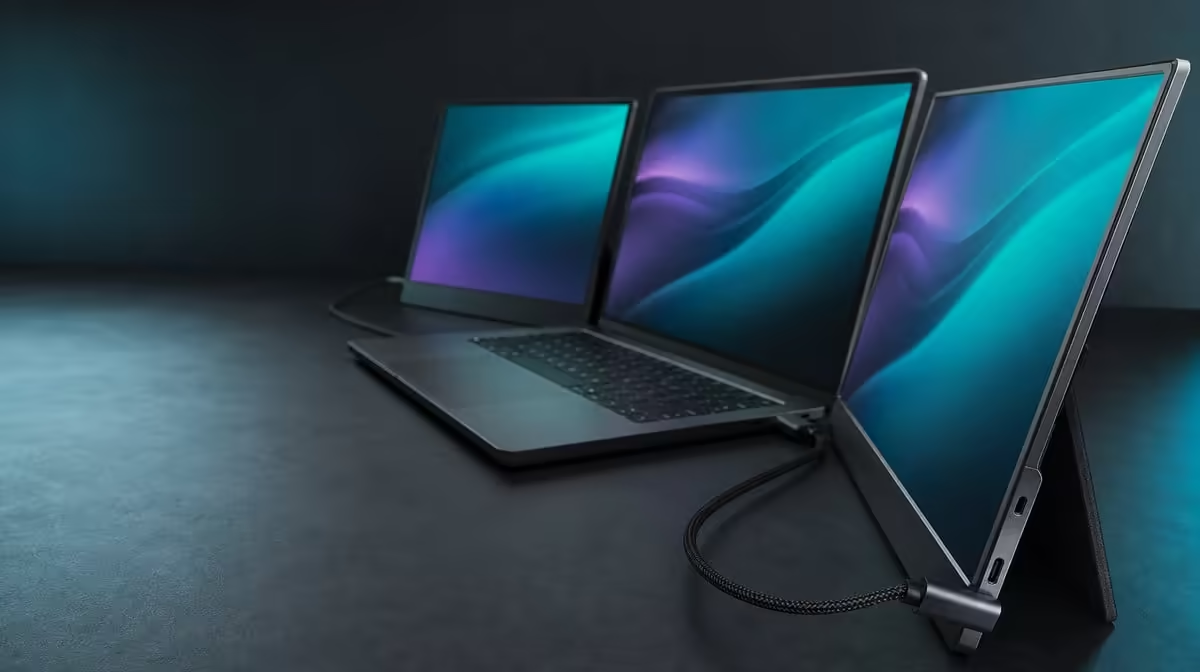
Support the opened Delta on its built-in stand and keep the cable clear of the folding hinge.
Disconnect optional devices, use the known laptop port and reconnect without moving the monitor. Wait for detection.
Do not swap several cables, ports and settings in one attempt. A controlled sequence shows which change affects the result.
Confirm the port by laptop model rather than by position or icon alone. A nearby USB-C socket may charge another device while lacking the full video route needed for two external panels. If the documentation does not establish the required path, uncertainty remains even when the plug fits.
Inspect how the lead reaches the monitor. It should have enough slack for the stand and chosen angle, with no pull across the 360-degree hinge. An intermittent physical connection can resemble a power or detection fault, so keep the assembly still throughout each test.
🖥️ Restore the display baseline
Identify both external panels, select native 1920 x 1080 and use extension for independent work.
Arrange screen rectangles to match the desk. Test a simple window before launching the full workload.
The 25ms response figure cannot cause a missing signal and should remain outside this diagnosis.
Identify all three visible areas when the laptop screen remains active. Drag a basic window from the notebook to each Delta panel and back, checking that extension rather than mirroring is selected. Keep both external panels at native Full HD until the connection is repeatable.
Only then restore demanding CAD, editing or multitasking applications. If simple desktop movement is stable but the heavy project stutters, the source workload deserves separate attention. That result is different from a panel that loses power or vanishes from display settings.
The Evetech monitor category can provide fixed-screen context after the USB-C path passes.
🧪 Reintroduce the normal desk
Reconnect peripherals individually and repeat sleep, wake and application tests after each change.
If one device reintroduces instability, keep the known monitor path unchanged while that conflict is investigated.
Include a travel-style reconnection. Close the work, disconnect, fold the Delta, reopen it on the stand and rebuild the same approved path. The test shows whether the correction survives the behaviour that portable users repeat rather than only remaining stable on a desk that never moves.
Record the successful sequence and stop changing it. If the clean laptop-and-monitor baseline still fails after capability has been confirmed, provide the observed panel state and the steps already tried when requesting support. Precise evidence is more useful than another round of simultaneous changes.
Use Evetech's monitor best-seller collection for wider comparison after power and image remain stable.
Frequently Asked Questions
Why is USB-C capability important?
The laptop has to deliver two display signals plus the necessary power for one-cable operation.
What should be removed first?
Disconnect optional peripherals so the Delta and laptop form a simple baseline.
How does clean reconnection help?
It reduces variables and shows whether the approved host path can detect both screens.
Which resolution follows detection?
Use 1920 x 1080 on each Delta panel.
Why restore peripherals individually?
It identifies which added device or path makes the problem return.
Does 25ms cause no signal?
No. It concerns motion response after the panel has an image.
Why note whether one or both screens fail?
The panels are independent, so that detail helps separate a complete host-path problem from a single-display symptom.
When should applications be reopened?
After both panels are detected, set to 1920 x 1080 and stable with a simple desktop window.
Ready to split a USB-C fault into power, image and workload layers?
Explore Evetech portable displays and restore the Delta from a clean host connection before rebuilding the desk.