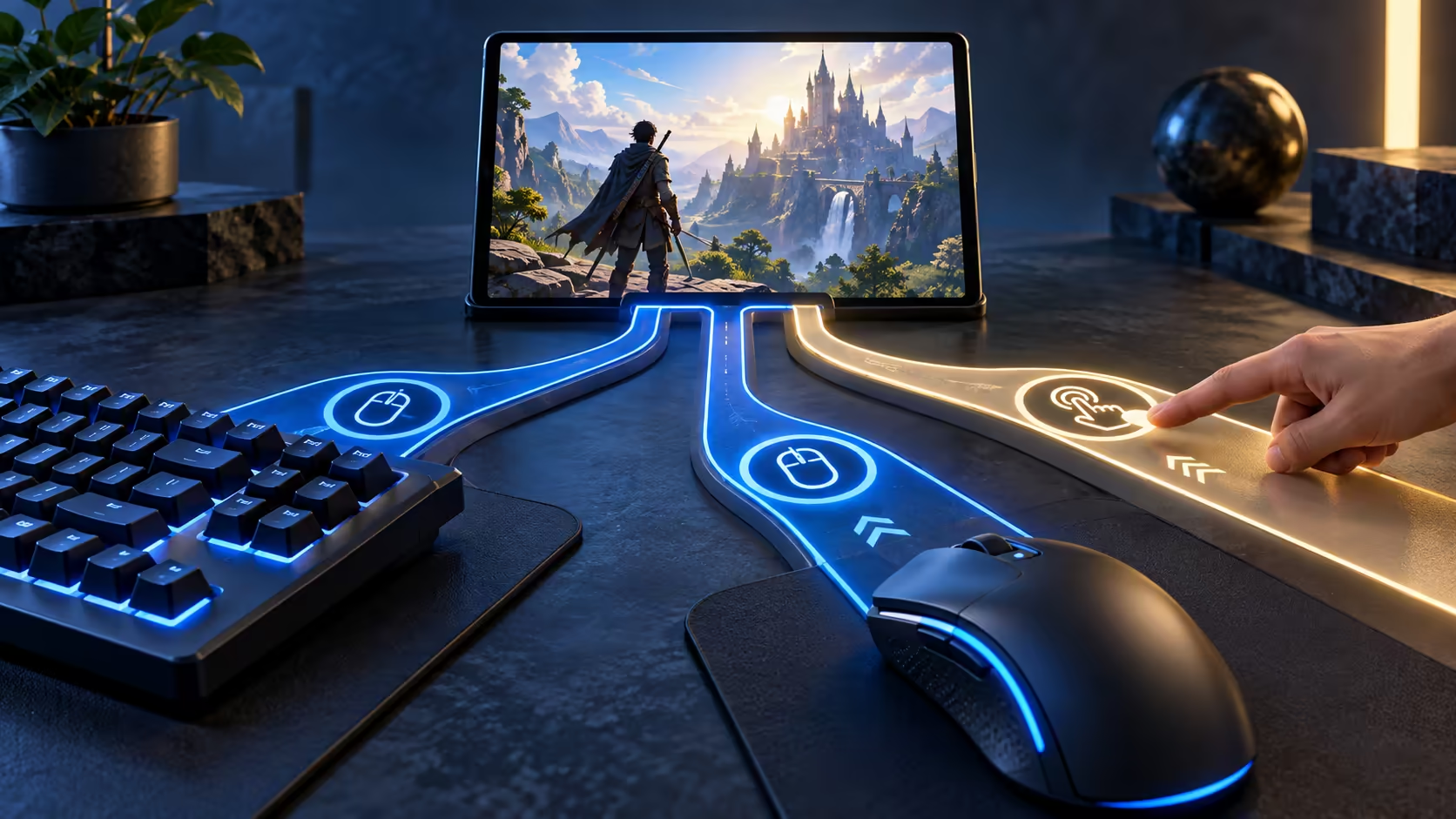
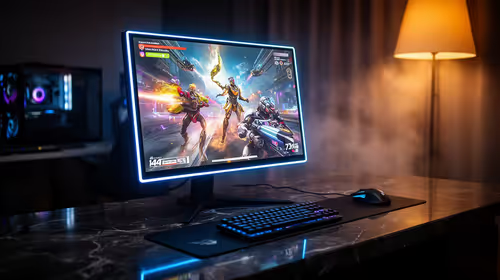
A pointer moving over a game is not proof that the game has become a PC title. Mouse and keyboard support in Googlebook Android games depends on the controls implemented by each developer.
Quick Answer
Android game input varies by title: some support physical keys and relative mouse movement, while others remain centred on touch. Confirm the game's documented controls before choosing accessories. A high-specification mouse cannot add proper aiming or key bindings where the application does not support them.
🖱️ A click and a captured pointer solve different problems
Ordinary pointer input identifies a position on screen. That is useful for menus or tapping a tile. A first-person camera often needs relative movement, where moving the mouse keeps turning the view instead of stopping at the display edge.
If the cursor hits the edge during aiming, increasing sensitivity may hide the symptom without solving the input mode. Look for the game's supported pointer or camera settings and the client mode in which it is running. A streamed PC game and a local Android game can behave differently on the same laptop.
Use gaming mouse options to compare shape and comfort after the required input mode is established. Buttons and sensor specifications matter less if the game never receives the intended commands.
⌨️ Physical keys need deliberate game support
A keyboard can type into chat without controlling movement. Text entry is a basic input task; mapping WASD, inventory keys or ability shortcuts requires the game to assign actions to those keys.
Open the game's control menu and look for explicit keyboard settings. If none exist, consult the developer's support information before assuming a hidden mode. A tutorial that asks for swipes may be demonstrating a genuinely touch-based design rather than detecting the laptop incorrectly.
For supported games, change one binding at a time and test it in a low-pressure environment. Avoid reusing a shortcut that the browser or operating system intercepts. In a browser streaming session, full-screen state and pointer capture can also affect whether a command reaches the game.
🎯 Buy for the working control scheme
An external keyboard can improve posture and key feel, especially at a desk. It should be selected around the commands the application accepts rather than around the promise that it will convert every mobile game into a desktop experience.
Before a serious session, navigate through launch, login, gameplay, pause and exit. A control scheme that works only after entering the match can still leave you reaching for the touchscreen at inconvenient moments. Accessibility needs deserve the same complete-task assessment.
Treat unofficial key-mapping tools cautiously and check the game's rules. Input modification can introduce its own restrictions, and a clever workaround is less dependable than direct support. A directly supported input mode also makes future app updates easier to troubleshoot.
Frequently Asked Questions
Does a mouse click always become a PC-style game action?
No. An Android game may interpret the click as touch input rather than offering a dedicated mouse-control system.
Why can the pointer reach the edge while aiming?
The game or client may not have captured relative mouse movement. Ordinary cursor movement differs from continuous camera control.
Will WASD work in every Android game?
Only if the game implements those keys or a supported binding system. Laptop hardware cannot supply missing game input logic.
Are touch prompts evidence of a broken mouse?
Not necessarily. The game may simply keep its touch-oriented interface even when a pointing device is attached.
Should unofficial key mappers be the default solution?
Use official input options first. Mapping utilities can conflict with game behaviour or rules and need separate scrutiny.
Distinguish pointer input from real game controls?
Explore Evetech mice and keyboards once the Android game or cloud client confirms the input controls you need.