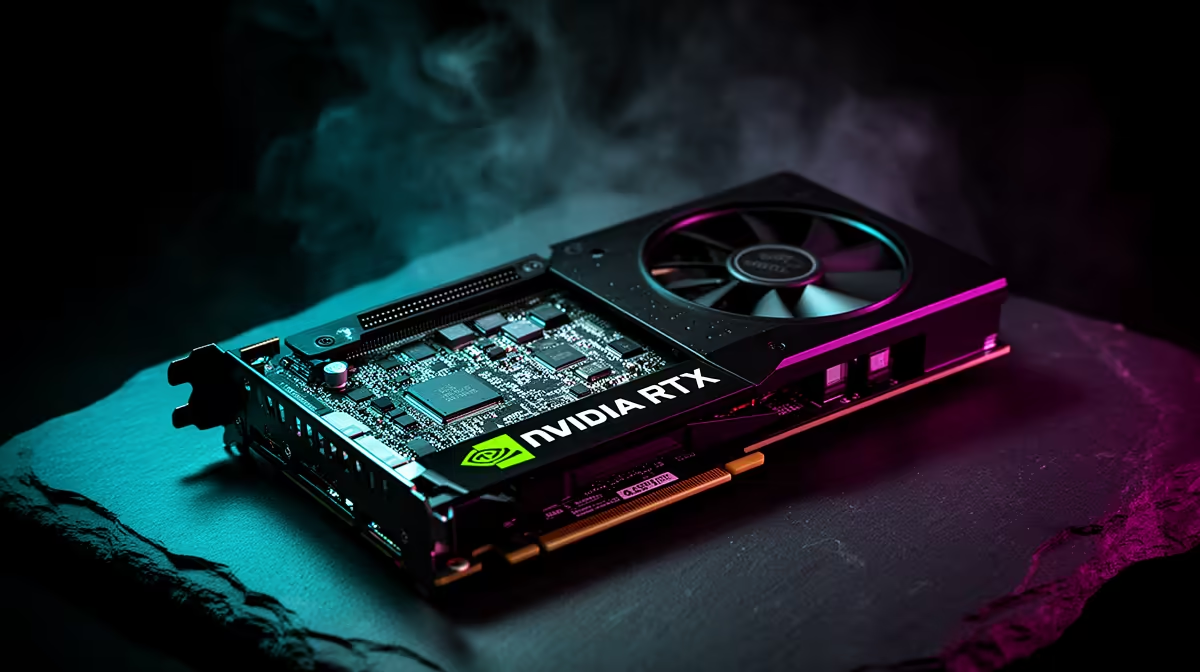
Coloured blocks, flashing polygons and broken textures can come from a driver conflict or failing hardware. The pattern across several tests matters more than one ugly screen. Start with stock settings and a clean software path before deciding the graphics card needs repair.
Quick Answer
Photograph the artefact, note the game and restore every GPU tune to default. Test another title and a benchmark. If the corruption began after a driver change, reinstall a known-good driver. Artefacts that persist across clean drivers, different applications and a cold restart make a hardware fault more plausible.
Compare the installed card with the NVIDIA GPU catalogue and popular graphics-card listings only after the diagnosis. Replacement shopping cannot tell you whether the original problem sits with the GPU, cable, monitor or software.
Rule Out the Easy Causes
Set the core clock, memory clock, voltage curve and power limit to stock. Disable ReShade, game mods and third-party overlays. Verify the game files and remove a recent graphics tweak.
Swap the display cable and port if the corruption affects the whole desktop. A damaged cable can create sparkles, dropouts or colour errors without touching the 3D renderer. A screenshot helps separate paths: if the captured image looks clean on another device while the monitor looked broken, investigate the cable, display and output chain.
Reinstall the Driver Carefully
Download the intended production driver from the GPU vendor before removing anything. Try its clean-install route. If ordinary reinstalls leave old components or the fault followed a vendor change, Display Driver Uninstaller can clear the driver in Windows Safe Mode. Get it from its official distribution source and follow the current instructions.
Keep the PC offline during the removal if Windows keeps inserting a different package. After restart, install one known-good driver, leave optional overlays out and retest the same scene.
Signs That Raise Hardware Concern
Corruption in the firmware screen or during boot appears before the normal game driver and deserves attention. Repeating artefacts in several engines, errors at stock settings and faults that worsen as the card heats also strengthen the hardware case.
Stop a stress test if temperatures run out of control, the connector shows heat damage or the system becomes unstable. Do not dismantle or repaste a card that may still have warranty cover before checking the seller and manufacturer terms.
Record the serial number, driver versions, screenshots and exact reproduction steps for support. South African warranty remedies depend on the facts and applicable terms; preserve the card's condition and proof of purchase.
FAQ
Does a clean DDU result prove the GPU is healthy?
No. It removes a software variable; it does not test every part of the card.
Can an unstable VRAM overclock cause artefacts?
Yes. Restore memory and core settings to stock before further testing.
Should I keep stress-testing visible corruption?
No. Capture a short, repeatable example and stop if heat, power or physical damage is suspected.
Preserve evidence, test stock settings across two applications and one known-good driver, then send the exact reproduction steps through the proper support route.