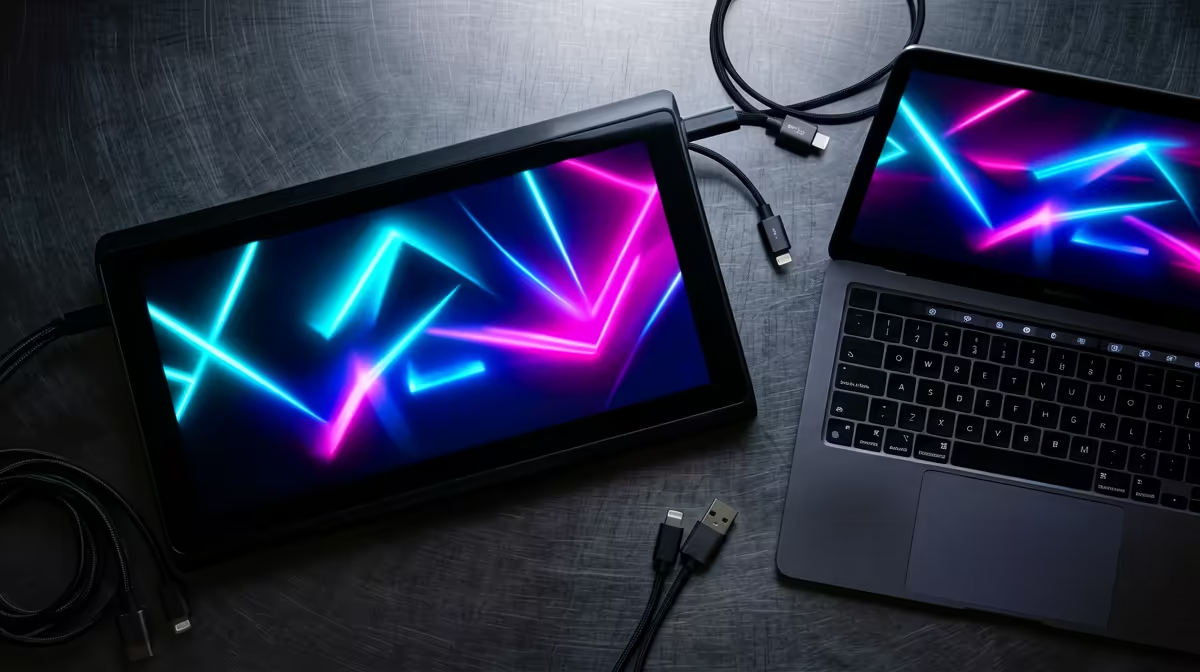
A portable monitor showing a black screen is almost always telling you one of two things: it is not getting enough power, or it is not getting a video signal. The panel itself rarely fails first. Work through power and signal in order and most blank-screen cases clear in a couple of minutes, no replacement needed.
Quick Answer
A black or no-signal portable monitor usually means too little power or no video reaching the panel. Swap to a full-feature USB-C cable, add a separate power source, and confirm your laptop's port supports DisplayPort Alt Mode. Those three checks fix the large majority of cases.
Start with power
Many portable monitors try to draw both power and video from a single USB-C cable on your laptop. If that port cannot supply enough current, the panel may light faintly or stay dark. Plug a dedicated power source into the monitor's power input: a phone-style USB-C charger or a power bank rated for at least 5V/2A often wakes it instantly. If the backlight glows even slightly once powered, you have confirmed the issue was current, not the screen.
Check the cable, then the port
The cable is the most common culprit and the cheapest fix. Phone-bundled USB-C cables are nearly always charge-only and pass no video signal whatsoever. You need a full-feature USB-C cable that supports video. Swap it and re-test before assuming anything is broken. If the monitor still shows nothing, the problem may be the laptop port itself: video over USB-C needs DisplayPort Alt Mode, and not every port supports it. Check your laptop's specification or look for a small DisplayPort logo beside the port. If your port lacks Alt Mode, use the monitor's HDMI input instead, where the model offers one.
Quick checks that solve the rest
A few fast steps catch the remaining cases. Try the monitor's other ports if it has more than one. Hold the brightness or menu button to confirm the on-screen display appears, which proves the panel is alive. On Windows, press the display-switch keys to make sure the laptop is actually outputting to a second screen rather than mirroring nothing. Test the monitor against a second device, like a phone that supports video output, to isolate whether the fault sits with the monitor or the laptop. You can compare current models and their power requirements on the portable monitor range at Evetech, and if you are weighing a replacement, the top-rated monitors at Evetech show what other SA buyers settle on.
Frequently Asked Questions
Why is my portable monitor black when plugged into my laptop?
The laptop port is likely not supplying enough power, or the cable carries power only and not video. Add a separate power source and switch to a full-feature USB-C cable to confirm.
What is DisplayPort Alt Mode and how do I check for it?
DisplayPort Alt Mode is the standard that enables a USB-C port to output a video signal. Check your laptop's specifications or look for a small DisplayPort symbol near the port; without it, switch to the monitor's HDMI input.
Will any USB-C cable work for video?
No. USB-C cables vary widely - a charge-only cable passes no picture at all. You need a full-feature cable rated for DisplayPort or video output, which resolves the majority of black-screen cases.
How can I tell if the monitor itself is broken?
Test it against a second device that supports video output, such as a compatible phone. If it works there, the fault is with your laptop's port or cable rather than the monitor.