


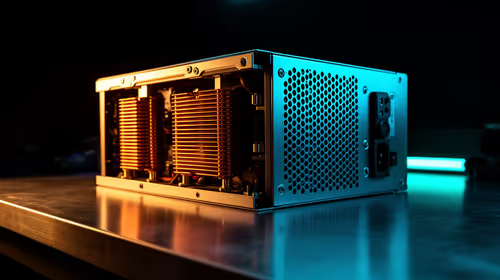
1000W PSU Planning for RTX 5090 Builds in SA
1000W for RTX 5090 needs a full-build check, not a simple yes. Review GPU guidance, CPU draw, transient load, connectors, PSU quality, and upgrade plans before deciding.
Read moreStart blurry-text troubleshooting by checking for the J314's native 2160x1440 resolution. Next, isolate the Type-C or Mini HDMI path and review source-side scaling, because a QHD label alone cannot guarantee how every device renders text.

Blurry text usually calls for a source-and-scaling check before picture controls are changed. Fixing blurry text on a 2K portable monitor means confirming the output resolution, operating-system scale, application rendering and cable route with a known test page.
Blurry J314 text should be corrected by selecting native 2160x1440, using suitable operating-system scaling and avoiding non-native source or application zoom combinations.
The R1,799 UPERFECT UBegin J314 has a native 2160x1440 panel at 14 inches. Set a compatible source to that mode, choose readable scaling, restart the affected application if needed and inspect the Type-C or Mini HDMI path before changing contrast.
Open display settings and identify the mode sent to the J314. The panel uses 2160x1440, but the source and connection must support that output.
If another resolution is active, select a compatible mode and compare the same text. Do not assume every phone, laptop or console can produce QHD through every port.
Browse 2K portable monitors at Evetech when the source and screen resolution need a wider comparison.
Choose an operating-system scale that keeps text comfortable on 14 inches. Very small interface elements may be difficult to read even when the pixel output is correct.
Check whether blur appears everywhere or in one application. Restart that tool, inspect its zoom or rendering settings and use a simple high-contrast text sample.
The monitor accepts Type-C and Mini HDMI. Verify source video support and use a cable capable of carrying the selected mode.
Change one connection element per test. If both routes are available on known compatible sources, comparing them can help isolate a cable or output limitation.
Driver needs depend on the source hardware and software. Check exact instructions rather than applying a universal driver-free assumption.
The J314 has a 1500:1 contrast ratio. Contrast affects a different image relationship and should not be the first remedy for incorrectly scaled or non-native text.
IPS technology does not guarantee sharp text on its own; resolution, scaling, application rendering and signal integrity all matter.
Find a function-matched cable in the Evetech monitor accessory range only after the route is diagnosed. Save the successful resolution and scale for the next connection.
Prepare a text sample with small and large type, thin and bold weights, plus vertical and diagonal lines. Use the same page during every change.
Check system scaling before application zoom, then compare another programme. Blur limited to one tool may follow its rendering behaviour rather than the monitor connection.
Inspect whether the source is mirroring a display with a different aspect or resolution. A duplicated mode can force compromises that an extended desktop avoids when the source supports it.
After finding a clear configuration, save the resolution, scale, input and application settings. Reapply that baseline before diagnosing a future cable or software change.
Repeat the text sample at the normal viewing distance and room conditions. A technically sharp image should also remain comfortable during the user's actual reading session.
Ask another user to view the same sample after the technical checks pass. If only one person reports blur, viewing distance, eyesight or preference may deserve attention alongside the configuration.
Keep a before-and-after note for every scaling change. Reverting easily prevents a long sequence of experiments from leaving the interface in an unknown state.
Test an application menu and document body separately, because different rendering components can behave differently at the same system scale.
At 185 PPI, tiny unscaled interface elements can be sharp yet uncomfortable, so resolution and scaling must be adjusted as separate controls. The 3:2 panel is designed for clean text and vertical productivity. Use a known font sample, check the centre and edges, and change one layer at a time. A stable USB-C or Mini HDMI route prevents signal negotiation from confusing the typography test.
Check application-level zoom last. Correct operating-system scaling can still be overridden by a browser or editor that retains its own non-native magnification.

The J314's panel uses 2160x1440, subject to compatible output from the source and cable.
Yes. Operating-system and application scaling affect text size and rendering on the 14-inch pixel grid.
No. Panel type alone cannot replace correct resolution, scaling, application behaviour and a stable signal path.
No. Confirm mode and scaling first; contrast is a separate image characteristic and may not address the underlying cause.
Want crisp text without changing random picture controls? Verify resolution, scaling and the source route in sequence, then compare QHD displays and compatible cables through Evetech.
The J314's panel uses 2160x1440, subject to compatible output from the source and cable.
Yes. Operating-system and application scaling affect text size and rendering on the 14-inch pixel grid.
No. Panel type alone cannot replace correct resolution, scaling, application behaviour and a stable signal path.
No. Confirm mode and scaling first; contrast is a separate image characteristic and may not address the underlying cause.
1000W for RTX 5090 needs a full-build check, not a simple yes. Review GPU guidance, CPU draw, transient load, connectors, PSU quality, and upgrade plans before deciding.
Read more
RTX 5080 Super with a 750W PSU is more comfortable than lower wattage if the unit is quality. SA builders should still confirm GPU guidance, CPU draw, connector type, airflow, and upgrade room.
Read more
How to fix FPS drops after a RX 9070 XT starts with driver cleanup, chipset updates, thermals, and power checks. For SA gaming PCs, confirm PCIe seating, monitor refresh, frame caps, and per-game graphics settings before replacing parts.
Read more
How to fix low FPS Windows 11 Wi-Fi 7 issues starts by checking whether the problem is frame rate or network lag. Test ping, drivers, power settings, Ethernet, and game FPS before adjusting visuals.
Read more
AM5 is smart for SA builders because it supports newer Ryzen CPUs, DDR5 memory, and a longer upgrade path. Compare board cost, cooling, gaming needs, and local part availability before choosing your next PC platform.
Read more
AM5 gives Randburg gaming builders a longer upgrade path. For SA buyers, DDR5 support, newer board features, and future CPU options can justify the platform. Weigh board cost, cooler support, BIOS maturity, and upgrade timing before choosing.
Read more
RTX 5090 on a 550W PSU leaves almost no practical room for OC plans. Treat the setup as constrained, with CPU draw, power spikes, cable quality, thermals, and stability checks more important than chasing extra clocks.

FPS drops on a Ryzen 9 9950X3D build often have a fixable cause. Check settings, drivers, thermals, background tasks, network conditions, and bottlenecks before assuming a part must be replaced.

The difference between PCIe 5.0 and PCIe 4.0 for SA gamers is mostly bandwidth headroom. Compare GPU slot needs, NVMe speed, motherboard support, and upgrade timing before paying extra for a newer platform.

Gaming PC stuck pixel checks in South Africa should confirm the monitor fault first. Use colour tests, screenshot comparison, cable swaps, display menu checks, and clear photos before deciding on support.

AMD's current driver now lists a Radeon RX 9050 4GB, while product coverage details a narrowed memory system. SA buyers should weigh the low VRAM ceiling against current local Radeon options.

Samsung Display has demonstrated a 16-inch 2.5K OLED laptop panel running at 300Hz. SA buyers should wait for a named notebook, full panel specifications and a local price before planning an upgrade.

Microsoft says some Windows 11 game crashes after recent updates are linked to RGB-related drivers. Affected SA gamers should confirm the update and driver before using the published registry workaround.

Thermalright's Fan Frame Vision-1 adds a 640x172 status screen to a standard 120mm fan. SA builders should check clearance, USB routing and local support before treating it as an easy upgrade.

Shokz OpenFit Air 2 earbuds weigh 7.2g each and use a redesigned dual-driver open-ear layout. SA buyers should choose them for comfort and awareness, not maximum isolation.

A fake 113GB GTA VI ISO reportedly used empty padding around a small malware payload. SA gamers should delete unofficial builds, keep Windows security active and wait for official channels.
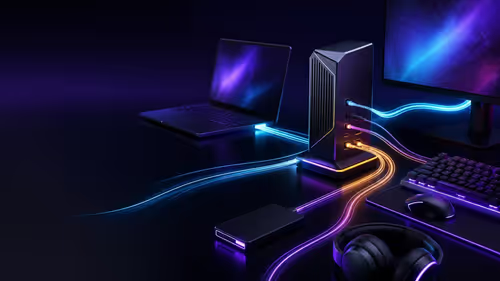
The ROG Flux Charger Dock combines 260W total output, 140W laptop charging and HDMI 2.1. SA buyers should check laptop USB-C limits, display needs and local warranty first.

ASRock's Rock 360 Digital AIO adds a 1.05-inch CPU temperature display, 360mm radiator and simplified wiring. SA builders should check case fit, socket support and local warranty.