Quick Answer
Most FPS drops on a mechanical keyboard setup come from keyboard software, macro services or USB hub conflicts, not from a broken game. Prove it with RTSS, Task Manager and the keyboard app; a keyboard should not move average FPS.
Find The Real Limit
Use one repeatable test scene and record average FPS, 1% lows and frame time. For mechanical keyboard setup, the useful tools are RTSS, Task Manager and the keyboard app. Do not judge by feel alone: 60 fps equals 16.7 ms, 144 fps equals 6.94 ms, and 240 fps equals 4.17 ms.
Checks For This Setup
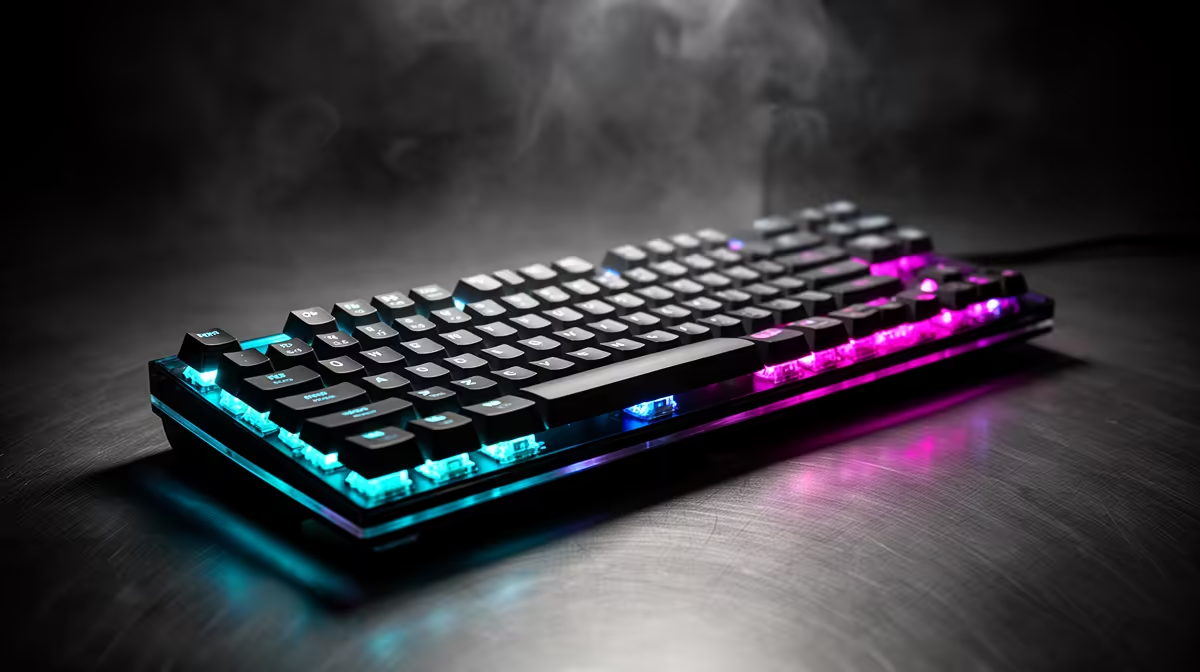
For mechanical keyboard setup, start here: test without the RGB app, use a direct USB port, set 1000Hz polling, and update firmware. Keep mechanical keyboard in mind because its driver, firmware or control software can change how the system behaves after an upgrade. Use broad price context as a sanity check: mechanical keyboards commonly span R700 to R4,000.
If the setup uses online play, separate network stutter from frame pacing. RTSS shows the frame-time graph; ping and jitter tools show the connection. A router change can affect online movement, but it should not reduce local benchmark FPS unless software or USB services changed too.
Settings To Verify
Confirm monitor refresh rate, in-game FPS cap, VRR or FreeSync/G-Sync state, and overlay recording. On GPU builds, check ReBAR, PCIe link width and driver state. On laptops or handhelds, match charger, TDP profile and performance mode to the FPS target.
FAQ
Why did my mechanical keyboard setup start showing FPS drops?
The likely cause is keyboard software, macro services or USB hub conflicts. Use RTSS, Task Manager and the keyboard app so you can see whether the limit is GPU load, CPU scheduling, storage, USB, audio, thermals or network jitter.
Should I replace hardware first?
No. Many fixes cost R0 because they come from drivers, firmware, FPS caps, refresh settings or power profiles. Buy hardware only after the same test proves the part cannot meet target.
What number proves the fix worked?
Watch 1% lows and frame time, not only average FPS. A good fix makes the graph flatter: 144Hz should sit near 6.94 ms and a 60 fps cap near 16.7 ms.
Troubleshooting Check
Save one before-and-after result from RTSS or CapFrameX, then keep the setting that improves 1% lows without reducing image quality more than needed.