


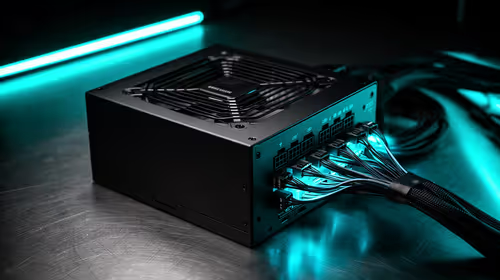
850W PSU Planning for RTX 5090 Builds in SA
850W for RTX 5090 needs a full-build check, not a simple yes. Review GPU guidance, CPU draw, transient load, connectors, PSU quality, and upgrade plans before deciding.
Read moreHow to fix FPS drops Windows 11 DDR5 build issues starts with RAM profiles, BIOS, chipset drivers, and power settings. South African gamers should test EXPO or XMP, dual-channel slots, overlays, thermals, and display refresh.
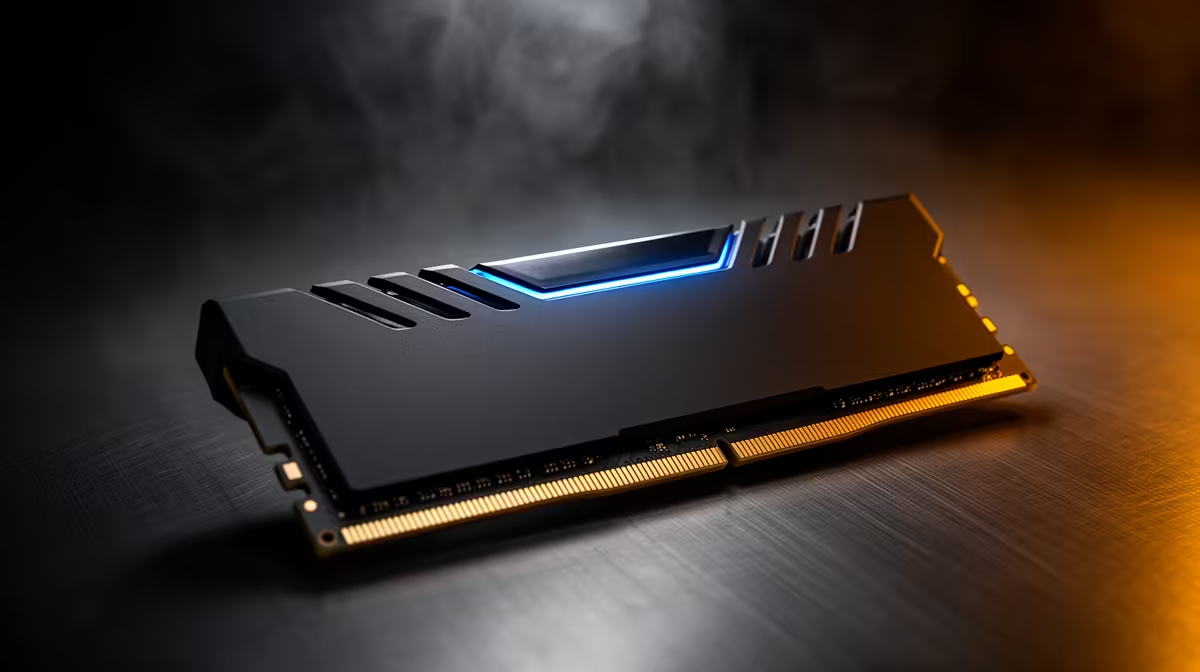
Most FPS drops on a DDR5 build come from BIOS defaults, EXPO training, chipset drivers, ReBAR or PCIe link speed, not from a broken game. Prove it with HWiNFO, BIOS, AMD chipset drivers, RTSS and CapFrameX; DDR5-6000 CL30 is a common AM5 target. On Windows 11, also check Game Mode, HAGS, VBS and vendor power profiles.
Use one repeatable test scene and record average FPS, 1% lows and frame time. For DDR5 build, the useful tools are HWiNFO, BIOS, AMD chipset drivers, RTSS and CapFrameX. Do not judge by feel alone: 60 fps equals 16.7 ms, 144 fps equals 6.94 ms, and 240 fps equals 4.17 ms.
For DDR5 build, start here: update BIOS, enable EXPO after stability checks, confirm ReBAR, verify GPU PCIe width, and reinstall chipset drivers. Keep DDR5-6000 EXPO kit in mind because its driver, firmware or control software can change how the system behaves after an upgrade. Use broad price context as a sanity check: AM5 boards and DDR5 kits can span R2,000 to R10,000.
If the setup uses online play, separate network stutter from frame pacing. RTSS shows the frame-time graph; ping and jitter tools show the connection. A router change can affect online movement, but it should not reduce local benchmark FPS unless software or USB services changed too.
Confirm monitor refresh rate, in-game FPS cap, VRR or FreeSync/G-Sync state, and overlay recording. On GPU builds, check ReBAR, PCIe link width and driver state. On laptops or handhelds, match charger, TDP profile and performance mode to the FPS target.
The likely cause is BIOS defaults, EXPO training, chipset drivers, ReBAR or PCIe link speed. Use HWiNFO, BIOS, AMD chipset drivers, RTSS and CapFrameX so you can see whether the limit is GPU load, CPU scheduling, storage, USB, audio, thermals or network jitter.
No. Many fixes cost R0 because they come from drivers, firmware, FPS caps, refresh settings or power profiles. Buy hardware only after the same test proves the part cannot meet target.
Watch 1% lows and frame time, not only average FPS. A good fix makes the graph flatter: 144Hz should sit near 6.94 ms and a 60 fps cap near 16.7 ms.
Save one before-and-after result from RTSS or CapFrameX, then keep the setting that improves 1% lows without reducing image quality more than needed.
850W for RTX 5090 needs a full-build check, not a simple yes. Review GPU guidance, CPU draw, transient load, connectors, PSU quality, and upgrade plans before deciding.
Read more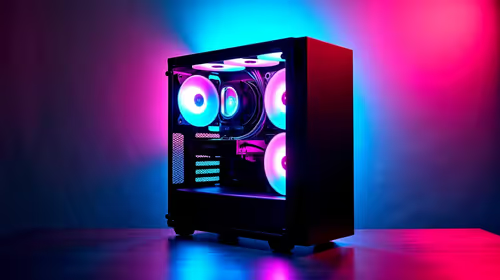
Gaming PC upgrade low FPS usually comes from drivers, BIOS settings, cables, power limits, or poor clocks. This SA-focused checklist helps verify the new hardware before chasing unrelated game tweaks.
Read more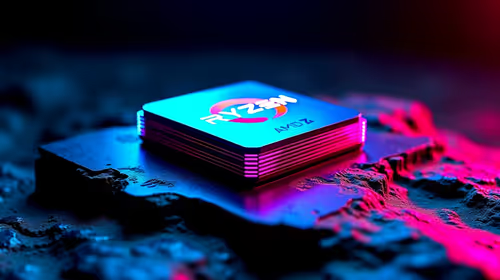
Low fps on a ryzen 7 9800x3d build usually needs a settings, driver, thermal, or power check first. Work through safe SA troubleshooting steps before replacing parts or assuming a full upgrade.
Read more
How to fix low FPS on RX 9070 XT build starts with driver, thermals, Windows power, and in-game graphics checks. Use this South Africa checklist to separate GPU limits from CPU, RAM, storage, display, or background app issues before upgrading.
Read more
1440p is the sweet spot for many Midrand gamers. It improves sharpness over 1080p without the heavy GPU demand of 4K. SA buyers should compare monitor refresh, GPU class, desk size, cable support, and game settings before upgrading.
Read more
240Hz monitors are mainstream in Johannesburg esports because fast panels improve motion clarity and input feel. Gamers should still check CPU speed, GPU output, game settings, cable support, and whether their titles can hold high frames.
Read more
How to fix FPS drops after a RTX 5080 build starts with driver cleanup, BIOS checks, and power testing. Work through SA-friendly checks for chipset drivers, display refresh, PCIe seating, frame caps, and game settings before blaming the GPU.

How to fix fps drops after a steam deck upgrade starts by checking power profile, storage, shader cache, and game settings. Test the Steam Deck upgrade step by step so SA players can separate install issues from normal handheld limits. Keep settings notes.
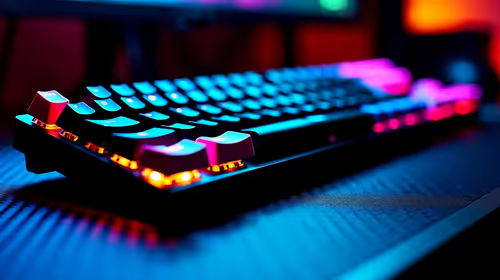
Valorant keyboard choices in SA should match switch feel, layout, latency, key rollover, and desk space. Compare practical setup needs, comfort, reliability, and upgrade room before buying gear for long gaming sessions.
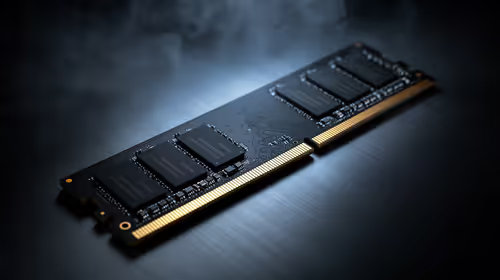
DDR5 build upgrade dead pixel checks should begin with the monitor. Run solid colour tests, compare screenshots, reseat display cables, and review GPU output before blaming RAM changes in an SA gaming PC. Document repeatable proof for support.
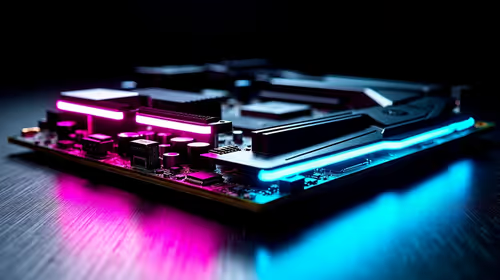
South African builders should prioritise exact CPU support, DDR5, chassis fit and device requirements before premium motherboard breadth. The E-ATX X870E Extreme then adds five M.2 positions, Wi-Fi 7, multi-gig LAN, USB4 Type-C and named AI tools.
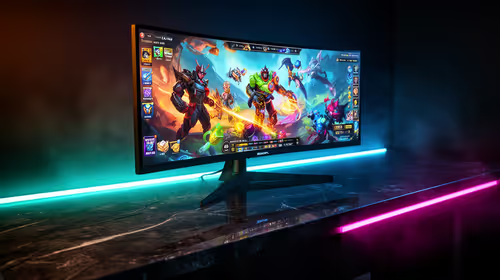
South African buyers considering 32GB GDDR7 should confirm whether their games, AI models or creative projects place real pressure on smaller memory pools. The RTX 5090 costs R73,599, so its capacity must be weighed against the rest of the system budget.
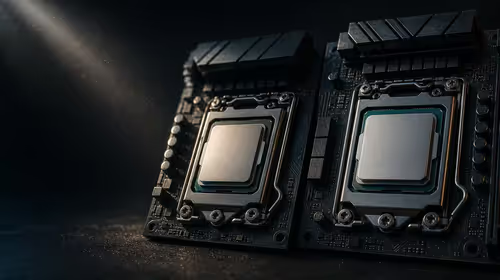
A large cache can reduce costly trips to slower memory in workloads that reuse data effectively, but FPS gains vary by game engine and settings. The Ryzen 7 5800X3D provides 100MB cache alongside eight Zen 3 cores, so representative game tests matter.
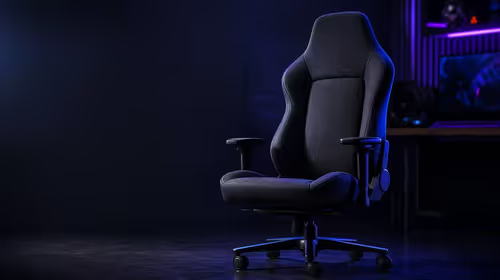
A fabric gaming chair price tier is useful only when the added spend improves fit, cushioning, hardware or daily surface comfort. At R7,899, the HERO TX provides a premium South African benchmark with TX fabric, cold-foam, 4D armrests and stainless-steel levers.
How to fix FPS drops after a RTX 5080 build starts with driver cleanup, BIOS checks, and power testing. Work through SA-friendly checks for chipset drivers, display refresh, PCIe seating, frame caps, and game settings before blaming the GPU.
Valorant keyboard choices in SA should match switch feel, layout, latency, key rollover, and desk space. Compare practical setup needs, comfort, reliability, and upgrade room before buying gear for long gaming sessions.
How to fix fps drops after a steam deck upgrade starts by checking power profile, storage, shader cache, and game settings. Test the Steam Deck upgrade step by step so SA players can separate install issues from normal handheld limits. Keep settings notes.
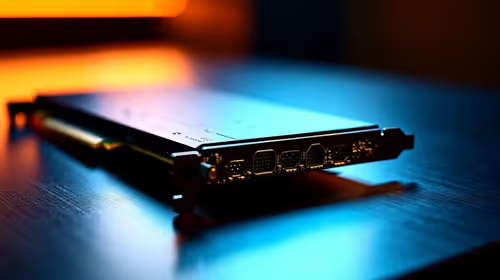
PCIe 5.0 and PCIe 4.0 differ least in couch co-op gaming when the game is already loaded. The real world difference between pcie 5 0 pcie 4 0 is more about load screens, SSD value, and SA build balance.