So you finally pulled the trigger on a new GPU. The RTX 4060 offers incredible 1080p performance and DLSS 3 magic without destroying your ZAR budget. But staring into your open computer case can feel a bit intimidating. Do not stress. Searching for a reliable How to Install RTX 4060 in Your PC: Step-by-Step SA Guide? You are exactly where you need to be. Let us get you gaming.
Preparing Your Rig for the RTX 4060 🔧
Before touching anything, unplug your computer from the wall. Safety always comes first... especially with our unpredictable power grid. Press the power button a few times to drain any leftover juice. Next, ground yourself by touching a bare metal part of your chassis.
If you are still shopping around, browse our massive range of graphics cards to find your ideal match. A severe CPU bottleneck can ruin your new GPU performance. In that case, explore our best gaming PC deals for a perfectly balanced setup.
Removing the Old Hardware
Open your side panel. Locate your current GPU and unplug its power cables. Grab your screwdriver and remove the screws securing the bracket to the case. Now, look closely at the PCIe slot on your motherboard. There is a small plastic latch at the end of the slot. Push it down gently to release the card. Then pull the old unit straight out.
Not keen on tinkering with PC internals at all? We totally get it. You can skip the DIY route entirely. Just grab one of our expertly assembled pre-built PC deals instead.
Seating Your New Graphics Card ✨
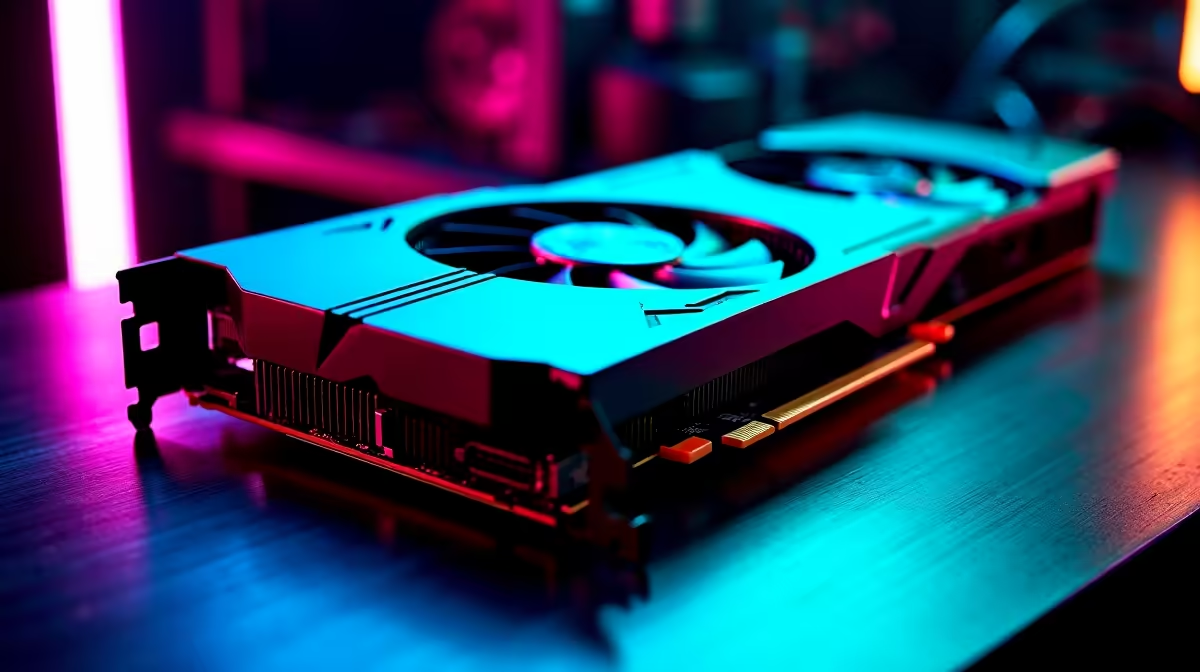
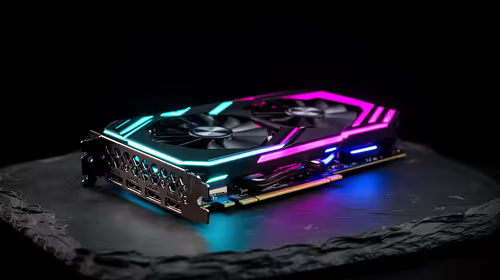
Line up your shiny new RTX 4060 with the empty PCIe slot. Push it down firmly but carefully until you hear a satisfying click. That click means the motherboard latch has locked the card in place. Secure the metal bracket back onto the case with your screws. This ensures the card does not sag over time.
Next, connect the PCIe power cable from your power supply. Most RTX 4060 models require a single 8-pin connector. Make sure it is plugged in all the way. If you travel often and a desktop ties you down, remember that desktop power is now portable. Check out our high-performance laptops for sale in South Africa for gaming on the go.
Cable Management Pro Tip ⚡
Always route your PCIe power cables from below the GPU rather than pulling them tightly from above. This prevents unnecessary strain on the connector and keeps your build looking neat and tidy.
Booting Up and Installing Drivers 🚀
Plug your monitor directly into the new RTX 4060... not the motherboard. Power on your system. Windows will likely use a basic display driver at first. Your screen resolution might look a bit strange. Head over to the official NVIDIA website. Download the latest drivers for your specific card.
Once installed, restart your machine. You are now ready to push high frame rates in your favourite titles. Upgrading your PC is incredibly rewarding. Keep an eye on our weekly specials to score great ZAR savings on your next hardware upgrade.
Ready to Upgrade Your Entire Setup?
Installing a new GPU is just the beginning. If you want maximum power, choice, and value in South Africa, Evetech has you covered. Explore our massive range of PC components and build the ultimate gaming machine today.