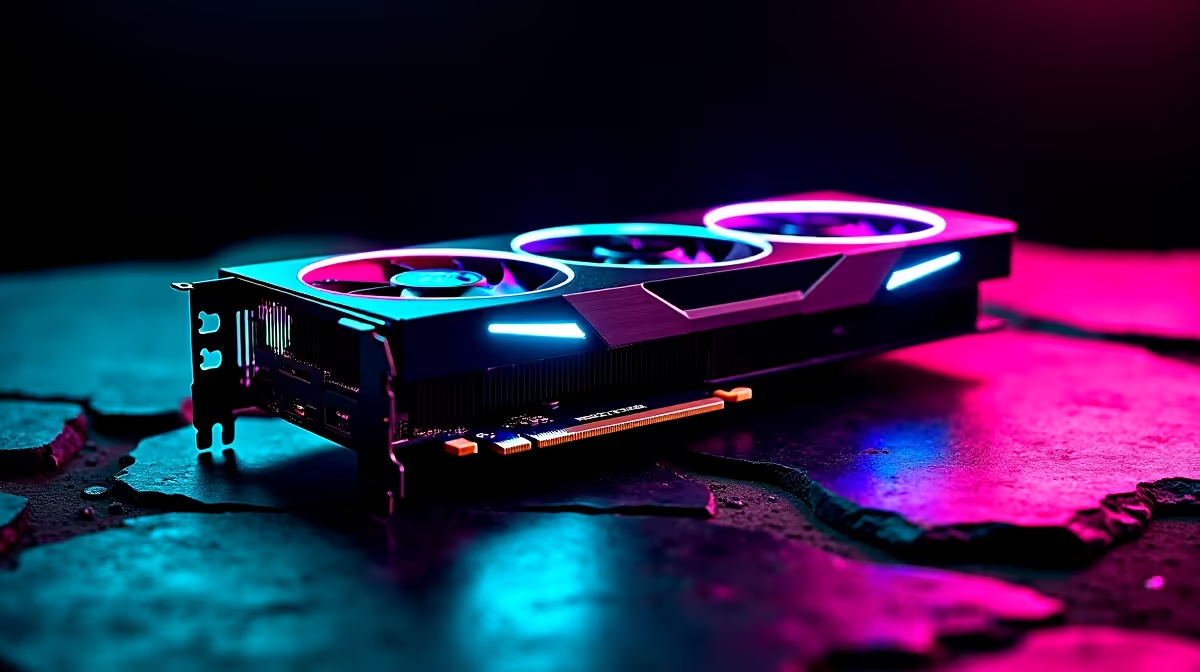
Dropping into World's Edge only to suffer a massive frame drop is a uniquely frustrating experience for South African gamers. With our local servers and high ping realities, you need every hardware advantage you can get. If you want to know how to optimise RTX 5060 Ti for Apex Legends, you are in the right place. Let us squeeze every ounce of performance out of your rig.
Why the RTX 5060 Ti Dominates Apex Legends 🚀
Nvidia's 50-series architecture brings incredible power efficiency and raw rasterisation performance. However, out-of-the-box settings rarely give you the competitive edge you need for high-tier ranked play. Whether you are upgrading your current system with one of the latest graphics cards or looking at complete gaming PC deals, tuning your GPU is essential.
When you spend thousands of ZAR on new hardware, you expect perfection. The RTX 5060 Ti can easily push well over 144 frames per second at 1440p... provided you tweak it correctly. A smooth 144Hz or 240Hz monitor is useless if your system cannot maintain those frame rates during chaotic Bangalore ultimate barrages.
Best In-Game Settings for Maximum Frames
To get the smoothest tracking and lowest input lag, you need to adjust your video settings. Apex Legends is a fast-paced shooter where visual clarity matters more than cinematic shadows. Start by setting your display mode to Full Screen to reduce input delay.
- Texture Streaming Budget: Set this to High (8GB VRAM). The RTX 5060 Ti handles this effortlessly, keeping weapon and character models crisp.
- Anti-Aliasing: TSAA. It smooths out jagged edges, making it easier to spot enemies at a distance without taxing your system.
- Sun Shadow Coverage & Detail: Low. Shadows consume massive GPU resources. Turning them down frees up power for higher frame rates.
- Volumetric Lighting & Spot Shadows: Disabled.
If you prefer gaming on the go, these exact same principles apply to the latest high-performance laptops equipped with 50-series mobile GPUs.
Nvidia Control Panel Pro Tip ⚡
Open your Nvidia Control Panel, navigate to Manage 3D Settings, and set Power Management Mode to 'Prefer Maximum Performance'. This stops your RTX 5060 Ti from downclocking during quiet moments in Apex Legends, ensuring zero stutter when an enemy squad suddenly ambushes you.
System Tweaks to Optimise RTX 5060 Ti for Apex Legends 🔧
Your GPU does not work in isolation. To truly optimise RTX 5060 Ti for Apex Legends, ensure your CPU and RAM are keeping up. Enable XMP in your BIOS to get the full speed of your memory. If your current rig is bottlenecking your shiny new GPU, it might be time to browse our pre-built PC deals to find a balanced system.
Additionally, always use Nvidia Reflex. Set it to 'Enabled + Boost' in the Apex Legends settings menu. This drastically reduces system latency, making your Wingman flicks feel instantaneous.
Finally, keep an eye out for hardware upgrades that fit your budget. South African tech prices fluctuate, so checking daily specials is a smart way to save your hard-earned ZAR while building your dream setup.