


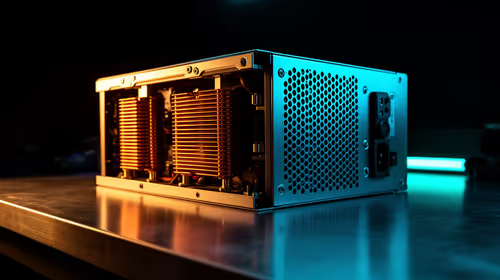
1000W PSU Planning for RTX 5090 Builds in SA
1000W for RTX 5090 needs a full-build check, not a simple yes. Review GPU guidance, CPU draw, transient load, connectors, PSU quality, and upgrade plans before deciding.
Read moreSet up 120Hz by confirming the source, output, cable and monitor input all support the required FHD signal. The R2,499 UPERFECT provides an 18.5in 1920x1080 IPS panel at 120Hz; check USB-C or Mini HDMI connections on the exact devices used.

A high refresh setting depends on an uninterrupted path from the source to the screen. A careful 120Hz portable monitor setup checks the output mode, connector function, cable capability and power arrangement before any menu change is blamed for a missing option.
The 18.5-inch monitor runs at 120Hz in Full HD, while USB-C or Mini HDMI must carry a compatible signal from the user's own source.
At R2,499, UPERFECT's 18.5-inch NxtLED One Plus displays 1920x1080 at 120Hz on IPS. Before using USB-C or Mini HDMI, confirm that the exact screen connection, source output and cable can carry the selected Full HD refresh mode.
Begin with the source device rather than the connector shape. A USB-C socket can serve several functions, while an HDMI source may use a different plug size from the monitor end. Read the hardware instructions for both ends and identify the supported external-display output.
Next, choose a cable for that function. Physical fit proves only that the plugs enter the sockets. It does not show that the cable transports the required video mode or that a USB-C route also handles power.
Keep power on a separate line in the setup notes. Record what powers the screen, what powers the source and whether either device expects another supply. This prevents a video fault from being confused with an incomplete power path.
Once the source requirements are understood, compare input arrangements across Evetech's portable monitor range.
Connect the display and first obtain a stable 1920x1080 picture. Select extend or duplicate mode as needed, then verify scaling and orientation. A clean Full HD baseline gives later refresh-rate testing a known starting point.
Open the operating system's advanced display controls and look for 120Hz. If it is absent, check the chosen port, cable, adapter and source specification one at a time. Do not change several components together, because the successful correction would then remain unclear.
The monitor also has a 14ms response figure. Refresh rate and response describe different parts of motion presentation, so neither should be substituted for the other.
Use content that the owner knows well. Smooth scrolling, a panning scene and a frequently played game each reveal a different part of the experience. Keep the source, resolution and cable constant while switching between supported refresh choices.
A 120Hz panel can show more updates per second than a 60Hz panel when the source delivers them. It does not promise a particular game frame rate, control latency or result. Test the intended application rather than awarding the setup a blanket gaming label.
The NxtLED One Plus includes a paper-like low-glare surface and Omni Visible anti-glare. Hold lighting steady during motion comparisons so reflections do not disguise the change being evaluated.
Once the display runs correctly, note the source model, output port, cable, power arrangement, resolution and refresh selection. This small record shortens setup after travel or a software update.
Label cables that have passed the test. Similar-looking leads can support different functions, and a known video cable removes one variable from future troubleshooting. The Evetech monitor accessories section is useful after the missing cable or support job has been defined.
Recheck wake, reconnection and application behaviour. A portable arrangement is successful only when it returns to the chosen display mode during ordinary use, not merely when it produces one good startup.
Once connected, NxtLED Omni Visible technology keeps the picture readable across changing light and a 178-degree viewing range. The paper-like anti-glare surface uses diffuse reflection to control bright hotspots, while flicker-free output, DC dimming and hardware low-blue-light protection support longer sessions. Its 2.79-pound body, slim three-sided bezel and included protective case make the completed 120Hz setup practical to move rather than merely possible to connect.
Save the successful resolution, refresh and source-port combination as one connection profile. That record makes the next setup faster and prevents a 60Hz fallback from being mistaken for the monitor's full 120Hz mode.
The source output, selected socket, cable or display configuration may limit the available modes. Diagnose each stage independently.
Yes. Establish a stable 1920x1080 image first, then select 120Hz and confirm that familiar content behaves as expected.
No. The device instructions must identify external-display capability, and the chosen cable must carry that signal.
Keep the source model, connection route, power plan, resolution and refresh choice together as a reusable configuration note.
Ready to turn 120Hz from a menu option into a dependable setup? Confirm the whole signal path, then compare portable displays and the exact connection accessories needed through Evetech.
The source output, selected socket, cable or display configuration may limit the available modes. Diagnose each stage independently.
Yes. Establish a stable 1920x1080 image first, then select 120Hz and confirm that familiar content behaves as expected.
No. The device instructions must identify external-display capability, and the chosen cable must carry that signal.
Keep the source model, connection route, power plan, resolution and refresh choice together as a reusable configuration note.
1000W for RTX 5090 needs a full-build check, not a simple yes. Review GPU guidance, CPU draw, transient load, connectors, PSU quality, and upgrade plans before deciding.
Read more
RTX 5080 Super with a 750W PSU is more comfortable than lower wattage if the unit is quality. SA builders should still confirm GPU guidance, CPU draw, connector type, airflow, and upgrade room.
Read more
How to fix FPS drops after a RX 9070 XT starts with driver cleanup, chipset updates, thermals, and power checks. For SA gaming PCs, confirm PCIe seating, monitor refresh, frame caps, and per-game graphics settings before replacing parts.
Read more
How to fix low FPS Windows 11 Wi-Fi 7 issues starts by checking whether the problem is frame rate or network lag. Test ping, drivers, power settings, Ethernet, and game FPS before adjusting visuals.
Read more
AM5 is smart for SA builders because it supports newer Ryzen CPUs, DDR5 memory, and a longer upgrade path. Compare board cost, cooling, gaming needs, and local part availability before choosing your next PC platform.
Read more
AM5 gives Randburg gaming builders a longer upgrade path. For SA buyers, DDR5 support, newer board features, and future CPU options can justify the platform. Weigh board cost, cooler support, BIOS maturity, and upgrade timing before choosing.
Read more
RTX 5090 on a 550W PSU leaves almost no practical room for OC plans. Treat the setup as constrained, with CPU draw, power spikes, cable quality, thermals, and stability checks more important than chasing extra clocks.

FPS drops on a Ryzen 9 9950X3D build often have a fixable cause. Check settings, drivers, thermals, background tasks, network conditions, and bottlenecks before assuming a part must be replaced.

The difference between PCIe 5.0 and PCIe 4.0 for SA gamers is mostly bandwidth headroom. Compare GPU slot needs, NVMe speed, motherboard support, and upgrade timing before paying extra for a newer platform.

Gaming PC stuck pixel checks in South Africa should confirm the monitor fault first. Use colour tests, screenshot comparison, cable swaps, display menu checks, and clear photos before deciding on support.

AMD's current driver now lists a Radeon RX 9050 4GB, while product coverage details a narrowed memory system. SA buyers should weigh the low VRAM ceiling against current local Radeon options.

Samsung Display has demonstrated a 16-inch 2.5K OLED laptop panel running at 300Hz. SA buyers should wait for a named notebook, full panel specifications and a local price before planning an upgrade.

Microsoft says some Windows 11 game crashes after recent updates are linked to RGB-related drivers. Affected SA gamers should confirm the update and driver before using the published registry workaround.

Thermalright's Fan Frame Vision-1 adds a 640x172 status screen to a standard 120mm fan. SA builders should check clearance, USB routing and local support before treating it as an easy upgrade.

Shokz OpenFit Air 2 earbuds weigh 7.2g each and use a redesigned dual-driver open-ear layout. SA buyers should choose them for comfort and awareness, not maximum isolation.

A fake 113GB GTA VI ISO reportedly used empty padding around a small malware payload. SA gamers should delete unofficial builds, keep Windows security active and wait for official channels.
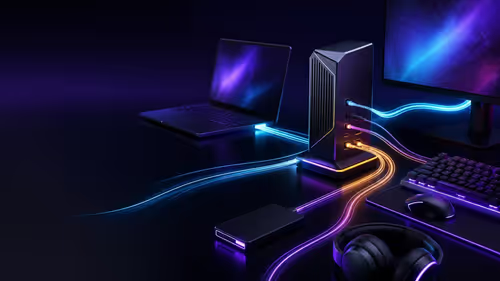
The ROG Flux Charger Dock combines 260W total output, 140W laptop charging and HDMI 2.1. SA buyers should check laptop USB-C limits, display needs and local warranty first.

ASRock's Rock 360 Digital AIO adds a 1.05-inch CPU temperature display, 360mm radiator and simplified wiring. SA builders should check case fit, socket support and local warranty.