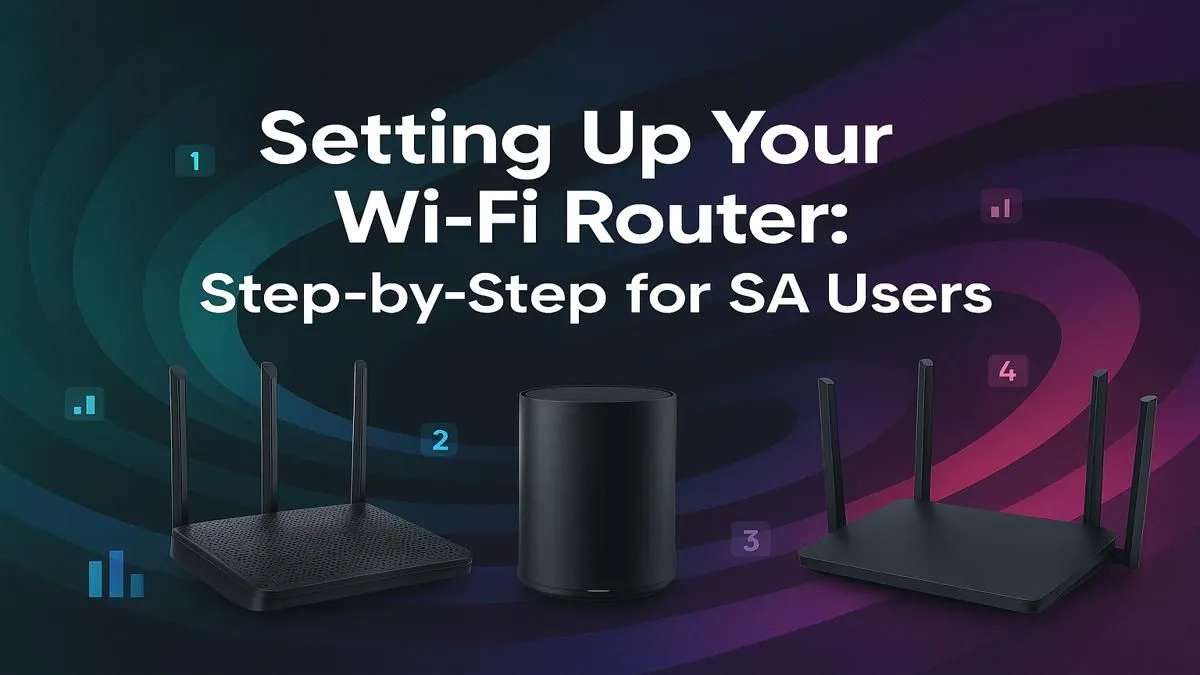
So, your new fibre line is finally active, or maybe you've just unboxed a shiny new router to escape that laggy mess you’ve been battling. Awesome! But now comes the slightly daunting part: the setup. Don't stress. Knowing how to set up a Wi-Fi router in South Africa is simpler than you think. This guide will get you from box to blazing-fast internet for your gaming rig, smart TV, and everything in between. 🇿🇦
First Steps: What You'll Need
Before you even plug anything in, let's get our ducks in a row. A successful Wi-Fi router setup starts with having the right info and gear on hand.
You'll typically need:
- Your new router and its power adapter.
- The Ethernet cables included in the box.
- Your ISP login details (often a username and password they provided via email or SMS).
For high-speed connections, ensuring you have one of the latest dedicated fibre routers is crucial to avoid bottlenecking that precious bandwidth you're paying for.
Your Step-by-Step Router Setup Guide
Right, let's get this done. We'll break down the process into a few simple stages. No complex jargon, just a straightforward path to getting online.
Step 1: Get Connected Physically 🔧
This is the easiest part.
- Power Up: Plug your new router into a wall socket. Give it a minute or two to boot up fully. You'll see the lights blink and then stabilise.
- Connect to the Source: Take one Ethernet cable and plug it into your Fibre box (often called an ONT) or your ADSL modem. Plug the other end into the router's port labelled "WAN" or "Internet". This is usually a different colour from the others.
- Hardwire Your PC (Temporarily): For the initial setup, it's best to connect your computer directly to the router using another Ethernet cable. Plug it into any of the ports labelled "LAN".
Step 2: Access the Router's Admin Panel
Now we need to talk to the router. Open a web browser (like Chrome or Firefox) on your connected computer.
- Find the Address: Type the router’s default IP address into the address bar. This is usually
192.168.0.1 or 192.168.1.1. Check the sticker on the bottom of your router for the exact address, username, and password. - Log In: Enter the default admin username and password.
Step 3: The Configuration Wizard ✨
Most modern wireless routers have a quick setup wizard that launches automatically.
- Enter ISP Details: This is where you'll need those login details from your Internet Service Provider. Select the connection type (usually PPPoE for fibre in SA) and enter your username and password.
- Set Your Wi-Fi Name (SSID): Change the default network name to something you'll recognise.
- Create a Strong Password: This is vital! Use a strong, unique password (a mix of letters, numbers, and symbols) to keep your network secure.
Wi-Fi Pro Tip 📶
If you live in a busy complex or neighbourhood, your Wi-Fi might be slow due to channel interference. Log into your router's advanced settings and manually change the 2.4GHz Wi-Fi channel to 1, 6, or 11. These channels don't overlap, often giving you a cleaner, more stable signal.
Optimising Your Wi-Fi Signal
Getting connected is one thing; getting a great signal everywhere is another. If you find certain rooms have weak or no Wi-Fi, you might have a "dead spot." Often, simply repositioning your router to a central, elevated location can help. If that doesn't work, powerful wireless range extenders are an affordable way to push that signal into every corner of your home.
For older PCs or motherboards without built-in Wi-Fi, a simple USB or PCIe card is all you need. You can find a great selection of wireless adapters to get any machine connected in minutes.
And that's it! Your basic router setup in South Africa is complete. Your devices should now be able to see and connect to your new Wi-Fi network. For a truly seamless home network, it's about having the right components working together, creating a complete wireless networking ecosystem that banishes lag for good.
Ready for Uninterrupted Connectivity?
A solid router is the heart of your home network. If your current one is causing more frustration than fun, it's time for an upgrade. Explore our massive range of wireless networking deals and find the perfect hardware to conquer your world.