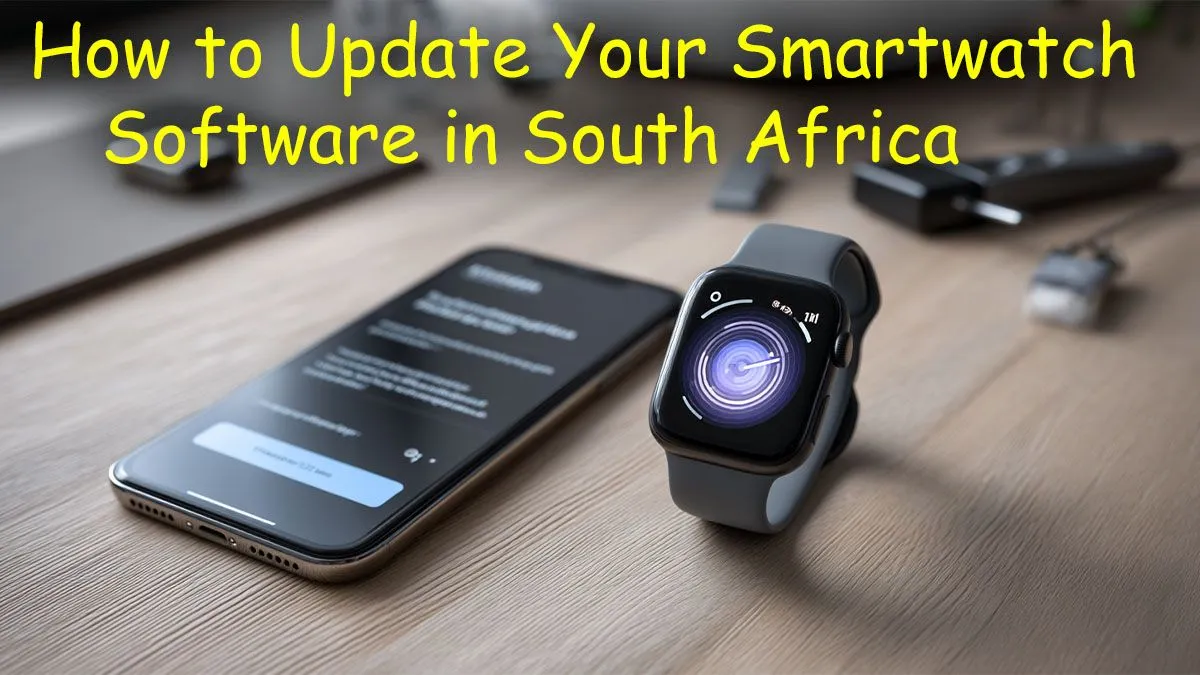
Is your smartwatch feeling a bit sluggish, or are you missing out on the latest features your mates are showing off? Keeping your wearable's software fresh is key to unlocking its full potential. For tech lovers across Mzansi, knowing how to update smartwatch software in South Africa is a simple skill that pays off big time in performance and security. This quick guide will walk you through the process, ensuring your wrist tech stays sharp. 🚀
Why You Should Update Your Smartwatch Software
Ignoring those update notifications? You might want to reconsider. Regularly updating your smartwatch software isn't just about getting a new watch face. It’s crucial for three main reasons:
- Enhanced Security: Updates often patch security vulnerabilities, protecting your personal data from potential threats.
- New Features & Fixes: Get access to improved health tracking, better app integrations, and smoother performance. Manufacturers are always squashing bugs and optimising battery life.
- Better Performance: A fresh software install can make your device feel snappier and more responsive, just like when you first unboxed it. The tech packed into the latest smartwatches truly shines with the most current OS.
Your Simple Step-by-Step Update Guide
While the exact steps can vary slightly between brands like Apple, Samsung, or Huawei, the core process to update smartwatch software is remarkably similar.
1. Check Your Connection & Battery
First things first, make sure your watch has a strong connection to your smartphone via Bluetooth. It’s also vital that both your phone and smartwatch are connected to a stable Wi-Fi network. Most importantly, ensure your watch is charged to at least 50%... you don’t want it dying mid-update!
2. Open the Companion App
On your smartphone, open the app you use to manage your watch (e.g., the Galaxy Wearable app for Samsung or the Watch app for Apple). This is your command centre. Brands like Promate also use dedicated apps to manage their devices and push new firmware.
3. Find the Software Update Menu
Navigate to your watch settings within the app. Look for an option labelled "Watch software update," "General > Software Update," or something similar. Tap it, and the app will check the manufacturer's servers for a new version.
4. Download and Install
If an update is available, you’ll see a prompt to download it. Tap "Download and install" and follow the on-screen instructions. The process can take a few minutes, during which your watch might restart. Just be patient and let it do its thing. ✨
Save Your Data! ⚡
In South Africa, mobile data is precious. Always try to perform software updates over a Wi-Fi connection. You can usually set your watch to download updates automatically over Wi-Fi in the companion app's settings. This saves your data for when you're actually on the move.
What If My Watch Won't Update?
Sometimes, older models stop receiving official support from the manufacturer. If you've tried everything and your device still won't update, it might be a sign that it has reached its end-of-life. The good news is that technology has become incredibly accessible, and you can find fantastic affordable smartwatches under R1000 that will get you all the modern features and ongoing software support.
Keeping your tech current is easy. A quick check for updates every month or so ensures you’re getting the best, most secure experience from your wearable.
Ready for an Upgrade?
Keeping your software fresh is great, but sometimes new hardware is the only way to get the latest features. From advanced fitness tracking to seamless notifications, a modern smartwatch can revolutionise your daily routine. Explore our huge range of smartwatches and find the perfect tech for your wrist.