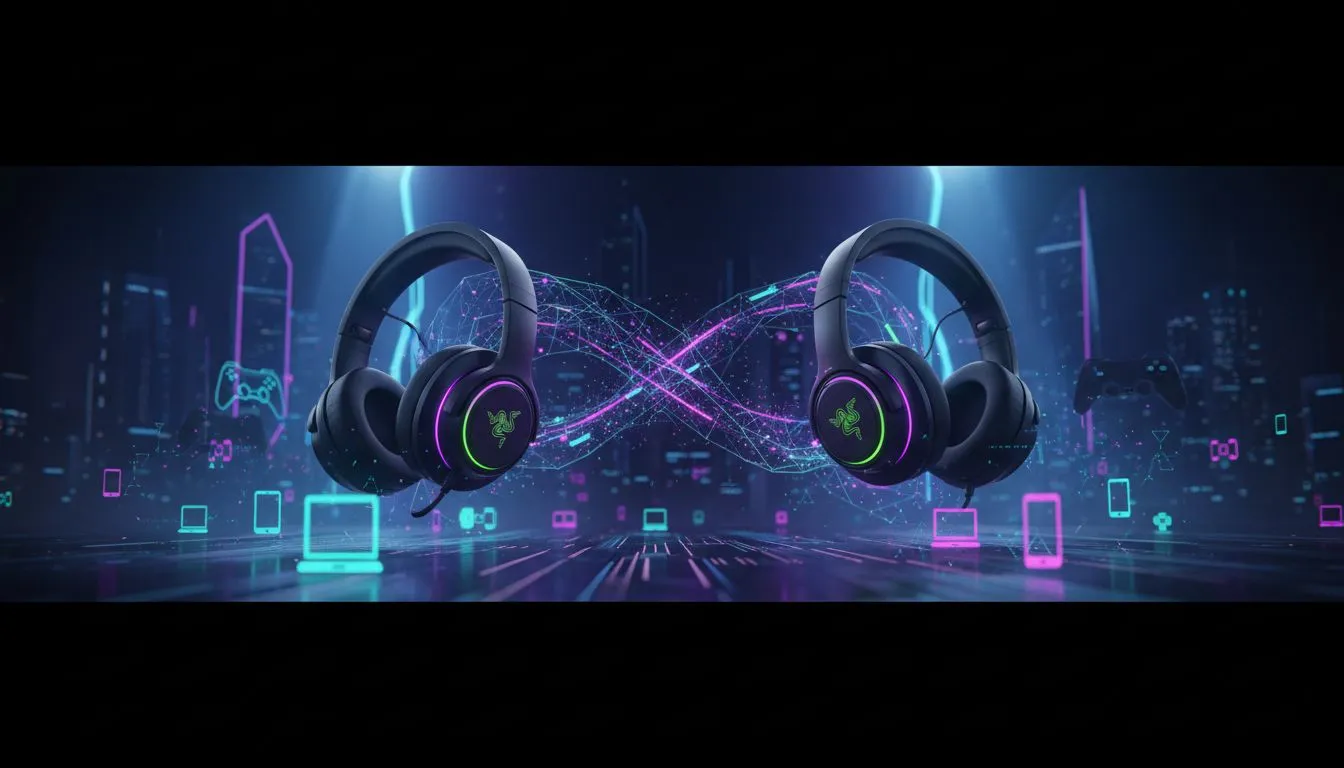
Tired of juggling headsets? You're deep in a competitive match on your PC, and your phone rings. The frantic scramble begins… rip off your gaming headset, find your phone, and miss the call. What if you could answer it with a simple tap, right on your headset, and have your game audio waiting for you? This isn't science fiction; it's how you can pair the Razer Barracuda X Chroma with multiple devices for ultimate convenience. 🎧
Unpacking Razer's SmartSwitch Dual Wireless
The secret sauce behind the Barracuda X's versatility is Razer's SmartSwitch Dual Wireless technology. This clever feature lets the headset connect to two devices simultaneously: one via its high-speed 2.4GHz USB-C dongle (perfect for your PC, PlayStation, or Switch) and another via Bluetooth (your smartphone). It's designed to manage both connections intelligently, so you don't have to.
This means you can get lag-free, high-fidelity audio from your game and still be connected to your phone for calls or music. The Razer Barracuda X Chroma is built from the ground up to eliminate audio juggling for good.
Your Guide to Seamless Multi-Device Pairing
Getting set up is refreshingly simple. There are no complex drivers or software hoops to jump through. Here’s how you can connect your Razer Barracuda X Chroma to multiple devices in just a couple of minutes.
Step 1: The 2.4GHz Connection (PC/Console)
This is your primary gaming connection. Simply plug the included Razer HyperSpeed Wireless USB-C dongle into a free port on your PC, PS5, or Nintendo Switch. The headset should connect automatically. That's it… you're ready to game.
Step 2: The Bluetooth Connection (Mobile)
Now, let's get your phone in on the action.
- With the headset on, press and hold the SmartSwitch button for a few seconds until you hear the pairing prompt.
- Open the Bluetooth settings on your smartphone.
- Select "Razer Barracuda X" from the list of available devices.
You're now connected to both devices at once! If you're exploring other options, you can see how this feature compares across Razer's lineup of headphones.
Optimise Your Audio ⚡
Download the Razer Audio app on your smartphone. It allows you to customise your EQ settings, check the battery status, enable a 'Do Not Disturb' mode to block incoming calls while gaming, and update the headset's firmware. It's a powerful tool to get the most out of your Barracuda X.
Switching Between Devices Like a Pro
The beauty of SmartSwitch is how it handles audio automatically. If you're listening to music on your PC and a call comes in on your phone, the headset will automatically switch to the call. When you hang up, it switches right back. 🚀
Need to switch manually? Just double-tap the SmartSwitch button to cycle between the 2.4GHz and Bluetooth audio sources. This is perfect for quickly checking a voice note on WhatsApp or listening to a short video without interrupting your game flow. This level of convenience is something to look for across our full range of gaming headsets, but the Barracuda X nails it.
Ready for Audio Freedom?
Stop swapping and start switching. The ability to pair the Razer Barracuda X Chroma with multiple devices seamlessly is a true quality-of-life upgrade for any South African gamer. Explore our massive range of gaming headsets and find the perfect audio solution for your setup today.