


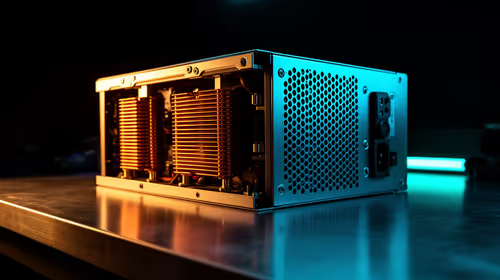
1000W PSU Planning for RTX 5090 Builds in SA
1000W for RTX 5090 needs a full-build check, not a simple yes. Review GPU guidance, CPU draw, transient load, connectors, PSU quality, and upgrade plans before deciding.
Read moreRegular ping spikes every few minutes usually trace back to background app updates, Wi-Fi channel scanning, or another device suddenly grabbing bandwidth. Evetech's gaming routers include traffic prioritisation that stops household culprits interrupting your match.
A spike every few minutes points to a repeating event. Common causes include cloud sync, game-launcher checks, another device starting an upload, Wi-Fi interference or a mesh client roaming between access points.
Run Ethernet and ping the router, first ISP hop and game at the same time. Note the clock when the spike appears. Check device traffic logs and scheduled applications at that minute.
If the router ping jumps, stay inside the home. If only the game route jumps, inspect the ISP path and service status. If the spike appears under household load, queue management can help.
Review networking products and best-selling accessories after the repeating cause is identified.
Record ten minutes with exact timestamps. Write the interval between spikes. A regular five-minute event suggests software or network maintenance more than random congestion.
Open the router traffic view if it has one. Watch for a device that suddenly uploads. Check launchers, photo backup, operating-system updates and security scans.
Use Ethernet for the same ten-minute window. If the spikes stop, test Wi-Fi near the main access point. Disable an extender or mesh roaming for one controlled run.
Automatic channel selection can interrupt some networks, while interference can appear when neighbours become active. Check the router log before blaming channel scanning.
Start an upload on another device. If ping rises at once, limited upstream capacity or unmanaged queues are involved.
Configure traffic management with measured line speeds and repeat. Prioritise the gaming device or latency-sensitive class, then confirm that other household use remains acceptable.
An idle smart device sends little traffic. A camera uploading clips or television starting a 4K stream can matter. Identify the actual bytes rather than banning every connected device.
Streaming mostly uses download capacity; uploads from cameras and backup can cause larger queue delay on an asymmetric line.
Game launchers can poll for updates or verify files. Windows and console updates can start after the device wakes. Voice chat, capture uploads and cloud saves also share the line.
Open the device's network monitor and sort by transfer rate. Disable one scheduled process for a test, then restore it if the spike remains.
Thermal throttling and storage stalls can look like lag. Keep a frame-time graph beside the network graph. If frame time jumps while ping stays flat, troubleshoot the machine rather than the router.
Restarting can hide the schedule for a few minutes, so run long enough for the pattern to return.
Scheduled sync, updates, uploads, Wi-Fi roaming and interference are strong first checks.
Yes when the line or router queues fill, though a steady stream may create constant pressure rather than periodic spikes.
It can control local queues under load. It cannot fix an unstable ISP route or game server.
Timestamp ten minutes of spikes, match them to device traffic, and change one scheduled app or network setting at a time.
Scheduled sync, updates, uploads, Wi-Fi roaming and interference are strong first checks.
Yes when the line or router queues fill, though a steady stream may create constant pressure rather than periodic spikes.
It can control local queues under load. It cannot fix an unstable ISP route or game server.
1000W for RTX 5090 needs a full-build check, not a simple yes. Review GPU guidance, CPU draw, transient load, connectors, PSU quality, and upgrade plans before deciding.
Read more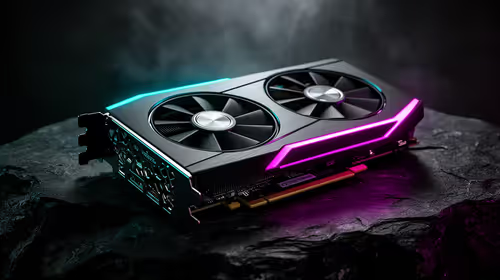
RTX 5080 Super with a 750W PSU is more comfortable than lower wattage if the unit is quality. SA builders should still confirm GPU guidance, CPU draw, connector type, airflow, and upgrade room.
Read more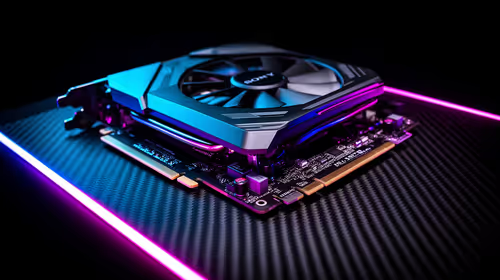
How to fix FPS drops after a RX 9070 XT starts with driver cleanup, chipset updates, thermals, and power checks. For SA gaming PCs, confirm PCIe seating, monitor refresh, frame caps, and per-game graphics settings before replacing parts.
Read more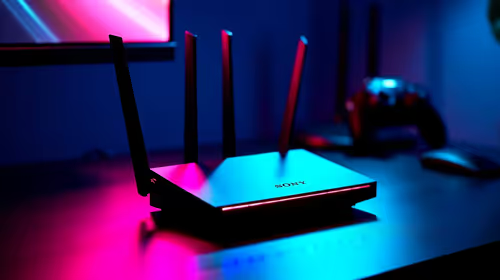
How to fix low FPS Windows 11 Wi-Fi 7 issues starts by checking whether the problem is frame rate or network lag. Test ping, drivers, power settings, Ethernet, and game FPS before adjusting visuals.
Read more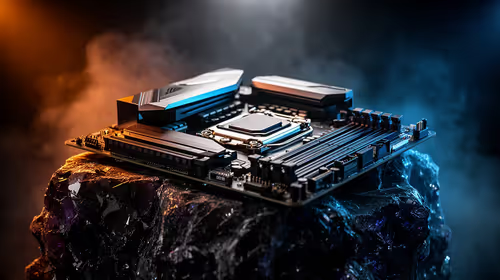
AM5 is smart for SA builders because it supports newer Ryzen CPUs, DDR5 memory, and a longer upgrade path. Compare board cost, cooling, gaming needs, and local part availability before choosing your next PC platform.
Read more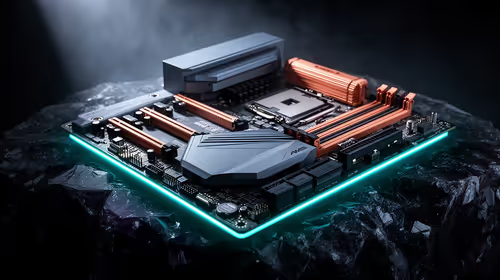
AM5 gives Randburg gaming builders a longer upgrade path. For SA buyers, DDR5 support, newer board features, and future CPU options can justify the platform. Weigh board cost, cooler support, BIOS maturity, and upgrade timing before choosing.
Read more
RTX 5090 on a 550W PSU leaves almost no practical room for OC plans. Treat the setup as constrained, with CPU draw, power spikes, cable quality, thermals, and stability checks more important than chasing extra clocks.

FPS drops on a Ryzen 9 9950X3D build often have a fixable cause. Check settings, drivers, thermals, background tasks, network conditions, and bottlenecks before assuming a part must be replaced.

The difference between PCIe 5.0 and PCIe 4.0 for SA gamers is mostly bandwidth headroom. Compare GPU slot needs, NVMe speed, motherboard support, and upgrade timing before paying extra for a newer platform.

Gaming PC stuck pixel checks in South Africa should confirm the monitor fault first. Use colour tests, screenshot comparison, cable swaps, display menu checks, and clear photos before deciding on support.

AMD's current driver now lists a Radeon RX 9050 4GB, while product coverage details a narrowed memory system. SA buyers should weigh the low VRAM ceiling against current local Radeon options.

Samsung Display has demonstrated a 16-inch 2.5K OLED laptop panel running at 300Hz. SA buyers should wait for a named notebook, full panel specifications and a local price before planning an upgrade.

Microsoft says some Windows 11 game crashes after recent updates are linked to RGB-related drivers. Affected SA gamers should confirm the update and driver before using the published registry workaround.

Thermalright's Fan Frame Vision-1 adds a 640x172 status screen to a standard 120mm fan. SA builders should check clearance, USB routing and local support before treating it as an easy upgrade.

Shokz OpenFit Air 2 earbuds weigh 7.2g each and use a redesigned dual-driver open-ear layout. SA buyers should choose them for comfort and awareness, not maximum isolation.

A fake 113GB GTA VI ISO reportedly used empty padding around a small malware payload. SA gamers should delete unofficial builds, keep Windows security active and wait for official channels.
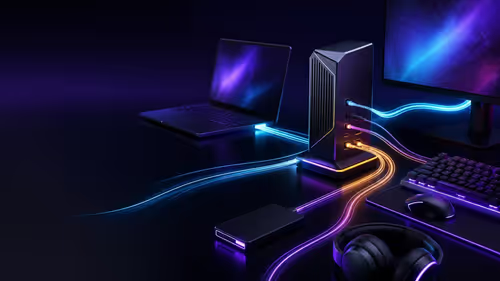
The ROG Flux Charger Dock combines 260W total output, 140W laptop charging and HDMI 2.1. SA buyers should check laptop USB-C limits, display needs and local warranty first.

ASRock's Rock 360 Digital AIO adds a 1.05-inch CPU temperature display, 360mm radiator and simplified wiring. SA builders should check case fit, socket support and local warranty.