Large measurement files can make an entry laptop feel slow at the exact moment a deadline gets close. A quantity surveying laptop needs enough processor and memory headroom for WinQS, CostX and the rest of your course workload.
Quick Answer
WinQS and CostX can turn quantity-surveying work into a heavier laptop task than basic first-year documents suggest. Aim for a current Windows laptop with a strong mid-range processor, 16GB memory and a 512GB SSD when the budget permits. Dedicated graphics may help with drawing-heavy or 3D workflows, but the required CostX edition, drawing formats and other course applications decide. Check the current system requirements and ask the department which version and data sets you will use before buying.
What makes QS work feel slow
Measurement files can combine drawings, dimensions, rates and reports. Opening several plans beside spreadsheets and a browser consumes memory. Eight gigabytes may launch the software and still feel cramped once the full workflow is open.
Processor speed affects calculations, imports and general responsiveness. A modern Ryzen 5 or Core i5 class chip gives more breathing room than the lowest entry processors. Sixteen gigabytes reduces the fight between the measurement application and everything around it.
Storage speed matters when projects contain many drawings. Use an SSD and keep free space for temporary files and updates. A 512GB drive is a sound starting point, with backed-up archives moved off the active machine.
Treat graphics as a course question
Two-dimensional take-off work can run without a high-end GPU, while large drawings, 3D models and related BIM tools can raise the graphics demand. The laptop should meet the published requirement for the exact CostX release and any viewer the course names.
A larger screen helps you see dimensions and columns, though it adds weight. A 15.6-inch display can be a useful balance. At a desk, an external monitor often improves measurement work more than carrying a huge laptop to every lecture.
Choose from a verified floor
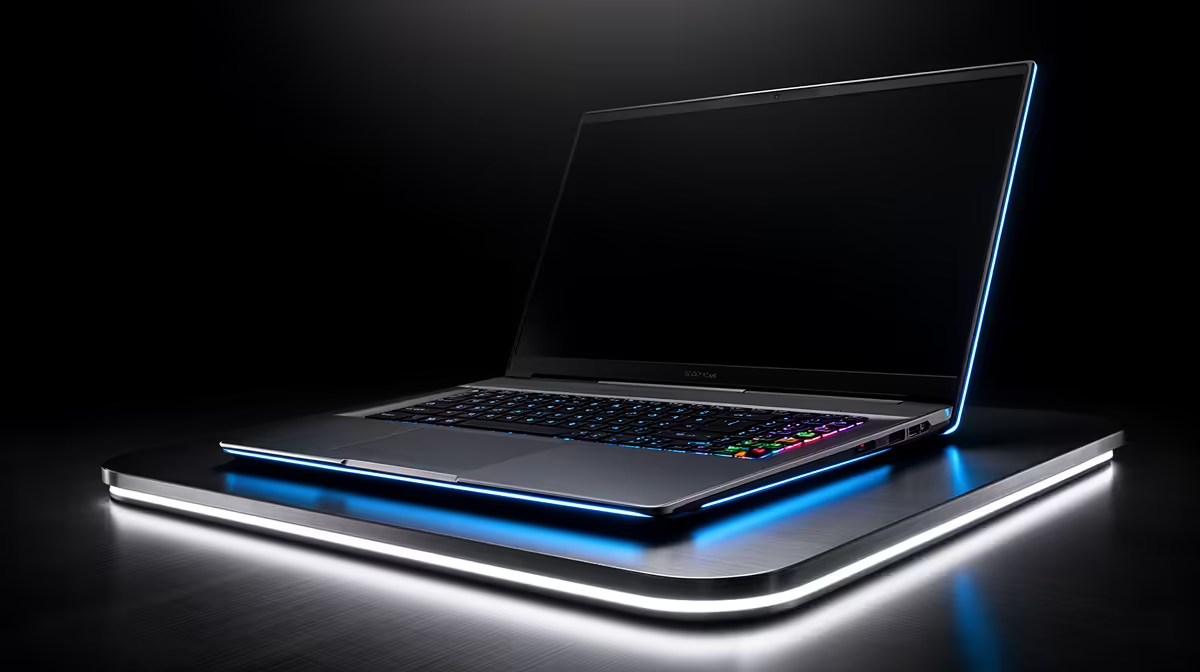
At R9,499 as of July 2026, the Ninkear A15 Pro paired a Ryzen 5 5500U processor with 16GB memory and a 512GB SSD. It is a named performance reference, subject to Windows and application compatibility for the software your institution supplies.
Use current laptop favourites to compare mainstream configurations. Check the gaming-capable laptop deals when the course confirms a dedicated-GPU need.
Test the full workflow
Ask a senior student or lecturer for the size of a representative practice project without sharing protected course files. Open the measurement software, spreadsheet and sample drawing together. Watch memory use and test an export.
Confirm how the software licence is issued and whether it supports the laptop's Windows edition. Keep the installer and licence instructions in your backed-up course folder. A capable machine still needs the approved application setup.
FAQ
Is 8GB enough for WinQS?
It can cover lighter work, but 16GB gives more room for plans, spreadsheets and browser research running together. Use the version's published requirement as the floor.
Does CostX require dedicated graphics?
The workload and release decide. Drawing-heavy, 3D or BIM-linked tasks can benefit, so confirm the course files and current vendor guidance.
Which upgrade matters first?
Move from cramped memory to 16GB before chasing premium graphics without a course need. A capable processor and SSD should support it.
Confirm your WinQS and CostX versions, then compare a 16GB Windows laptop against one representative QS project.