Reduce Keyboard and Fan Noise in Meetings (Windows Tips)
We’ve all been there. You are in a high-stakes meeting, but your mechanical keyboard sounds like a hailstorm on a corrugated iron roof. Between that and your gaming PC fans ramping up to deal with the South African summer heat, your audio quality takes a massive hit. Learning how to reduce keyboard and fan noise in meetings is essential for any professional gamer or remote worker looking to maintain a polished, distraction-free presence online.
Optimise Windows Sound Settings for Better Clarity
Windows 11 has introduced several built-in features to help clean up your audio before it even reaches your colleagues. Under the Sound settings in your System menu, you can find "Voice Clarity" on supported devices. This feature uses low-complexity AI models to suppress echo and limit background noise. If you are using a dedicated microphone, ensure the input volume is not peaking, as this often makes background hums like PC fans sound much more prominent than they actually are.
For those using specific hardware, the Razer Barracuda X Chroma Wireless Headset is an excellent choice because its cardioid microphone is naturally designed to pick up sound from the front while ignoring the clatter of keys behind it.
Use Software Suppression to Kill Background Hum
If Windows settings aren't enough, third-party software is your next line of defence. For users with NVIDIA RTX graphics cards, NVIDIA Broadcast is a literal lifesaver. It uses AI to completely strip out the sound of clicking switches or whirring fans. Even if you are sitting right next to an industrial-sized desk fan, your voice remains crisp.
Apps like Teams and Zoom also have their own "High" noise suppression modes. To reduce keyboard and fan noise in meetings effectively, navigate to the "Devices" tab in your meeting app and set noise suppression to high. This is particularly useful if you haven't yet invested in professional-grade Razer headphones and headsets that often come with these features baked into the software suite.
Meeting Etiquette Pro Tip ⚡
Use the 'Push to Talk' feature in apps like Discord or Zoom. By keeping your mic muted until you hold down a specific key, you ensure that no one hears your PC fans or keyboard typing while others are speaking. It is the simplest way to maintain professional audio levels without spending a cent.
Physical Adjustments for a Quieter Setup
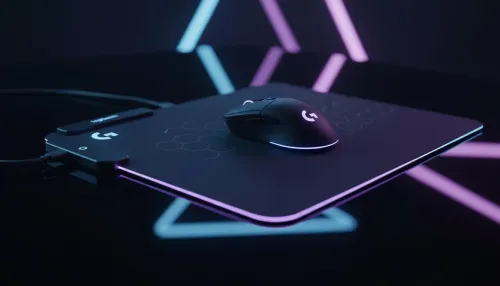
Sometimes the best way to reduce keyboard and fan noise in meetings is to address the source. Placing a large desk mat under your keyboard can dampen the vibrations that travel through your desk and into your microphone stand. If your PC fans are screaming, it might be time for a quick clean with compressed air or an adjustment of your fan curves in the BIOS to ensure they don't spike during simple video calls.
Upgrading to a dedicated audio solution often solves these issues permanently. Exploring a range of premium headphones and headsets will show you that many modern options include noise-cancelling microphones that filter out frequencies associated with fans and mechanical clicks... saving you the embarrassment of being "that noisy caller" in the group chat. 🚀
Ready to Find Your Perfect Match?
The Mac vs Windows debate is complex, but for maximum power, choice, and value in South Africa, Windows is hard to beat. Explore our massive range of laptop specials and find the perfect machine to conquer your world.