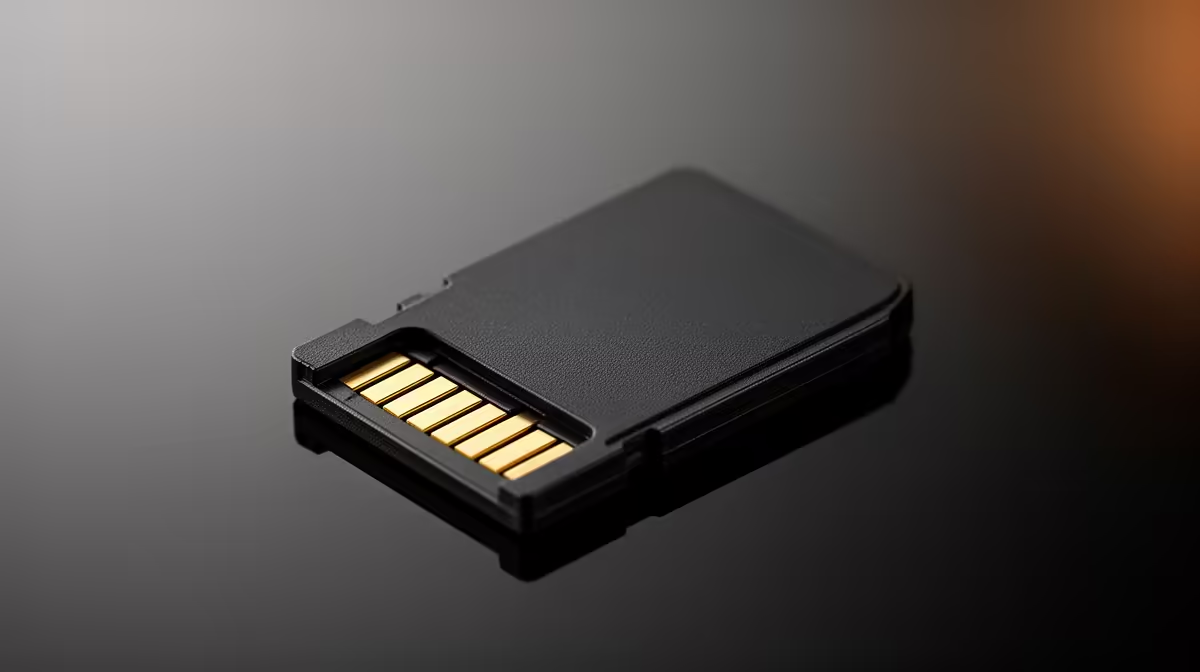
You slot the SD card into the printer, scroll to the file list, and find either a blank screen or a card the machine flatly refuses to read. Frustrating, but predictable. An SD card not recognised on your 3D printer is almost always a file-system mismatch rather than a dead card, because most printer controllers insist on FAT32 formatting, cards no larger than 32GB, and short filenames in the old 8.3 style.
Quick Answer
Format the card as FAT32, use a card of 32GB or smaller, and keep filenames short in the 8.3 pattern, eight characters plus a three-character extension. Cards formatted as exFAT, larger than 32GB, or carrying long modern filenames are the usual reason a printer shows no files or rejects the card outright.
Why FAT32 and 32GB matter
The small controller board inside most FDM printers runs lightweight firmware with a basic file-system reader. That reader understands FAT32 and little else. When you buy a card today it often ships formatted as exFAT, especially anything 64GB or larger, and exFAT is exactly the format these controllers cannot parse. The card mounts fine on your computer but appears empty or unreadable to the printer.
The 32GB ceiling follows from the same limitation. Windows will not natively format a card larger than 32GB as FAT32 through the standard dialog, and many printer readers struggle with larger capacities regardless. The reliable approach is a card of 32GB or less, deliberately formatted to FAT32. A small fast card is plenty, since a single sliced model is rarely more than a few megabytes.
The 8.3 filename rule
Even with the right format, a long filename can trip the printer. Older controllers expect the 8.3 convention: up to eight characters for the name, a dot, then a three-character extension, like CALCUBE.GCODE shortened to CALCUBE.GCO if needed. A name your slicer produces automatically, full of brackets, spaces, and a long description, can confuse the reader so the file does not show up or will not load.
The fix is simple. Rename the sliced file to something short and plain before copying it to the card, avoid spaces and special characters, and stick to letters and numbers. If a print refuses to start despite the card reading, an over-long or oddly-named file is a prime suspect.
A reliable formatting routine
Work through it in order. Back up anything on the card first, since formatting erases it. Format the card as FAT32, using a dedicated formatting tool if your operating system will not offer FAT32 for the capacity. Copy your sliced .gcode file across with a short 8.3-style name. Eject safely, then try it in the printer. If the card now reads, the format or the filename was the issue all along.
If a card still fails after all that, it may genuinely be worn or counterfeit, which is common with cheap high-capacity cards. A reliable small card from a known brand is a cheap insurance policy, and the best-selling accessories at Evetech include storage and the everyday extras a printer setup goes through. If the reader itself is faulty rather than the card, comparing current machines in the 3D printer range at Evetech shows models with more modern, forgiving file handling.
Frequently Asked Questions
Can I use a 64GB card if I format it to FAT32?
Sometimes, but it is risky. Even when forced to FAT32, many printer controllers struggle with capacities above 32GB. The safe, predictable choice is a card of 32GB or smaller, which avoids the problem entirely.
Why does my computer read the card but the printer does not?
Your computer understands exFAT and long filenames, while the printer's basic controller usually only handles FAT32 and short 8.3 names. The card is fine, it is the format or filename the printer cannot parse.
What does an 8.3 filename look like?
Up to eight characters, a dot, then a three-letter extension, such as TESTPART.GCO. Keep it to plain letters and numbers with no spaces or brackets, and the printer's reader will handle it without complaint.
Do I need a special tool to format FAT32?
Only if your operating system refuses to offer FAT32 for the card's size. For cards 32GB and under it is usually available in the standard format dialog. For anything larger, a dedicated FAT32 formatting utility does the job.
Could the card simply be faulty?
Yes, especially cheap or counterfeit high-capacity cards. If a card fails after correct formatting and a short filename, try a known-brand card of modest size before concluding the printer's reader is the problem.
Tired of fighting your printer's card reader? Compare machines with modern, hassle-free file handling in the 3D printer range at Evetech and spend more time printing.