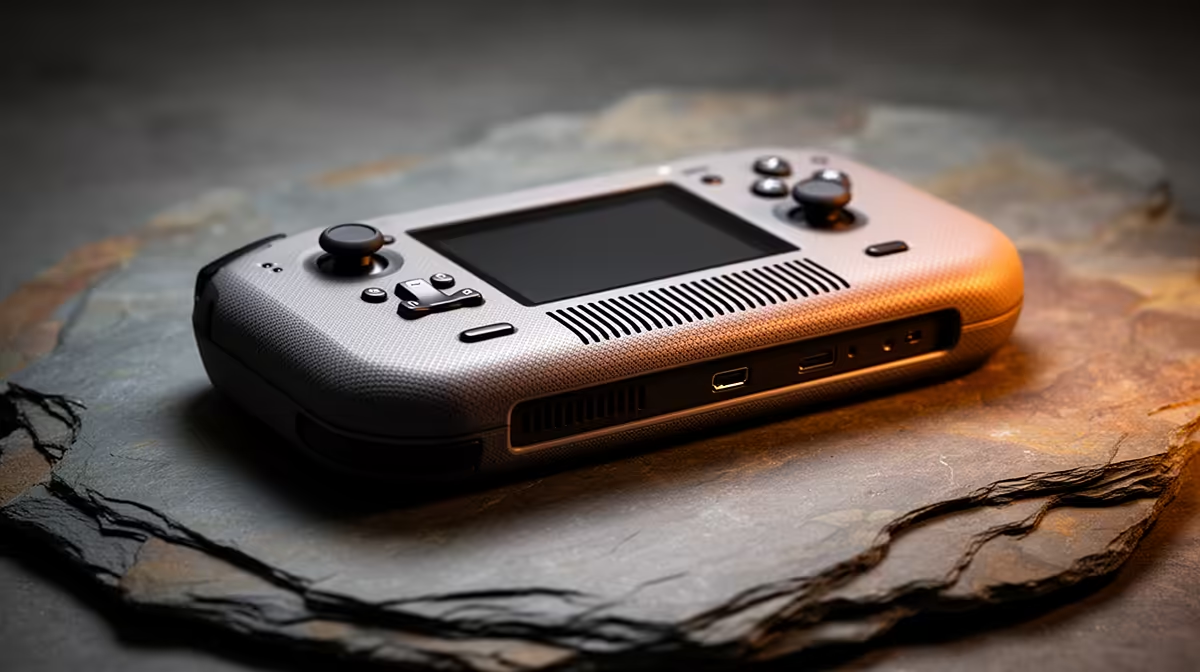
A smooth fan whoosh that rises with game load is normal Steam Deck cooling. Grinding, scraping, repeated clicking or a new vibration needs attention. Dust can restrict airflow, but blasting compressed air through a vent can overspin the fan or drive debris deeper into the handheld.
Quick Answer
Update SteamOS, restart and test the same game at default performance settings. Keep both vents clear and listen from each side without placing the Deck against your ear. If the noise is mechanical, stop heavy play, record it and use Valve's support or a careful repair route.
Compare portable systems in Evetech's handheld gaming range and use the PC best-seller list for larger cooling alternatives. The linked pages are hardware comparisons, not proof that a handheld needs an accessory cleaning kit.
Normal Fan Behaviour
Game launch, shader processing, charging and docked external rendering can raise APU or charging heat. The fan should ramp as temperature and power rise, then settle after the load drops.
Docking does not unlock extra APU power, but a higher external resolution can make the Deck work harder. Background Flatpak apps or a stuck process from Desktop Mode can also keep load high.
Use the performance overlay to check CPU, GPU, temperature and power. A loud fan paired with high sustained load has a clear cause.
Mechanical Sounds
A tick that follows fan speed can come from a cable, debris or worn bearing. A scrape when the Deck changes angle suggests something is touching the rotor. Grinding deserves shutdown rather than a quieter TDP cap.
Do not insert a brush, wire or air nozzle through the vent. Never spin the fan with an air jet. Opening the Deck exposes a lithium battery and delicate ribbon cables, so follow the exact Valve repair guide or use qualified service.
Clean the exterior vent with the device shut down and the gentle method Valve approves. Keep hands off the intake during play and do not use the handheld inside its closed case.
Rule Out Software Load
Restart from Steam, Power, Restart and leave Desktop Mode applications closed. A browser, synchronisation tool or game launcher can keep CPU load active in the background. Watch the overlay on the library screen before launching a game.
Restore the game's per-app TDP and GPU clock profile to default. A fixed high GPU clock or uncapped menu can create needless fan speed. Cap menus where the game supports it and wait for shader processing to finish.
If the fan became loud after an update, compare temperatures and package power rather than guessing from sound. A new fan curve can change noise while cooling remains safe; a stuck process raises both power and heat.
Check the Environment
Use the Deck on a hard surface with clear intake and exhaust. A blanket, lap cushion or thick skin can restrict airflow. Room temperature also changes how hard the fan must work.
Remove a third-party case for one test if it crowds a vent. Dock stands should leave space around the intake. If noise falls only when the case is off, replace the obstructing accessory rather than lowering every game's performance.
Record the game, TDP, temperature and sound. That evidence helps support distinguish normal airflow from a failing bearing.
FAQ
Is a loud whoosh during a demanding game normal?
It can be, when load and temperature rise smoothly and no mechanical sound appears.
Should I spray compressed air through the vent?
No. An uncontrolled jet can overspin the fan or push debris into the device.
Can lowering TDP fix a grinding fan?
It may hide the noise by slowing the fan, but the mechanical fault still needs diagnosis.
Match fan noise to load, keep vents clear and stop heavy use when clicking, scraping or grinding follows fan speed.