


How Evetech Warranty Works: Complete Claims Guide for SA Buyers
How Evetech Warranty Works: Complete Claims Guide. Comprehensive checklist covering every spec and feature you should verify before buying in SA.
Read moreLearn how to use your VGA projector with a modern HDMI laptop for presentations. Get the right adapter, set display resolution, and avoid black screens. ✅📽️
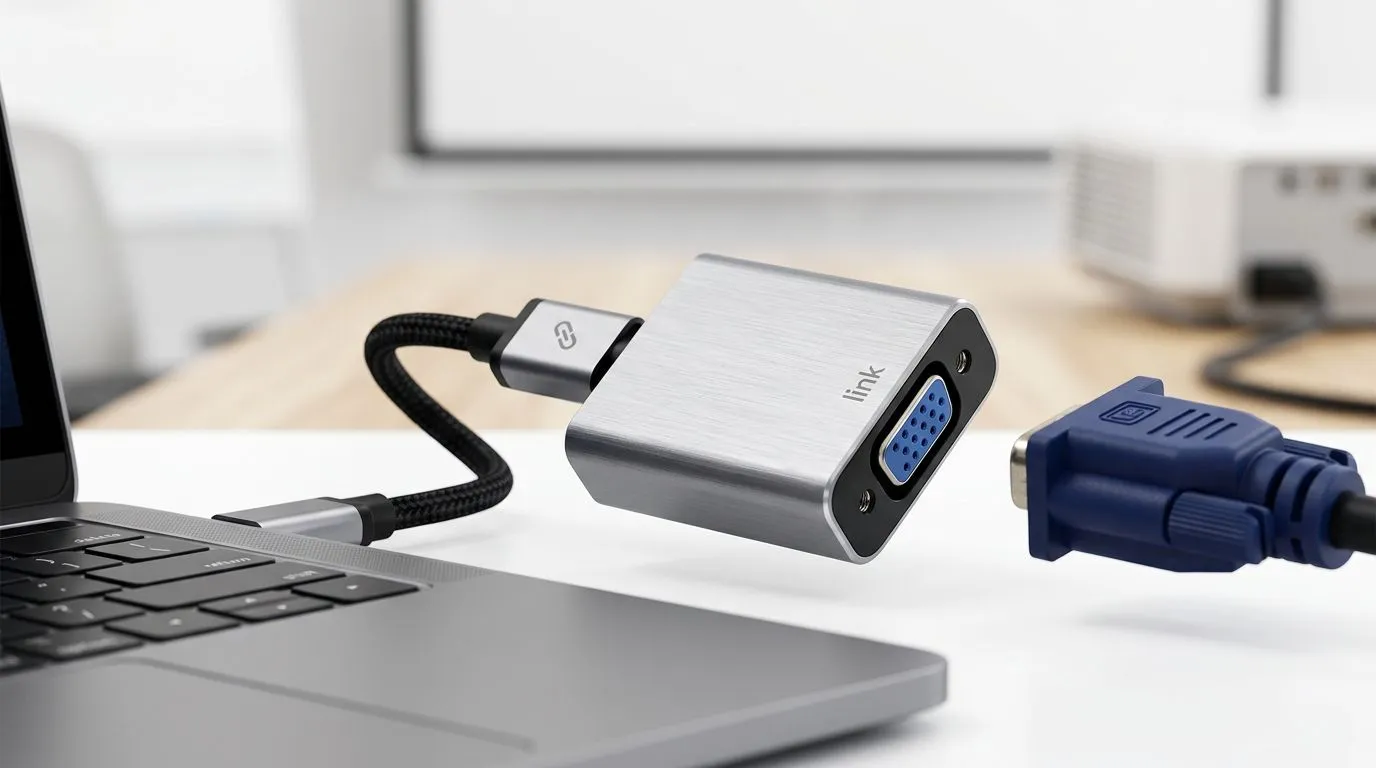
You’ve got a killer presentation ready or a classic movie night planned, but your sleek, modern laptop only speaks HDMI while your reliable projector is strictly VGA. It’s a classic South African office and home-theatre frustration. Don't let your gear gather dust just because the ports don't match. Converting your signal is easier than you think, and you don’t need to be an IT fundi to get it working in minutes. 🔧
The primary challenge is that HDMI carries a digital signal, while VGA is strictly analogue. This means you cannot simply use a passive cable. You need an active converter box or a high-quality adapter that handles the digital-to-analogue handshake. Before you start, ensure your laptop’s display settings are set to 'Duplicate' or 'Extend' so the OS recognises the external display. If you are looking to upgrade your setup, checking out premium PC components can help ensure your hardware remains compatible with modern standards.
Once you have your active adapter, simply plug the HDMI end into your laptop and the VGA cable into the projector. If the screen remains black, check your projector’s input source settings. Many older units require you to manually toggle through inputs to find the VGA channel. For those who want to keep their desk clutter-free, browsing our latest gaming accessories deals might reveal some handy cable management solutions to keep your workspace tidy while you troubleshoot. ⚡
If you are using a high-resolution laptop, the VGA projector might struggle to display the native resolution. Right-click your desktop, select 'Display Settings', and manually lower the resolution of the second display to 1024x768 or 1280x720. This often fixes the 'Out of Range' error common with older projectors.
When you finally get that display running, you might notice the colours look a bit washed out compared to your laptop screen. That is normal for older VGA tech. Take a moment to adjust the brightness and contrast directly on the projector's menu. It is also worth ensuring your audio is routed correctly, as VGA does not carry sound. You may need a 3.5mm auxiliary cable to run audio from your laptop to the projector's speakers or an external sound system. If you need reliable peripherals to round off your setup, you can browse our full range of accessories to ensure you have the right cables and adapters on hand. 🚀
Ready to Find Your Perfect Match? Whether you are upgrading your home theatre or need a reliable machine for work, we have the hardware to keep you connected. Explore our massive range of laptop specials and find the perfect machine to conquer your world.
Use an HDMI-to-VGA adapter or converter. For best results, pick one that supports the projector’s max resolution and has solid display passthrough.
Common causes are using the wrong adapter direction, unsupported resolution, or a missing display mode. Try adjusting resolution and duplicating the display.
Choose an active converter for reliability, especially with 1080p sources. It helps with stable output to the VGA projector’s native signal requirements.
Start with the projector’s native resolution (often 1024x768). If the image looks soft, try lowering resolution and refreshing display mode.
On Windows/macOS, open Display settings and select Duplicate or Extend. You can also use the display hotkey to cycle between screen modes.
Most VGA projectors don’t carry audio. Use your laptop speakers or connect a separate audio cable to an external speaker if your setup needs sound.
If your laptop has only HDMI, use an HDMI-to-VGA adapter. USB-C usually needs a different adapter (USB-C to VGA/HDMI), based on video output support.
Yes. Once the display is detected and set to the right resolution, presentations and videos should mirror correctly on the VGA projector.
How Evetech Warranty Works: Complete Claims Guide. Comprehensive checklist covering every spec and feature you should verify before buying in SA.
Read more
Handheld Gaming PCs for entry-level PC should be shortlisted around the job it must do. South African buyers should compare fit, performance, compatibility, and upgrade room, warranty path, and upgrade room before treating any pick as best.
Read more
Handheld Gaming PCs for low-latency online should be shortlisted around the job it must do. South African buyers should compare fit, performance, compatibility, and upgrade room, warranty path, and upgrade room before treating any pick as best.
Read more
Should SA buyers pay more for boom arm support should be shortlisted around the job it must do. South African buyers should compare panel type, resolution, refresh rate, and ports, warranty path, and upgrade room before treating any pick as best.
Read more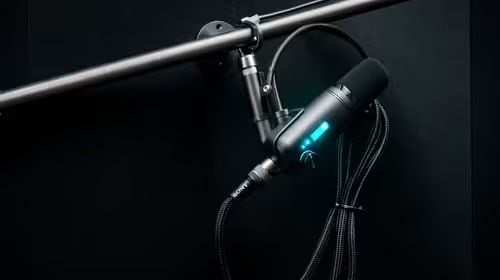
Should SA buyers pay more for noise rejection should be shortlisted around the job it must do. South African buyers should compare audio quality, mic clarity, comfort, and connection type, warranty path, and upgrade room before treating any pick as best.
Read more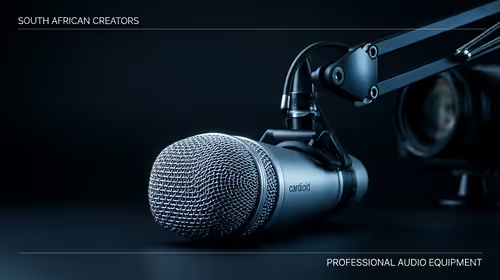
Should SA buyers pay more for pickup pattern should be shortlisted around the job it must do. South African buyers should compare audio quality, mic clarity, comfort, and connection type, warranty path, and upgrade room before treating any pick as best.
Read more
Best Value Laptops South Africa 2026 — Find top picks, local prices and buy tips to maximise performance per rand. Compare deals for students, creators and gamers. 🔎💸

Struggling with a weak Desktop PC Wi-Fi signal? 📶 Discover expert tips on positioning your tower and external antennas to eliminate lag and maximize your internet speeds for gaming and streaming. 🚀

Tired of loadshedding router restarts killing your Wi-Fi? ⚡ Discover why power cuts disrupt your connection and learn expert tips to get back online faster after the lights return. 🌐

Master using a Nano SIM 4G router as your primary internet solution. Get stable speeds and seamless connectivity for gaming and streaming at home! 🌐🚀

Gauteng r30 000 needs practical checks before you choose. Compare fit, workload, support, setup needs, timing, and delivery expectations without relying on live availability or fixed 2026 claims.

Gauteng r40 000 needs practical checks before you choose. Compare fit, workload, support, setup needs, timing, and delivery expectations without relying on live availability or fixed 2026 claims.

Gauteng r50 000 needs practical checks before you choose. Compare fit, workload, support, setup needs, timing, and delivery expectations without relying on live availability or fixed 2026 claims.

Gauteng r60 000 needs practical checks before you choose. Compare fit, workload, support, setup needs, timing, and delivery expectations without relying on live availability or fixed 2026 claims.

Three-tier smart watch plan for commuting should be shortlisted around the job it must do. South African buyers should compare fit, performance, compatibility, and upgrade room, warranty path, and upgrade room before treating any pick as best.

AR Glasses buying order for commuting students should be shortlisted around the job it must do. South African buyers should compare fit, performance, compatibility, and upgrade room, warranty path, and upgrade room before treating any pick as best.

Smart Watch buying order for commuting should be shortlisted around the job it must do. South African buyers should compare fit, performance, compatibility, and upgrade room, warranty path, and upgrade room before treating any pick as best.

Smart Watch buying order for quiet PC builds needs a balanced parts plan, not a random basket. Map the CPU, GPU, RAM, SSD, cooling, and monitor target to the budget so SA builders know where to spend first.