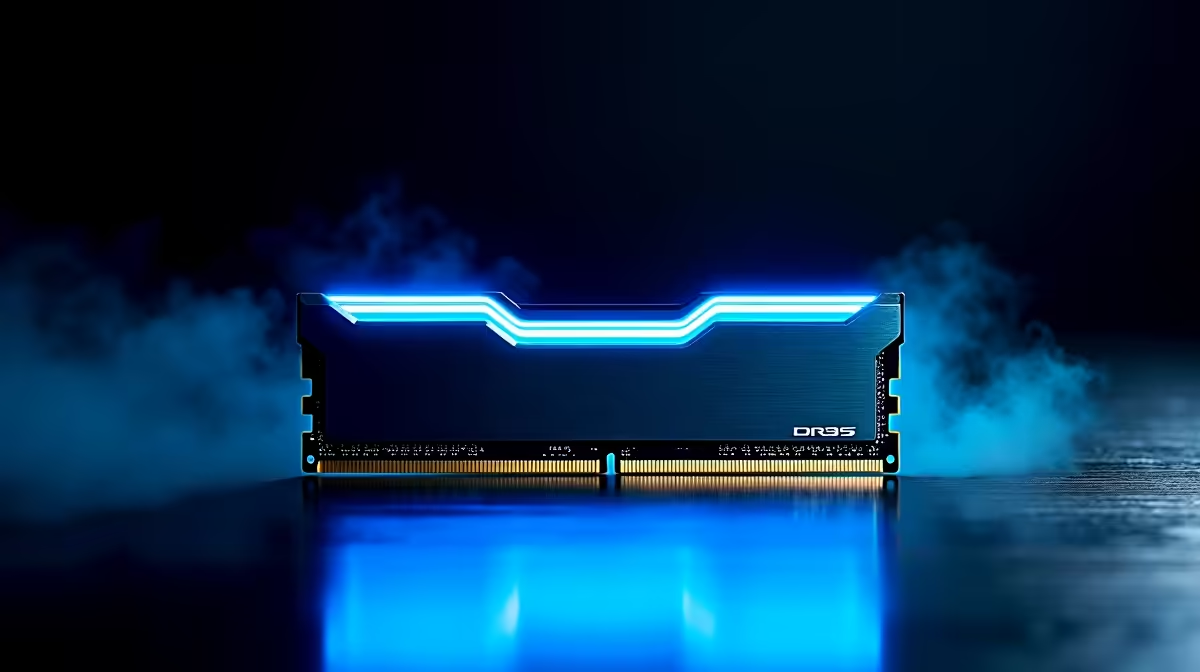
You just dropped a few thousand ZAR on shiny new DDR5 memory. You boot up expecting blazing speeds and massive frame rates. Instead, your rig is crawling. If you are wondering why is my PC slow after installing DDR5 RAM, you are not alone. It is a common headache for South African gamers. Let us look at the fixes to get your system running properly.
Understanding DDR5 Memory Training
When you first install new DDR5 modules, your motherboard needs time to understand them. This process is called memory training. Your screen might stay black for a few minutes. Your fans might spin up and down. Do not panic... this is completely normal. If your system feels sluggish right after the first boot, just give it a moment to configure the timings.
Enable Your XMP or EXPO Profiles
If the sluggishness persists, check your BIOS. Out of the box, DDR5 runs at standard base speeds. To get the advertised speeds you paid for, you must enable XMP for Intel or EXPO for AMD. Without this, even the best system memory will underperform. Restart your PC... hit Delete or F2... and toggle the correct profile.
Update Your Motherboard BIOS 🔧
DDR5 technology is constantly evolving. Early motherboard firmware often struggles to optimise new high-speed kits. If your PC remains slow after installing DDR5 RAM, a BIOS update might be the cure. Manufacturers regularly release updates to improve stability. Even if you prefer gaming on high-performance notebooks where this is handled automatically, desktop users must do it manually. Grab a flash drive and flash to the newest version.
Avoid Mixing Different RAM Kits
Did you combine your new DDR5 sticks with an older set? That is a recipe for disaster. DDR5 is incredibly sensitive to mixed timings and voltages. Mixing kits forces the system to run at the speed of the slowest stick... or it causes constant stuttering. If you want a flawless experience, always buy a single matched kit. If you are tired of troubleshooting, exploring custom gaming PCs built by experts can save you hours of frustration.
When the Bottleneck is Not the RAM 🚀
Sometimes, the issue runs deeper than your memory. If your CPU or storage drive is ancient, fast RAM will not save you. Upgrading to the latest generation hardware ensures every component works in perfect harmony. You could look into pre-built desktop computers that are already balanced for maximum performance. Alternatively, keep an eye on our latest tech specials to upgrade your processor and motherboard without breaking the bank.
Quick Speed Check ⚡
Not sure if your RAM is running at the right speed? Press Ctrl + Shift + Esc to open Task Manager in Windows. Click on the Performance tab, select Memory, and look at the Speed stat at the bottom right. If it shows 4800MHz but you bought a 6000MHz kit, you need to restart and enable XMP or EXPO in your BIOS!
Ready to Maximise Your PC Performance?
Upgrading your system should be exciting, not stressful. If you want guaranteed performance and unbeatable value in South Africa, Evetech has you covered. Explore our massive range of PC component specials and find the perfect hardware to conquer your favourite games.