Understanding Why Your RAM Is Not Running at Full Speed ⚡
South African gamers and PC builders often hit a wall when their RAM won’t clock at the advertised speeds. If you’ve noticed your system feels sluggish despite having decent specs, it might be your RAM not running at full speed. This can bottleneck your performance, especially in demanding games and multitasking. So, why is your RAM not running at full speed, and how can you fix it? Let’s unpack this common tech riddle 🔧.
Common Causes of RAM Running Below Its Rated Speed
BIOS Defaults and XMP Profiles
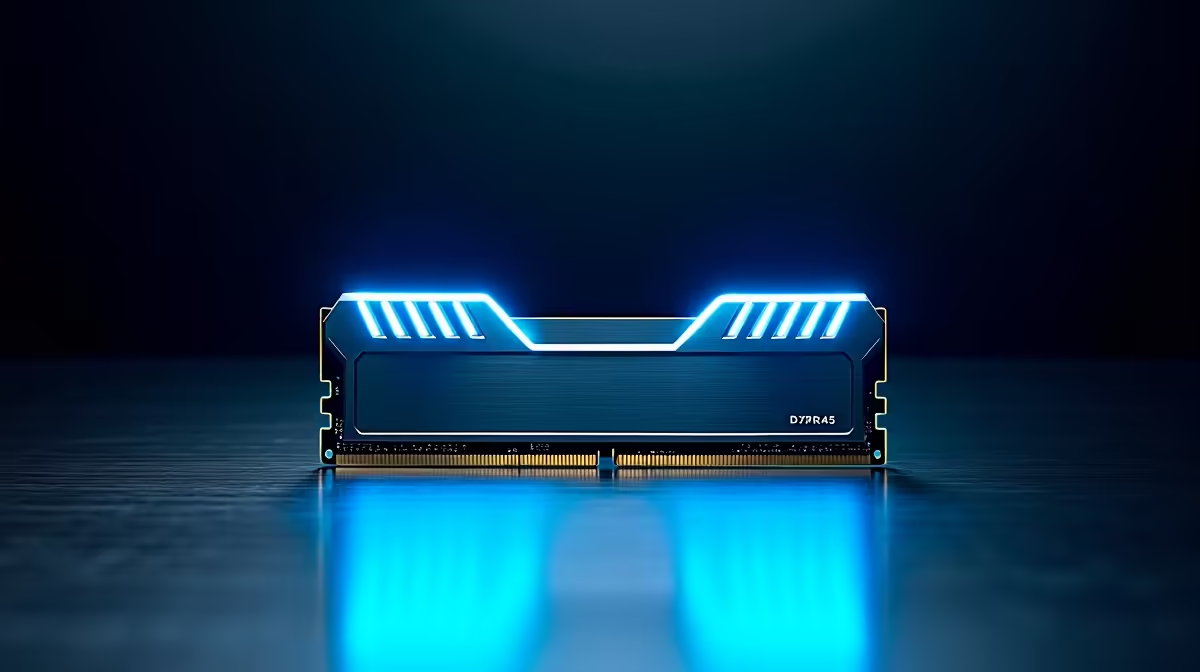
Most systems default to a safe, often lower RAM speed for stability. RAM modules can support much higher speeds — but you usually have to enable XMP (Extreme Memory Profile) in your motherboard BIOS/UEFI to unlock these faster profiles. Without XMP, your RAM might run at a baseline 2133MHz or 2400MHz, even if your RAM supports 3200MHz or higher.
Motherboard and CPU Limitations
Your motherboard chipset and CPU memory controller also dictate maximum RAM speeds. South African gamers building on budget platforms should check compatibility on official manufacturer specs or browse pre-built PC deals that are optimised with fast RAM support — avoiding guesswork.
Incorrect RAM Installation or Mismatched Modules
Installing RAM sticks in the wrong slots or mixing incompatible RAM brands and speeds can throttle memory speed. Ensure your RAM sticks are seated correctly in dual or quad channel slots to get the best possible bandwidth. If unsure, consider buying carefully matched memory kits from specialists like Evetech’s memory selection designed for peak compatibility.
How to Check and Optimise RAM Speed on Your PC
Step 1: Enter Your BIOS Settings
Restart your PC and enter BIOS (usually by pressing DEL, F2, or F12). Navigate to the memory section to enable XMP profiles — this unlocks your RAM’s rated speeds. Save changes and reboot.
Step 2: Use Software Tools for Confirmation
Programs like CPU-Z and HWiNFO can verify your RAM speed inside Windows. Look for the Memory tab and check the DRAM Frequency. Multiply this number by two for DDR (double data rate) RAM’s effective speed.
Step 3: Update Motherboard BIOS
Sometimes a BIOS update improves RAM stability and speed compatibility. South African PC builders should visit their motherboard manufacturer's website or check Evetech’s updated build guides for advice on BIOS updates and compatibility lists.
Quick Tip: Avoid RAM Bottlenecks
If you want consistent gaming FPS, pick RAM kits matched for your platform’s max speed, enable XMP profiles, and keep your BIOS updated. Also, resist mixing RAM sticks with different speeds or brands.
Why Investing in the Right RAM Matters for South African Gamers 🚀
Imagine trying to sprint on a dusty gravel road instead of a smooth track — that’s your PC without full-speed RAM. Fast memory means quicker level loads, smoother frame rates, and seamless multitasking. For South African users balancing budget and performance, checking RAM speed is a simple but critical step to maximise your setup without shelling out unnecessarily.
Looking for new laptops? Check out Evetech’s range of notebooks crafted for everyday speed and gaming potential. Or explore our specials for great value on key components and upgrades.
Upgrade Your Gaming Experience
Don’t let slow RAM hold you back. Shop now at Evetech for memory modules tested and ready to push your PC to full speed and beyond.