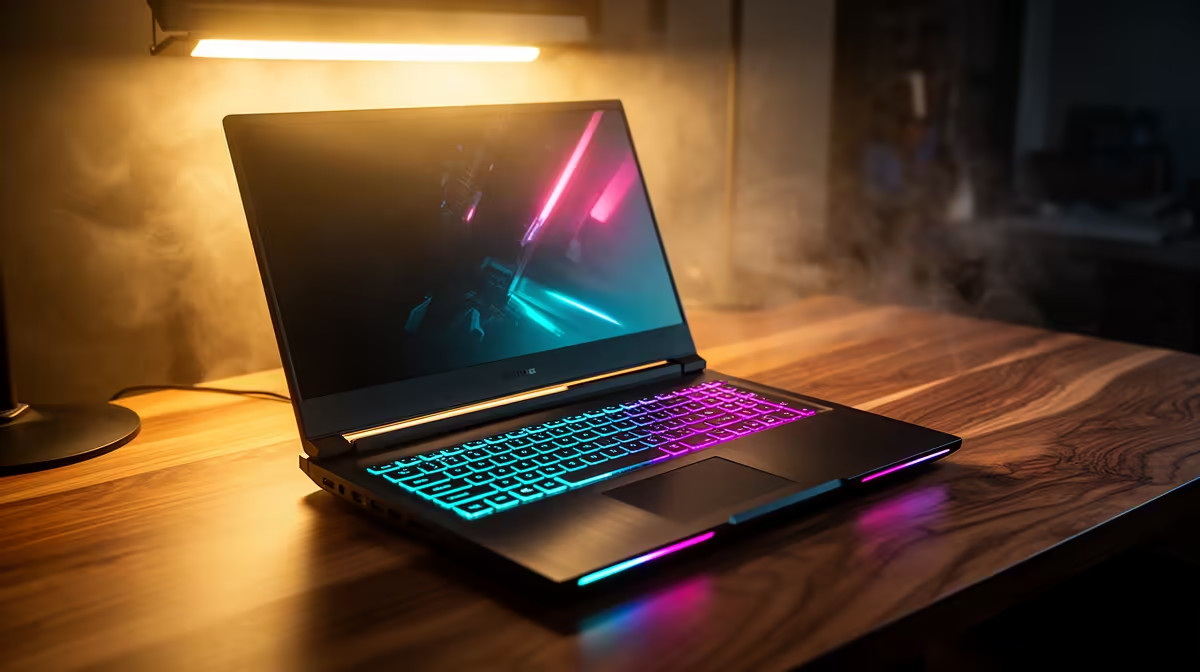
So, you’ve just unboxed your shiny new Copilot+ PC. That new-tech smell is in the air, and the promise of next-level AI is at your fingertips. But where do you start? Getting your Copilot+ laptop setup right from the get-go is key to unlocking its full potential. This isn't just another Windows machine; it's your new creative partner. This guide is built for South African users, helping you navigate the first steps to harness its power.
Your Initial Copilot+ Laptop Setup Steps
First things first, let's get through the basics. The initial Windows 11 setup process will feel familiar, but it's more important than ever to get it right.
When you power on your device for the first time, you'll be guided through selecting your region (South Africa, of course), connecting to your Wi-Fi, and—crucially—signing in with your Microsoft Account. Don't skip this! Your Microsoft Account is the key that unlocks the entire Copilot+ ecosystem, from syncing your settings to powering the AI features. This is the foundation of a smooth Copilot+ laptop setup.
Once you're at the desktop, resist the urge to jump straight into installing games. Head directly to Settings > Windows Update and run all available updates. This ensures your system has the latest security patches and performance drivers, which is vital for these brand new next-generation AI laptops.
Activating Your AI Superpowers 🚀
With the groundwork laid, it's time for the fun part. A proper Copilot+ PC setup means diving into the features that make these machines so special. These aren't just background processes; they are tools you can actively use.
Meet Your Photographic Memory: Recall
Recall is the feature everyone's talking about. It creates a searchable timeline of virtually everything you've seen or done on your PC. To get started, you'll be prompted to set it up. You can choose how much disk space to allocate to it and even exclude specific apps or websites for privacy. Think of it as your personal, searchable history... perfect for finding that one specific document or website you glanced at last week.
Create with Cocreator in Paint
Microsoft Paint is cool again! Open the classic app and you'll find a new Cocreator button. You can sketch a basic idea, type a text prompt (like "a dragon flying over Table Mountain"), and watch the AI bring your vision to life in real-time. It’s an incredibly fun way to visualise ideas without needing any artistic skill. The neural processing units (NPUs) inside these machines, like those found in laptops powered by AMD Ryzen AI, handle these tasks with incredible efficiency.
Customisation Pro Tip 🔧
You can customise what Recall captures for enhanced privacy. Go to Settings > Privacy & security > Recall & snapshots. From here, you can exclude specific applications or websites from being recorded in your timeline, giving you complete control over your digital footprint.
Optimising Your Rig for SA Conditions
Your Copilot+ laptop setup should be optimised for battery life from day one.
Head to Settings > System > Power & battery and customise your power mode. Setting it to "Best power efficiency" when you're on battery can stretch your usage significantly, ensuring you can keep working or gaming through a power cut.
Also, take a moment to install your essential local apps. Think of your banking app, Takealot, or your preferred local news source. Pin them to your Start menu or taskbar for quick access. A well-organised machine is a productive machine.
Finally, the perfect setup begins with the right hardware. Whether you need a lightweight machine for varsity or a powerhouse for content creation, there's a Copilot+ PC designed for your needs. Before you buy, it's always a good idea to check out our wide range of laptop specials to find a deal that suits your budget and performance requirements.
Ready to Experience the AI Revolution?
Your Copilot+ laptop setup is the first step into a smarter, more efficient future. If you're ready to upgrade or find your first AI-powered machine, Evetech has the perfect rig for you. Explore our massive range of laptop specials and find the perfect PC to conquer your world.