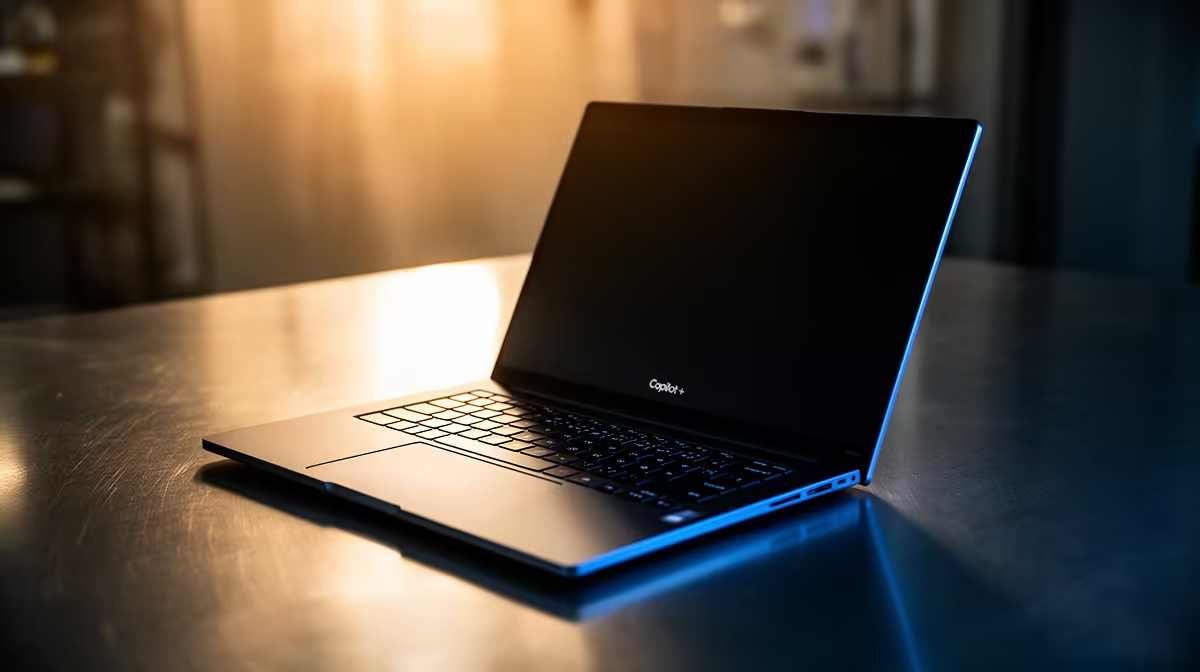
So, you’ve just unboxed one of the new Copilot+ laptops in South Africa… awesome! The promise of powerful, on-device AI with features like Recall and Cocreator is seriously exciting. But what happens when the futuristic magic hits a snag? New tech sometimes comes with new puzzles. Before you get frustrated, relax. This expert guide on Copilot+ laptops troubleshooting is here to help you solve common issues and get you back to peak performance. 🚀
First-Step Fixes for Copilot+ Laptops
Before diving deep, let's cover the basics. More often than not, a simple update is all your new machine needs. These new AI features are deeply integrated into the operating system, so keeping everything current is non-negotiable. This is the first stop in any Copilot+ laptops troubleshooting checklist.
Check Your System Updates
Microsoft is rolling out frequent updates to refine the Copilot+ experience.
- Go to Settings > Windows Update.
- Click Check for updates and install everything available, including optional updates.
- Restart your laptop, even if it doesn't prompt you to.
Update Your Graphics and Chipset Drivers
The Neural Processing Unit (NPU), the silicon brain behind the AI magic, works alongside your CPU and GPU. Outdated drivers can cause conflicts or prevent features from working correctly. Head to your laptop manufacturer's support page (e.g., Dell, HP, ASUS) or use their pre-installed update utility to grab the latest drivers. These new AI laptops are redefined by their hardware, and drivers are the key to unlocking their full potential.
Troubleshooting Specific Copilot+ Features
Are your general updates done, but a specific feature is still acting up? Let's isolate the problem. Many of the most common Copilot+ PC issues are tied to its flagship tools.
Recall Isn't Working or Seems Slow
Recall, the feature that creates a searchable timeline of your activity, is powerful... but complex.
- Check Your Settings: Go to Settings > Privacy & security > Recall & snapshots. Ensure the feature is turned on and that you've allocated enough storage space.
- Rebuild the Index: Sometimes the search index can get corrupted. Toggling the feature off, restarting, and then turning it back on can force a rebuild.
- Content Restrictions: Recall won't capture content from DRM-protected media (like Netflix) or InPrivate browsing windows in Microsoft Edge.
Storage Pro Tip ⚡
Recall's snapshots can eat up your storage. In the Recall settings, you can adjust the slider to limit how much disk space it uses. For a 256GB SSD, dedicating 25GB is a good starting point, but you can increase it if you have more space and want a longer history.
Cocreator or Live Captions are Glitching
These features rely heavily on the NPU. If they're not working, it often points to a resource or driver issue.
- Close Heavy Apps: If you're running a demanding game or video editor, the NPU might not have enough resources to spare. Try closing other applications.
- App-Specific Updates: Ensure apps like Paint, Photos, and your web browser are updated through the Microsoft Store.
- Processor Power: Features like these run best on the latest hardware. The powerful NPUs found in the newest generations of processors, like those in many AMD laptops on special, are specifically optimised for these sustained AI workloads.
Solving Battery Drain and Performance Problems
Is your new AI laptop's battery life not what you expected? On-device AI is efficient, but it's not magic... it still uses power. Effective troubleshooting for your Copilot+ laptop should always include a look at power management. 🔧
First, check which apps are the biggest power consumers by going to Settings > System > Power & battery > Battery usage. If you see an app constantly using the NPU in the background, you might consider adjusting its settings or permissions.
Sometimes, performance issues aren't a bug but a sign that your hardware is being pushed to its limits. If you're constantly running into slowdowns while multitasking with AI features, it might be a signal that your RAM or processor isn't quite up to the task you're demanding of it. ✨
Ready to Unleash True AI Power?
Troubleshooting is part of the early adopter journey, but the power of on-device AI is worth it. If your current machine is struggling or you're ready to jump into the future with zero compromises, Evetech has your back. Explore our massive range of laptop specials and find the perfect AI-powered machine to conquer your world.