


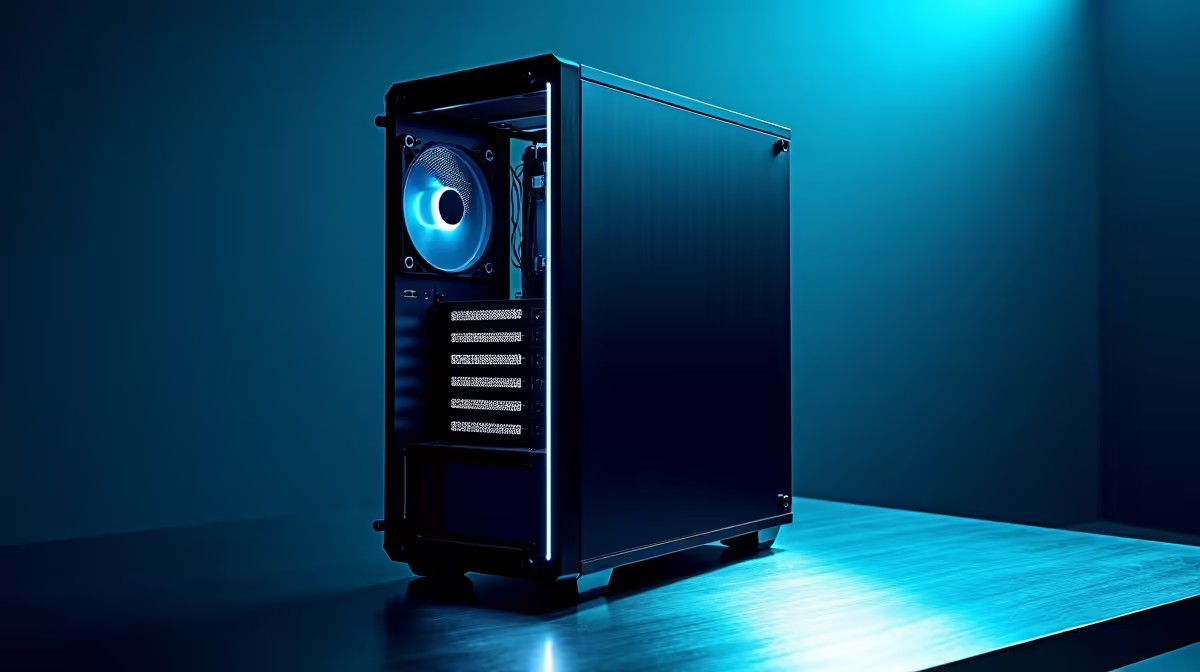
Your powerful AI workstation is more than just a PC; it’s the engine for your creativity, your research, or your next big project. But here in South Africa, dust is a constant battle. A dirty rig isn't just an eyesore… it’s a performance killer. This guide to AI workstation maintenance isn't about chores; it's about protecting your investment and ensuring your machine runs at peak efficiency when you need it most. Let's get cleaning. ⚡
Why AI Workstation Maintenance is Non-Negotiable
Think about the intense, hours-long tasks your machine handles—rendering complex scenes, training models, or processing massive datasets. These jobs push your CPU and GPU to their limits, generating significant heat. Dust acts like an insulating blanket, trapping that heat and forcing your fans to work overtime.
Over time, this leads to thermal throttling, where your components automatically slow down to prevent overheating. Suddenly, your renders take longer and your workflow grinds to a halt. Proper, regular AI workstation maintenance is the single best thing you can do to guarantee consistent performance from the high-performance custom-built AI workstations we rely on.
Your Essential PC Cleaning Toolkit
Before you open that case, let's get your gear in order. You don't need a fancy lab, just a few key items:
- Can of Compressed Air: Your primary weapon against dust. Use it in short, controlled bursts.
- Isopropyl Alcohol (99%): Perfect for cleaning thermal paste or stubborn grime on components.
- Microfibre Cloths: For wiping down surfaces without leaving lint behind.
- Soft Brushes: An old, clean paintbrush or makeup brush is great for dislodging dust from fan blades and tight corners.
- Anti-Static Wrist Strap (Recommended): A cheap but effective way to prevent static discharge from damaging sensitive electronics.
Safety First! 🛑
Never, ever use a vacuum cleaner inside your PC case. They generate a massive amount of static electricity that can instantly fry your motherboard, RAM, or GPU. Stick to compressed air and brushes for a safe and effective clean.
A Step-by-Step Guide to Cleaning Your Rig 🔧
Ready to give your machine a new lease on life? Follow these steps for a thorough clean. Set aside about 30-45 minutes.
Step 1: Power Down and Prep Your Space
This is the most important step. Shut down your computer completely. Switch off the power supply unit (PSU) at the back, and then unplug it from the wall. Move your PC to a well-lit, ventilated area—your garage or a covered patio is ideal to avoid blowing dust all over your room.
Step 2: Open the Case and Assess
Remove the side panels. Take a moment to see where the dust has settled most. The biggest culprits are usually the intake fans, the CPU cooler's heatsink, and the GPU fans. These are your primary targets.
Step 3: The Great Dust Blowout
Take your can of compressed air and, holding it upright, use short bursts to blow dust out of the case. Start from the top and work your way down. Pay special attention to:
- Case Fans: Gently hold the fan blades with one finger to stop them from spinning while you blow the dust off.
- CPU Heatsink: Blow air through the fins from multiple angles to dislodge trapped dust.
- GPU Heatsink: The cooling fins on powerful NVIDIA GeForce cards can get clogged quickly. Give them a thorough cleaning.
- Dust Filters: Most modern cases have removable filters on the front, top, and bottom. Slide them out, give them a good clean, and let them dry completely before putting them back.
Step 4: Finishing Touches and Reassembly
Use your soft brush to gently wipe away any remaining stubborn dust from fan blades or shrouds. Wipe down the inside of the side panels with a microfibre cloth. Once everything is clean, carefully put your PC back together, plug everything in, and power it up. Enjoy the quieter fans and cooler temperatures! ✨
Proactive Care for Long-Term Performance
Physical cleaning is only half the story. To keep your machine in top shape, you should also:
- Monitor Temperatures: Use free software like HWMonitor or MSI Afterburner to keep an eye on your CPU and GPU temperatures. If they start creeping up, you know it's time for another clean.
- Update Your Drivers: Keeping your graphics drivers updated is crucial for performance and stability, especially when using the latest features on cutting-edge hardware like the newest AMD Radeon GPUs.
- Optimise Airflow: Ensure your PC has room to breathe. Don't shove it in a tight cabinet or against a wall where the fans are blocked. Good airflow is the foundation of a cool and healthy system.
This simple routine of AI workstation maintenance will not only extend the life of your components but also ensure you get every ounce of performance you paid for.
Ready to Power Up Your Workflow? A clean rig is a fast rig. But when it's time for a serious upgrade, Evetech has your back. Whether you're building a new AI beast or need a powerful machine for the road, we've got the tech to bring your ideas to life. Explore our massive range of laptop specials and find the perfect machine to conquer your next project.










