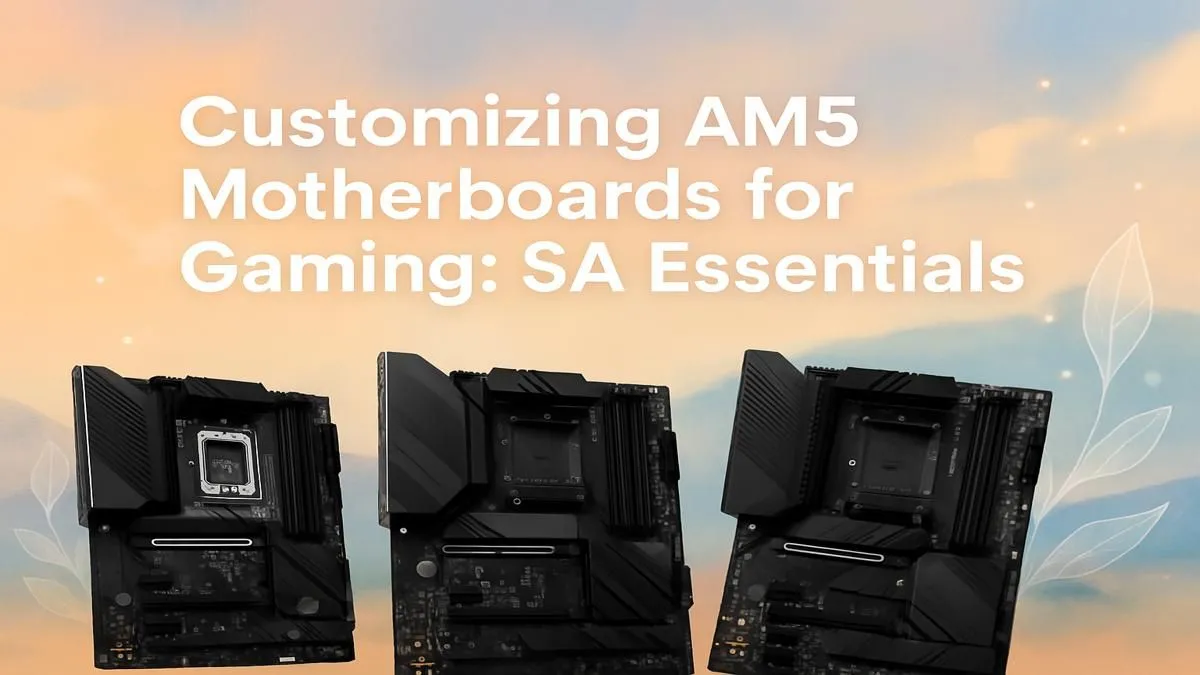
So, you’ve just dropped some serious ZAR on a shiny new AMD Ryzen CPU and an AM5 motherboard. Lekker! 🚀 But before you jump into your first game of Apex Legends or Warzone, are you sure you’re getting every drop of performance you paid for? Often, the default BIOS settings are holding your rig back.
This guide will walk you through the essential AM5 motherboard settings for gaming, helping you unlock your PC's true potential right here in South Africa.
First Things First: Essential BIOS Updates
Before we tweak a single setting, let's talk updates. Motherboard manufacturers constantly release BIOS updates that improve stability, memory compatibility, and even performance. Think of it as a tune-up for your PC's brain.
Your first step should always be to visit your motherboard manufacturer's website, find your specific model, and download the latest BIOS. The process is usually straightforward, often involving a USB stick and a feature called "Q-Flash" or "EZ Flash" within the BIOS itself. This simple step can solve countless future headaches.
Unlocking Performance: Key AM5 Motherboard Settings
Alright, with your BIOS up to date, it's time to dive in. Restart your PC and repeatedly press the Delete or F2 key to enter the BIOS. The interface might look intimidating, but we're only focusing on a few key areas. These are the most impactful AM5 motherboard settings for gaming.
EXPO: Your One-Click Memory Boost ⚡
If you bought DDR5 RAM with "AMD EXPO" on the box, this is your magic button. EXPO (Extended Profiles for Overclocking) is AMD's one-click solution to run your memory at its advertised speed. By default, your RAM runs at a much slower, standard speed.
How to enable it:
- Look for a setting called "EXPO," "Memory Profile," or similar.
- Change it from "Disabled" or "Auto" to "EXPO I" or "EXPO II".
- Save and exit.
That's it! You've just given your Ryzen CPU the high-speed memory it craves, which can significantly boost frame rates in CPU-intensive games.
Precision Boost Overdrive (PBO): Smart Overclocking
Gone are the days of manually setting voltages and clock speeds. Precision Boost Overdrive is a smarter, safer way to get more performance from your CPU. It allows the processor to boost higher and for longer, as long as your cooling can handle it. For most gamers, enabling PBO is a no-brainer.
You'll typically find PBO under the "Overclocking" or "Advanced" tabs. Setting it to "Enabled" or "Advanced" is a great starting point for customising your AM5 motherboard.
Advanced Tweak: Curve Optimizer 🔧
For those who want to push things further, look for "Curve Optimizer" within the PBO menu. This lets you undervolt your CPU core by core. A negative offset (e.g., -15 or -20 on all cores) can lower temperatures and allow the CPU to boost even higher, giving you free performance. Start small and test for stability!
Fan Curves: Keeping Things Cool & Quiet
A powerful PC doesn't have to sound like a jet engine. Your BIOS gives you full control over your fan speeds. Instead of letting them run on a default profile, you can create a custom "fan curve." This tells the fans to stay quiet during light tasks like browsing and only ramp up when you're actually gaming. It's a small tweak that massively improves your day-to-day experience.
Choosing the Right Board for Your Build
Of course, the settings you have available depend on the motherboard you choose. The chipset is the key. For most South African gamers building a new rig today, the value proposition of AMD B650 motherboards is tough to beat, offering a fantastic balance of features and price.
If you're an enthusiast who demands the absolute best—more connectivity, robust power delivery for extreme overclocking, and PCIe 5.0 for both GPU and NVMe SSDs—then the top-tier AMD X870 motherboards are built for you. They represent the pinnacle of the AM5 platform. ✨
And for those looking to the future, the upcoming wave of AMD B850 motherboards promises to bring next-gen features to a more accessible price point, making them a very exciting option for builders who want to stay ahead of the curve. Optimising your AM5 motherboard settings for gaming starts with a solid foundation.
Ready to Build Your Ultimate AM5 Rig? Dialing in the perfect AM5 motherboard settings is the final step to unlocking true gaming power. But it all starts with the right foundation. Explore our massive range of AM5 motherboards and find the perfect board to conquer your world.