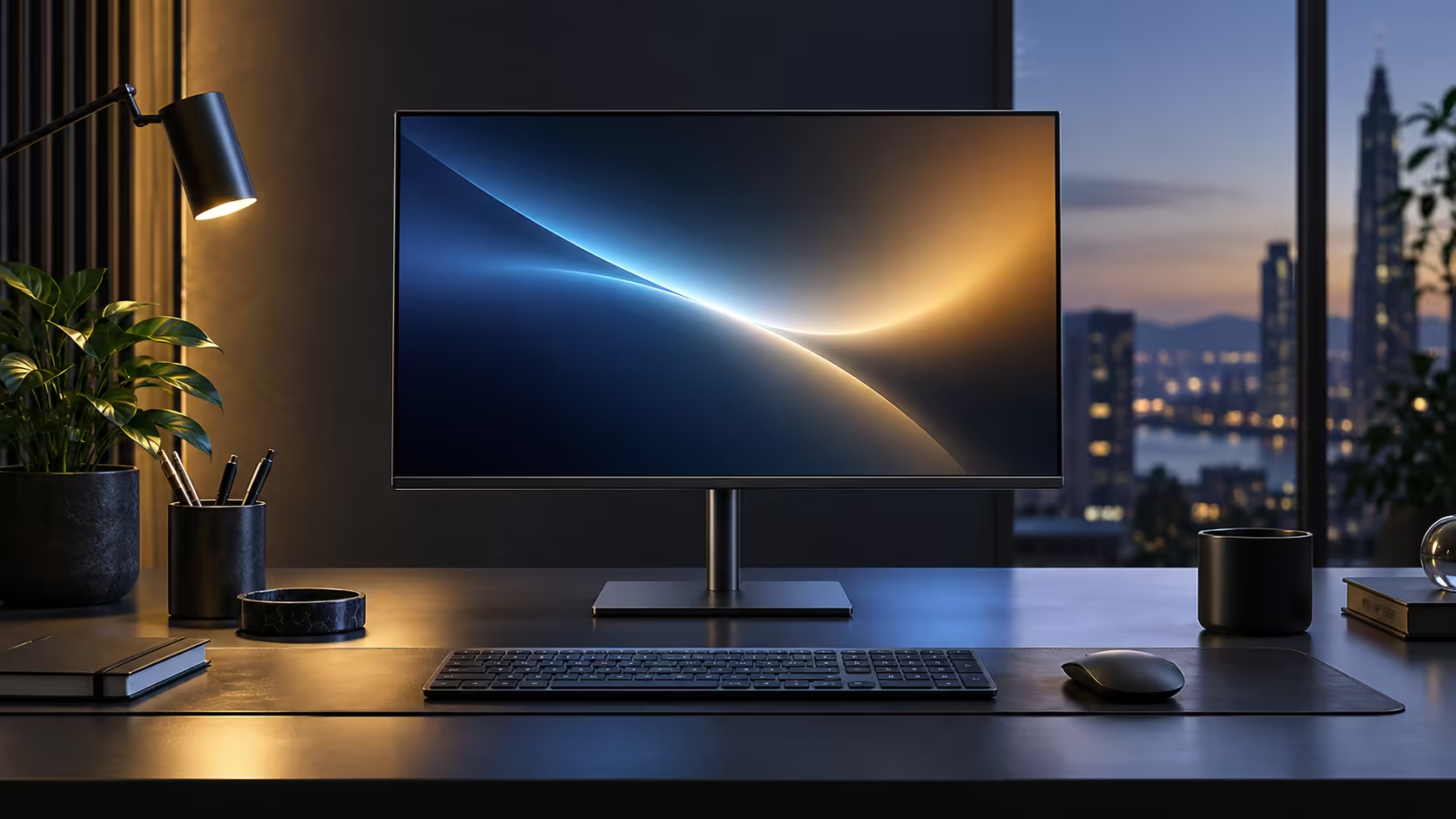
A dual-monitor desk does two jobs at once for a South African remote worker who also edits content on the side: it keeps a call visible while work continues on the second screen, and it stops a shared fibre line from becoming the bottleneck for both. Two Dell Pro 24 Plus P2425DE panels at R6,099 each build that setup around a single laptop.
Quick Answer
Two matched QHD panels beat one big screen for editing while a call runs. A DisplayPort output on the first monitor feeds the second, and the fibre line stays wired through the RJ45 port. Evetech prices each screen at R6,099.
🖥️ Why two matched screens beat one large one for this specific work
Content creation and video calls have different screen needs, and running them on separate panels rather than splitting one wide screen suits both better.
One monitor can hold a call, a chat window or reference material at a fixed size that does not resize every time you switch applications. The second monitor handles the actual editing work, whether that is a timeline, a document or a design tool, at full size without competing for space with anything else. Two 23.8-inch QHD panels side by side also give more total usable resolution than most single ultrawide alternatives at a similar combined price, while keeping each screen a standard, easily replaceable size if one ever needs swapping out.
🔗 Building the two-screen setup from one laptop
This is where daisy chaining does the heavy lifting.
Connect the laptop to the first monitor with the single USB-C cable, which also carries charging and the wired network connection. A DisplayPort lead then bridges the first screen's output socket to the second screen's input, and Multi-Stream Transport needs switching on in the first monitor's own menu if it is not enabled already. Windows then treats both as separate displays under Settings, Display, letting you extend your desktop cleanly across both rather than duplicating one screen onto the other.
🇿🇦 Keeping calls stable while editing runs in the background
Content creation work is often bandwidth-heavy, and running it alongside a live call is exactly where a shared home fibre line shows its limits.
Running the laptop's network connection through the monitor's RJ45 port, wired rather than over Wi-Fi, keeps a video call more stable while a large export or upload runs in the background on the same connection. That distinction carries more weight in a South African household where several people's calls, streaming and general browsing all draw on the same fibre line at once, since Wi-Fi contention breaks up a call far more often than the underlying internet package itself does. Compare the current office monitor range for a matched pair, check wired networking options for the router side, and browse the wider monitor category if you want to mix sizes between the two screens instead.
🎬 Arranging the two screens for editing specifically
Once both monitors are connected, how you arrange them in Windows matters as much as the hardware itself.
Put your primary editing or design software on the screen positioned directly in front of you, and reserve the second screen, positioned slightly to one side, for reference material, chat, or the call itself. Set the main display in Settings, System, Display by dragging the white bar in the display diagram onto whichever screen sits centred at your desk, since that decides which screen carries the taskbar and where new windows open by default. Matching the physical desk position to the Windows display arrangement, left screen mapped to left in the diagram, prevents the disorienting experience of moving the mouse right and having the cursor appear on the left-hand screen instead, which is a small setting most people never revisit once it is set correctly the first time.
Frequently Asked Questions
Do both monitors need to be the same model for a dual setup?
No, but matching them makes colour and brightness consistent across both screens and simplifies daisy chaining if the second monitor also needs to support it.
Does running two monitors from one laptop slow down video calls?
Not directly. The bottleneck is usually the shared internet connection under load, not the number of screens the laptop is driving.
Can I daisy chain more than two monitors from one laptop?
Sometimes, depending on the laptop's total video output bandwidth and whether each monitor in the chain also carries its own DisplayPort Out socket.
Is wired Ethernet really necessary for a dual-monitor content creation setup?
It is not required, but it noticeably improves call stability in a household where several people share one fibre line during the day.
Do I need a graphics card upgrade to run two QHD monitors from a laptop?
For office and content review work, no. Two QHD displays place a light load on modern integrated graphics; heavier rendering work benefits more from CPU and RAM than from the monitor count itself.
Ready to build a two-screen desk that keeps calls stable while you edit?
Set up the daisy chain first, then move your network connection onto the wired RJ45 port.