

Clean Gaming Keyboard: Guide for Dusty & Humid Conditions
Clean gaming keyboard quickly and safely in dusty or humid conditions with step-by-step tips, tool checklist, and maintenance routines to prevent corrosion and switch failure. 🧼💨
Read moreconference room setup Microsoft Teams Zoom: Upgrade AV, camera, mic, and network to ensure seamless meetings, clear audio, and crisp video 🎯🔧
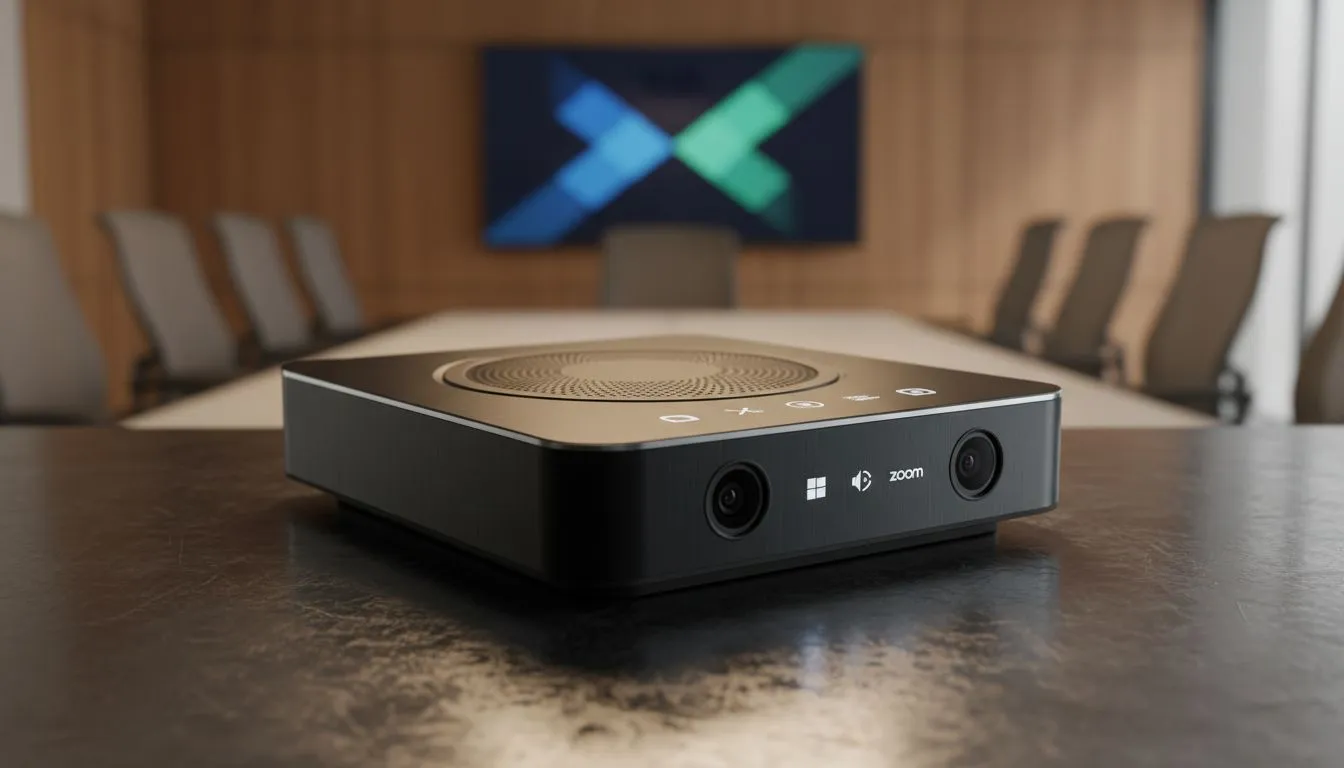
If your next hybrid meeting turns into a foggy audio mess, you’ll lose time and cred. Conference Room Setup Microsoft Teams Zoom: Optimize AV & Network is about reliable sound, clear video, and a network that just works. Start with the right camera and mic, then match displays to your room size — otherwise meetings drag... and nobody wants that. 🚀
Choose displays that reduce eye strain and handle multiple video feeds. If adaptive refresh is on your checklist, consider FreeSync monitors for smooth motion — check Evetech's FreeSync selection for options that suit meeting rooms. For a broad survey of panel sizes and types visit our monitor range. Curved screens can help wrap peripheral views in wider rooms, while flat screens work best for wall-mounted setups. Pick between curved and flat depending on sightlines and seating plans: curved displays and flat screens each have trade-offs.
Microphones should be near the table centre or use ceiling mics for larger rooms. Pick a PTZ camera or a wide-angle USB camera that handles group shots without distortion. Match speaker output to room volume; aim for clarity rather than loudness. If colour accuracy matters for demos, look for IPS panels with stable viewing angles. See IPS options to balance crispness and viewing angle. ✨
Place the microphone where participants face naturally. Test levels with real participants and save a default profile. If you use a USB hub, choose a powered one to avoid dropouts.
Put your conference system on a reliable VLAN or guest SSID with reserved bandwidth. Prioritise traffic for Teams and Zoom on your router; quality of service rules reduce jitter. Use wired Ethernet for the main codec or PC where possible, and keep wireless for guest devices. Document SSID names and passwords in the room handbook so IT calls drop.
Pro tip: schedule a quick 5‑minute connection test 10 minutes before large meetings. Small checks prevent big interruptions.
Want help matching gear to room size or budget in ZAR? Our tech team can spec a setup that fits your boardroom or huddle room, and point to the right monitor panels and AV peripherals. Need a hands‑on consult? We’ll guide you through cabling, codecs, and monitor pairings.
Ready to Find Your Perfect Match? The Mac vs Windows debate is complex, but for maximum power, choice, and value in South Africa, Windows is hard to beat. Explore our massive range of laptop specials and find the perfect machine to conquer your world.
Key AV components: camera, microphone, speaker, codec or PC, display, and stable network. Use a conference room camera for Zoom and Teams reliability.
Prioritise wired Ethernet, QoS for voice/video, 5 Mbps per simultaneous HD stream, and dedicated VLANs to meet network requirements for Teams and Zoom rooms.
Choose a PTZ or wide-angle USB/USB-C camera with 1080p or 4K, auto-framing, and good low-light performance for the best conference room camera for Zoom Teams.
Place table mics centrally, use ceiling arrays for larger rooms, and test mic placement to reduce echo; proper conference room mic placement ensures clear calls.
Use certified appliances for plug-and-play simplicity; choose PC-based systems for custom setups and greater flexibility in UC room hardware for Teams and Zoom.
Add acoustic panels, rugs, soft furnishings, and position speakers away from mics to optimize conference room acoustics for video calls.
Use wired HDMI or wireless presentation systems compatible with Zoom and Teams for reliable sharing; dual-screen setup for Teams meetings improves visibility.
Clean gaming keyboard quickly and safely in dusty or humid conditions with step-by-step tips, tool checklist, and maintenance routines to prevent corrosion and switch failure. 🧼💨
Read more
Best gaming keyboard features to prioritize when building a high-end setup: mechanical switches, low latency, hot-swap, RGB, macros, durability and ergonomics 🎮⌨️
Read more
Custom actuation point keyboard setup guide: learn to set per-key actuation on your analog gaming keyboard for faster, precise inputs and better control 🎮⚙️
Read more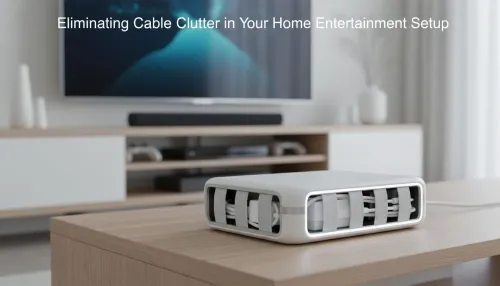
Cable management for home entertainment helps you eliminate cable clutter quickly and safely. Learn routing, concealment, and product picks to tidy your setup fast 📺🔌
Read more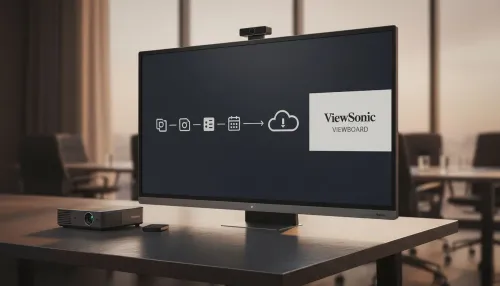
• Audit setup • Link accounts • Configure ViewBoard • Test workflows Integrate Google Workspace with ViewSonic ViewBoard to enable secure SSO, calendar and Drive sync, and smooth collaborative whiteboarding 🔗📋
Read more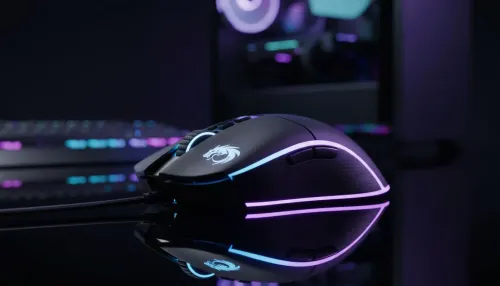
Best gaming mouse for beginners: fast, comfy picks and pairing tips for your first gaming PC. Learn DPI, grip, wired vs wireless, and budget picks 🎮🖱️
Read more
Discover webcams that automatically adjust light and color for crystal-clear video calls 🎥✨. Boost your streaming quality today!

Discover webcams that blend into your workflow 🎯 Capture moments while you work, stream, or create. Upgrade your setup with smart, multitasking tech!

Dedicated media keys give streamers one-touch control to mute, switch scenes, clip highlights, and adjust audio — cutting task time and boosting consistency 🎛️⚡

PBT vs ABS keycaps: Clear, local guide for South African gamers—compare feel, sound, durability and where to buy. Find the best material for your budget and playstyle 🎮🇿🇦

- Multi-Function Digital Dial: define benefits - Show gamer setups and macros - Offer buying and setup tips Multi-Function Digital Dial puts programmable control at your fingertips for faster actions and smoother streaming. 🎮⚙️

- Explain benefits; - Show the science; - Compare options; - Recommend picks. Magnetic wrist rest for gaming cuts wrist strain and boosts comfort during long sessions 🕹️✨