Most modern monitors accept commands from Windows over a standard called DDC/CI, which means you can change brightness, contrast and input without reaching for the buttons. To control monitor settings from your PC, switch DDC/CI on in the monitor menu, then use the maker's own app or a free tool such as Monitorian. Setup takes about five minutes.
Quick Answer
Open the monitor's on-screen menu, find DDC/CI under system or setup and set it to On. Install your maker's software (Dell Display Manager, LG OnScreen Control and similar) or the free Monitorian app, then adjust brightness from Windows. Connect with a direct DisplayPort or HDMI cable, because docks and cheap adapters often block the signal.
🔌 What DDC/CI is and how to turn it on
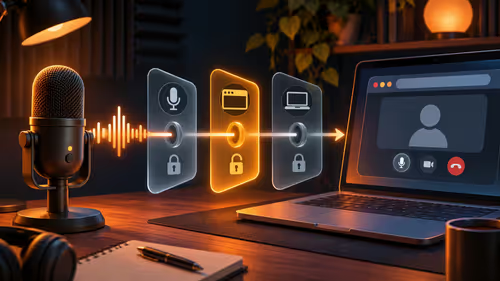
DDC/CI is a two-way channel carried inside the HDMI or DisplayPort cable. Windows software sends a short message, and the monitor changes brightness, contrast or the input source. Nothing extra is plugged in.
- Open the monitor's on-screen menu with its button or joystick.
- Look in System, Setup or Others for DDC/CI.
- Set it to On.
- Restart any monitor-control app you use.
Some screens ship with it disabled to save a tiny amount of power. If you cannot find the option, check your model's manual.
🧰 Software that does the job
Maker apps
Dell, LG, AOC, Samsung and others publish their own tools. They offer extras such as preset switching and window layouts, but they only support the brands and models they list.
Monitorian and other free tools
Monitorian is a small Windows app that puts brightness sliders for every connected monitor in one place. Choose whichever supports your screen, and remember the built-in Windows brightness slider normally affects laptop panels only.
Looking for a screen with plenty of control options? The gaming monitors category lets you compare sizes and ports.
🧭 When it does not work
- Docks and adapters: some USB-C docks and VGA or DVI converters do not pass DDC/CI. Plug straight into the graphics card to test.
- KVM switches: many budget units block it. Bypass the switch for a test.
- Wrong port: on a laptop with two graphics outputs, use the port the monitor is actually wired to.
- Cable length: a very long or low-quality cable can drop the signal.
If a direct cable works, you have found the culprit. The wider monitor range includes models with several inputs that pair well with a desktop and a laptop.
Shortcuts and automation
Once DDC/CI works, you can bind brightness steps to keys with Monitorian or the maker's app, and some tools let you switch between day and night presets at set times. If you work from a desk in a Joburg flat with a window that changes light through the day, a morning and evening preset saves constant trips to the monitor buttons. Keep the monitor's own menu as a backup, and write down the default brightness and contrast numbers before you experiment.
🌇 Practical uses day to day
Brightness is the setting most people change, but contrast, the input source and picture presets are usually available too. Contrast is worth leaving alone, while switching between HDMI and DisplayPort is a real time saver for anyone sharing one monitor between a desktop and a work laptop. Control from Windows is useful if the buttons are awkward to reach, as they are on some large monitors. You can dim the display at night with a shortcut, or lower brightness after a bright Highveld afternoon when the room goes dark. Save the original numbers before you experiment so you can always return to them. You can also switch inputs between a desktop and a laptop without reaching behind the screen.
Frequently Asked Questions
What is DDC/CI?
A standard that lets the PC send commands to the monitor over the video cable, so Windows software can change brightness, contrast and the input source.
How do I turn it on?
Open the monitor's on-screen menu and look for DDC/CI under system or setup. Switch it on, then restart any control app you use.
Which software can I use?
Maker apps such as Dell Display Manager or LG OnScreen Control, or a free tool like Monitorian. Choose the one that supports your model.
Why is my brightness slider missing in Windows?
The built-in slider normally controls laptop panels only. For an external monitor you need DDC/CI plus a control tool, since Windows does not show it by default.
Can a dock or KVM block it?
Yes. Some docks, adapters and switches do not pass DDC/CI. Test with a direct DisplayPort or HDMI cable to your graphics card first.
Is it safe to change settings this way?
Yes, the same options exist in the menu. Note the original numbers so you can reset them if you do not like the result.
Ready to run your display from the keyboard?
Explore the gaming monitors category at Evetech to find a screen with the inputs and controls your setup needs.