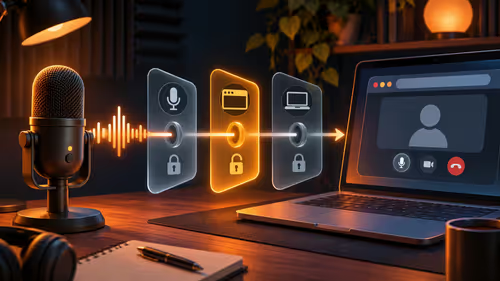
A silent meter in a Teams call is rarely a dead microphone. In most cases chrome can t use microphone problems come from one of three switches: the site permission in Chrome, the input device chosen inside Teams, or the Windows privacy toggle. Work through them in that order and your voice usually returns within five minutes.
Quick Answer
Click the padlock beside the address bar, open Site settings and set Microphone to Allow, then reload the tab. In Teams, go to Settings, Devices and choose the right microphone. If both look correct, Windows may be blocking the device, so open its Privacy and security page for the microphone and allow apps and desktop apps.
🔒 Chrome permission first
Chrome asks once per site and remembers your answer, so a single accidental click on Block can silence a site for months.
- Click the padlock or tune icon left of the address.
- Open Site settings and find Microphone.
- Change it from Block or Ask to Allow.
- Reload the page so Chrome asks again.
If the site still hears nothing, open chrome://settings/content/microphone and check the default device at the top of the list. Chrome sometimes picks a webcam microphone or a monitor with built-in speakers rather than your headset. On an Android phone the same fix lives under Chrome's Site settings and the phone's own app permissions.
🎧 Teams picks its own device
Teams keeps the last microphone it saw, which is why an unplugged headset leaves the app listening to nothing.
- Open Settings from the three dots beside your profile picture.
- Choose Devices.
- Pick the right microphone under Audio devices.
- Speak and watch the level bar under Mic move.
A meter that bounces here but stays flat in a meeting often points to a second app holding the mic. Close any recording tool, game chat or other call app and rejoin. A dedicated USB microphone shows up under its own name, which makes picking the right entry far easier than guessing between three generic ones.
🛡️ Windows privacy and exclusive mode
Windows can block every app at once. Open the Privacy and security page in Settings, pick Microphone and confirm that Microphone access, Let apps access your microphone and Let desktop apps access your microphone are all on. If these are greyed out on a work laptop, an admin policy owns them and your IT team has to change it.
Then open Settings, System, Sound, choose your input and select Properties. Under Advanced, untick the exclusive mode boxes so Chrome and Teams can share the device. Use the Test your microphone button in the same screen to prove the hardware works. If it does, the fault is in software and you can stop swapping cables.
🔌 Rule out the hardware
Inline mute buttons, boom arms that mute when flipped up and loose 3.5 mm jacks cause as many failures as settings do. Try a different USB port, preferably one on the back of a desktop. A single headset with a combined jack may need the right plug type on a laptop, since some laptops want a four-pole connector. Gear in the streaming essentials range, such as USB microphones, avoids the jack lottery altogether.
Test before the meeting starts
Join a test call a few minutes early rather than discovering a silent mic once everyone is waiting. In Teams, the Make a test call option under Devices plays your voice back, and in Chrome a free online mic test shows the level bar moving. If you share a laptop with family in a small Joburg or Pretoria flat, remember that a second user profile may have its own privacy settings, so check them while signed in as yourself. A reboot clears a driver that has stuck on another program, and costs under a minute.
If none of this helps, create a fresh Chrome profile from the profile icon and test there. A broken extension that touches media devices can block the microphone, and a clean profile rules it out in under a minute.
Frequently Asked Questions
How do I allow the microphone in Chrome?
Use the padlock icon next to the web address, go into Site settings and flip Microphone to Allow. A page reload lets Chrome apply the change.
Why does Teams use the wrong microphone?
Teams clings to whichever device it saw last. Choose the right input under Settings, Devices, then place a test call and watch the level bar.
Does Windows block apps from the mic?
It can. Settings, Privacy and security, Microphone has switches for apps and desktop apps, and with either off no program hears you.
Why does my mic work in Teams but not in Chrome?
A driver in exclusive mode lets a single program own the device. Shut the other app, confirm Chrome's site permission and untick exclusive mode.
Could a work laptop be blocking the mic?
Managed company laptops in South Africa frequently lock microphone access by policy. Greyed-out privacy toggles mean your IT team has to unlock it.
Ready to sound clear in every meeting?
Browse the microphone category at Evetech for USB and headset options that Chrome and Teams recognise without fuss.