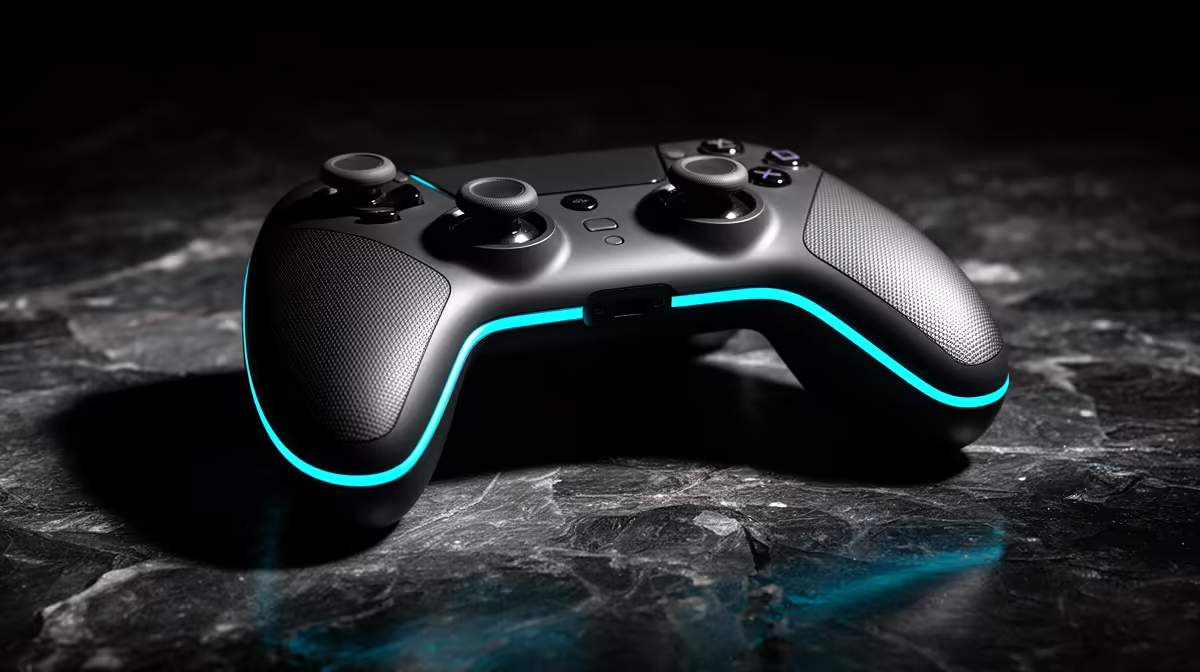
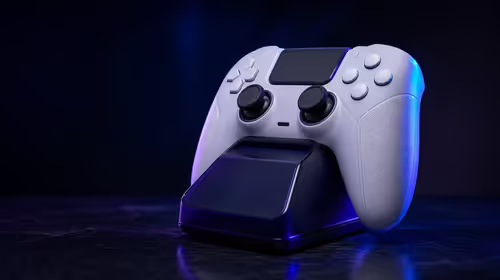
A wider centre zone can quiet mild stick drift without touching the controller's internals. Controller deadzone settings are a practical diagnostic and temporary adjustment, with the smallest stable value preserving the most fine control.
Quick Answer
Raising a controller deadzone can hide mild stick drift without opening the controller. The deadzone is the area around the stick's centre that a game ignores, so a wider setting can swallow a small unwanted input. This is a workaround for worn or contaminated hardware, rather than a repair. Use the smallest increase that stops the movement. A large deadzone makes fine aim and gentle steering harder, and worsening drift can outgrow the setting.
Confirm that drift is the problem
Stick drift usually appears as camera, cursor or character movement while your thumb is off the stick. Before changing settings, rule out an input from a second controller and reset any custom profile you forgot was active. Test the pad in a controller input screen if your platform or game provides one.
Watch the resting position for a minute, then move the stick around its full circle and release it from each direction. A small offset that stays near centre is a good deadzone candidate. A value that jumps, sticks near an edge or changes each time points to a larger hardware problem.
Increase the inner deadzone in small steps
Look for an inner deadzone setting in the game's controller menu. Start from your current value and raise it one step. Return to a quiet scene and take both thumbs off the sticks. Repeat until the unwanted movement stops.
Then test the cost. Track a slow target, make a small camera correction and walk a character at the lowest speed the game allows. In a driving game, hold a shallow steering angle through a long bend. If the input now feels as though it jumps away from centre, the deadzone is too wide.
Some games expose separate settings for left and right sticks. Use that distinction. A drifting movement stick does not require you to blunt the aim stick as well. Other games offer axial and radial deadzones. Radial control treats distance from centre as the key value, while axial control can suppress movement around each axis. The labels and maths vary between games, so use the live input preview when one is available.
Check the other layers
PC controller input can pass through the game, a platform remapper or the controller maker's app. Two active layers can produce confusing results. Set the deadzone in one place first, then test again. If you use Steam Input for remapping, check whether the game also applies its own deadzone after that processed signal.
Response curves are separate. A curve changes how stick movement maps across the range; it does not remove a noisy centre by itself. Set the inner deadzone first, then tune the curve for your preferred aim feel.
Cleaning, calibration and firmware
External dust around the stick collar can sometimes affect movement, but opening a controller or spraying a cleaner into it can damage parts and affect warranty support. Follow the manufacturer's cleaning and calibration instructions for your exact model. Apply firmware updates through its official tool, then retest with default settings.
Calibration can correct a stored centre or range on supported controllers. It cannot restore a worn potentiometer track. If the controller loses its centre again after calibration, record a short input test and keep the serial number and proof of purchase ready for a support query.
Warranty coverage depends on the fault, product terms and circumstances. South African consumer remedies may also apply. For a disputed case, check the current Consumer Protection Act guidance and contact the National Consumer Commission or Consumer Goods and Services Ombud for the authoritative route. Avoid treating a software workaround as proof that the hardware is fault-free.
When replacement makes more sense
A deadzone workaround has reached its limit when you need to sacrifice useful stick movement, the drift varies during play, or the input spikes beyond the centre area. At that point, compare the cost and support route for your model with a replacement.
You can check the current gaming controller range by connection, layout and feature set. The popular peripheral page helps you see controllers alongside the rest of a PC input setup.
Keep a note of the original and adjusted values. That gives you a clean comparison and shows whether the drift is growing over time.
Retest after the controller warms through a normal session. A fault that appears under repeated movement can escape a short menu check.
FAQ
Does a larger deadzone repair stick drift?
It hides small unwanted movement around centre. Wear or contamination remains, and worsening drift may move beyond the ignored area.
Will a bigger deadzone hurt aim?
It can. Fine corrections start later and may feel jumpy, so use the smallest value that holds a stable centre.
Should I clean the controller first?
Follow the maker's external cleaning and calibration guidance for your model. Avoid opening it or applying chemicals without approved instructions.
Compare current PC controllers when your deadzone workaround starts costing you control.