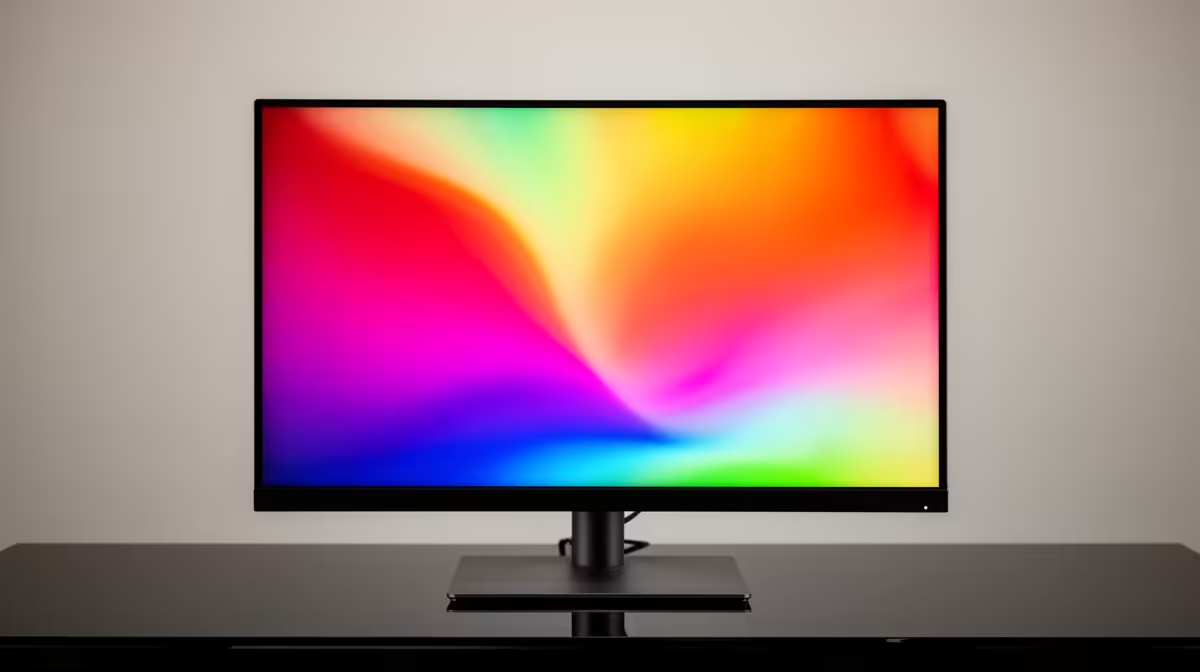
A wide-gamut monitor can show more saturated colours than the sRGB standard used by most desktop graphics and web content. In an unmanaged path, ordinary red and green values stretch into the panel's larger gamut and look loud. A good sRGB mode clamps that output before it reaches your eyes.
Quick Answer
Use the monitor's sRGB or Rec.709 mode for normal Windows work, web content and games that assume sRGB. Check whether the mode locks brightness or white balance, then measure or visually compare it with a known reference. Use the wide-gamut mode for colour-managed work or HDR that calls for it.
Browse Evetech's monitor catalogue and compare current display best sellers. Look for measured sRGB coverage, gamut volume, white point and mode accuracy rather than assuming a menu label guarantees a clean clamp.
Why Oversaturation Appears
An sRGB image stores colour values for the sRGB colour space. A non-colour-managed application can send those values straight to a panel capable of much deeper red and green. The monitor reproduces them using its native gamut, so skin, grass and icons become more saturated than the creator intended.
The extra gamut is useful for DCI-P3, Adobe RGB and HDR work when software manages the colour. It becomes a problem when the content has no profile, the application ignores it or the game assumes a standard display.
Colour volume and gamut coverage are different. A monitor can cover sRGB and exceed it by a large amount. That excess is what the clamp needs to contain for standard content.
Try the Hardware sRGB Mode
Open the monitor's colour or picture menu and choose sRGB. Reset software saturation and digital-vibrance controls before judging it. Leave HDR off for this SDR test.
Open familiar photographs with natural skin and a web page with strong brand colours. Compare Native or DCI-P3 mode with sRGB. The correct mode can look muted for the first few minutes because your eyes adapted to the exaggerated version.
Check brightness. Some monitors lock it at a high level in sRGB mode, which can make the desktop uncomfortable even when colour is better. Others lock RGB gain or gamma. A review that measures the exact mode will show the compromise.
A Clamp Is Different From Calibration
Gamut clamping limits which colours the display can produce for the selected mode. Calibration adjusts targets such as white point, gamma and luminance. Profiling describes the display response so colour-managed software can translate content.
A monitor can clamp close to sRGB while having a blue white point or poor gamma. It can also calibrate a native wide-gamut mode and still oversaturate unmanaged applications because the operating path does not apply the profile.
For accurate work, use a supported colorimeter and software. Create a profile for the chosen hardware mode and keep it assigned to that display. Do not use a profile downloaded for another unit as if panel variation did not exist.
Understand Windows Colour Management
Colour-managed applications read the image profile and monitor profile, then convert values for the display. Modern browsers and creative tools can do this well. Games, launchers and parts of the Windows desktop can follow different paths.
Windows colour-management features continue to evolve, and advanced-colour handling depends on the display, GPU and application. A hardware sRGB clamp remains the broadest answer for unmanaged SDR content because it works at the monitor.
Assign the correct ICC profile to the correct screen in a multi-monitor setup. The profile does not switch the monitor's hardware mode for you; those two choices must describe the same state.
Switch Modes by Workload
Use sRGB for general SDR desktop work, most web content and games whose art targets a standard gamut. Use a calibrated P3 or Adobe RGB mode for managed projects in that space. Enable HDR for real HDR content and calibrate through the platform's HDR route.
Do not leave HDR on just to reach the panel's wide gamut for SDR. Tone mapping and SDR brightness handling can change the desktop. Compare the monitor's normal SDR clamp with the Windows HDR presentation before choosing.
Save modes to shortcuts if the monitor allows it. Write down which ICC profile belongs to each mode so a fast switch does not leave software using the wrong description.
Diagnose a Bad sRGB Mode
If the clamp looks too warm, green or dim, reset the monitor and test a standard colour-temperature option. Disable eye-comfort, dynamic-contrast and game filters. Those can alter the result after the clamp.
Compare measured gamut coordinates and delta errors from a reliable review. A mode that undershoots parts of sRGB can make colour dull, while one with excess volume can leave oversaturation.
When brightness is locked, see whether a separate uniform-brightness or eco control is responsible. If it cannot be changed, a software-managed native mode may be preferable for creative applications, while unmanaged games will still need another solution.
FAQ
Is sRGB mode the same as calibrating a monitor?
No. It clamps gamut; calibration and profiling address white point, tone response, luminance and measured display behaviour.
Why does accurate sRGB look dull at first?
Your eyes may have adapted to native wide-gamut oversaturation. Use familiar reference content and allow time to adjust.
Should HDR stay on for wide-gamut desktop colour?
Use HDR for HDR content and compare the system's SDR handling. A hardware sRGB mode is often cleaner for unmanaged SDR.
Clamp ordinary SDR content with the monitor's measured sRGB mode, match its ICC profile and switch to calibrated wide gamut only for managed work.