So, you’ve just unboxed your brand-new ASUS gaming laptop. The raw power is thrilling, but it feels… a bit standard. True gaming glory isn't just about specs; it's about making your machine an extension of yourself. This guide is your key to unlocking its soul. We'll show you how to customize your ASUS gaming laptop from the inside out, transforming it from a powerful tool into your ultimate personalised command centre. Ready to get started? 🚀
Your Command Centre: ASUS Armoury Crate
Before you even think about downloading new wallpapers, your first stop on the journey to customize your ASUS gaming laptop is a pre-installed piece of software: Armoury Crate. Think of it as the central nervous system for your machine. It’s where you control everything from performance profiles and fan speeds to the vibrant RGB lighting that makes your laptop stand out.
Ignoring Armoury Crate is like buying a supercar and leaving it in eco-mode. It’s the single most important tool for tailoring your laptop’s behaviour to perfectly match what you’re doing, whether that’s dominating in Valorant or quietly taking notes in a lecture.
Master Your Performance with Armoury Crate 🔧
Performance is everything, and Armoury Crate gives you granular control over your laptop's power. This is where you can truly start personalizing the feel of your machine.
Scenario Profiles: Power on Demand
The easiest way to start is with Scenario Profiles. These are one-click presets designed by ASUS for common tasks:
- Silent: Lowers fan noise and caps performance. Perfect for the library, a coffee shop, or late-night browsing.
- Performance: The balanced, everyday mode. It offers a great mix of power and acoustics for most gaming and productivity tasks.
- Turbo: Unleashes the full power of your CPU and GPU, ramping up the fans to keep things cool. This is your go-to for demanding games and heavy workloads.
Switching between these modes is the first and most impactful customization you can make. Many powerful ASUS ROG laptops in South Africa benefit hugely from a quick switch to Turbo mode before a serious gaming session.
Automate Your Profiles ⚡
Did you know you can link Scenario Profiles to specific games or apps? In Armoury Crate, you can set it to automatically switch to Turbo mode whenever you launch Cyberpunk 2077 and then revert back to Performance mode when you close it. It’s a simple tweak that optimises your experience without you having to lift a finger.
Unleash Your Style with Aura Sync RGB
Now for the fun part: making it look the part. ASUS Aura Sync is the ecosystem that controls all the RGB lighting on your laptop and any compatible peripherals.
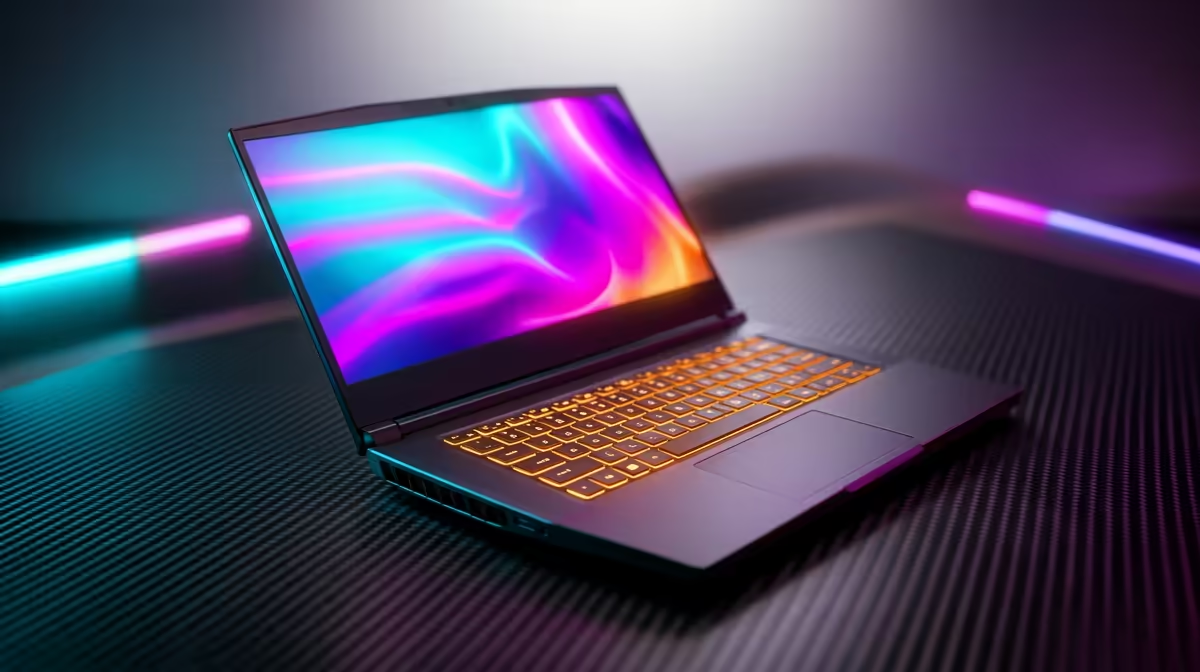
Within Armoury Crate, the Aura Sync tab lets you choose from a range of preset effects like Static, Breathing, or the iconic Rainbow swirl. But the real magic happens in Aura Creator. This advanced tool lets you layer effects, control individual lighting zones, and design truly unique lighting sequences that reflect your personal style. Whether you prefer a subtle, single-colour glow on your keyboard or a full-on light show, this is where it happens. This level of visual flair is a hallmark across the entire range, from the workhorse ASUS TUF Gaming laptops to the premium models.
Software Tweaks and Visual Personalization ✨
With performance and lighting dialled in, it's time for the finishing touches.
Optimise Your Display
Don't forget your screen! Armoury Crate also includes GameVisual, a utility that offers display presets calibrated for different game genres. The FPS mode, for instance, boosts visibility in dark areas, while the Racing mode enhances motion clarity. Experimenting with these can give you a surprising competitive edge. This feature truly shines on the high-refresh-rate, colour-accurate screens found in many of the latest ASUS ROG Zephyrus deals.
Beyond the Basics
To complete the look, find a high-resolution wallpaper that matches your new RGB theme. For a truly dynamic desktop, consider an app like Wallpaper Engine from Steam. It allows you to use animated, interactive, and even audio-responsive backgrounds. It’s a small detail, but it makes a massive difference every time you boot up.
Ultimately, the best customization starts with choosing the right foundation. No software tweak can add more VRAM to a graphics card. Your journey begins by selecting a machine with the core components you need, which you can then fine-tune to perfection using the tips above. Exploring the full range of ASUS gaming laptops and notebooks is the first step to building your dream setup.
Ready to Build Your Perfect ASUS Rig? True customization starts with the right hardware. From performance tuning to creating a stunning RGB light show, your ASUS laptop is a canvas for you to command. Explore our massive range of ASUS laptop specials and find the perfect machine to conquer your world.