

Clean Gaming Keyboard: Guide for Dusty & Humid Conditions
Clean gaming keyboard quickly and safely in dusty or humid conditions with step-by-step tips, tool checklist, and maintenance routines to prevent corrosion and switch failure. 🧼💨
Read moreEnjoy lag-free gaming with AMD FreeSync on laptops. 🔧 Optimise your visual experience now! 💡
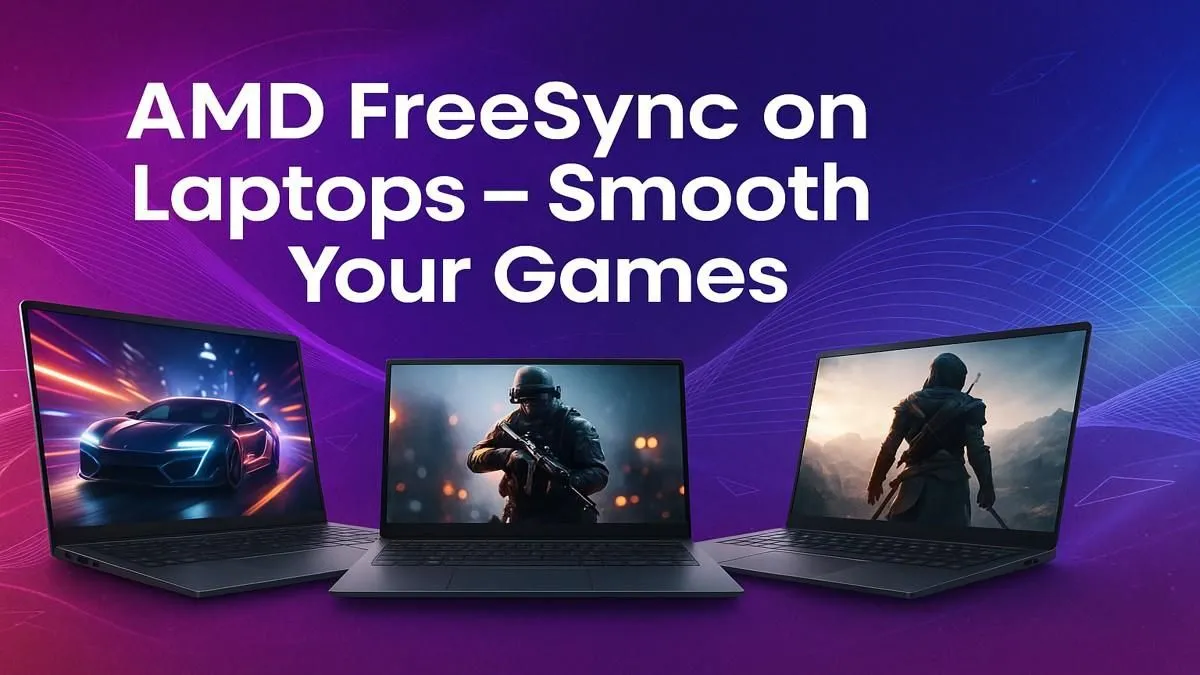
Tired of that jarring screen tear ruining a perfect headshot in Apex Legends? Or stuttering frames making you miss a crucial play? You’ve got a powerful gaming laptop, but it feels... off. The good news is, the fix is often a simple switch you haven't flipped yet. Learning how to enable AMD FreeSync on laptops is the key to unlocking the buttery-smooth gameplay you paid for, and it only takes a minute. 🚀
Let's cut through the jargon. AMD FreeSync is a clever piece of tech that synchronises your laptop's display refresh rate with the frame rate of your graphics card (GPU). In simple terms, it makes sure the screen only draws a new frame when the GPU is ready to deliver one.
The result? It completely eliminates screen tearing (that ugly horizontal line that splits your screen) and minimises stutter. For you, the gamer, this means a far more responsive and visually seamless experience. Many of the latest AMD laptops on special come with FreeSync-enabled displays, so you might already have this powerful feature waiting to be activated.
Ready to get that silky-smooth performance? It's usually a straightforward process. Here’s a step-by-step guide to get your AMD FreeSync laptop setup sorted.
Before anything else, make sure your AMD graphics drivers are up to date. Outdated drivers are the number one reason features go missing.
With your drivers updated, the next part is just a few clicks. 🔧
And that's it! Your display is now synced with your GPU. You’ve successfully managed to enable AMD FreeSync on your laptop.
For FreeSync to work its magic, you must disable V-Sync inside your game's graphics settings. Having both enabled can cause input lag or other issues. Let FreeSync handle the synchronisation!
Activating FreeSync is the main step, but to perfect the experience, you need to keep your frame rate (FPS) within your display's FreeSync range (e.g., 48-144Hz). If your FPS goes above this range, FreeSync deactivates.
A great trick is to cap your FPS just below your screen's maximum refresh rate. For a 144Hz display, capping your FPS at 141 in-game or via the AMD software ensures FreeSync stays constantly engaged. This is a top-tier optimisation technique used on all machines, from budget builds to the best gaming laptop deals in South Africa. ✨
Got a laptop with an NVIDIA or Intel GPU? Don't stress. While FreeSync is an AMD technology, many FreeSync displays are also "G-Sync Compatible". This means NVIDIA GPUs can also use the adaptive sync feature, though the setup process is done through the NVIDIA Control Panel instead. This cross-compatibility is great news whether you're looking at Intel laptops on special or Team Red.
Ready for Tear-Free Gaming? Now that you know how to unlock smoother gameplay, make sure your hardware is up to the task. Check out our massive range of laptop specials for sale in South Africa and find the perfect rig for your next victory.
Go to AMD Radeon Settings, navigate to Display, and toggle on FreeSync for your monitor.
No, your laptop monitor or external screen must support FreeSync for it to work.
No, FreeSync reduces screen tearing with minimal impact on performance.
Check for G-SYNC compatibility or use VSync to reduce tearing, though less effectively.
Yes, FreeSync dynamically matches refresh rates, avoiding input lag compared to VSync.
Yes, if your laptop's GPU and external monitor both support FreeSync for smoother visuals.
Open AMD Radeon Software, go to Display Settings, and confirm FreeSync is 'Ready' or 'Active'.
Clean gaming keyboard quickly and safely in dusty or humid conditions with step-by-step tips, tool checklist, and maintenance routines to prevent corrosion and switch failure. 🧼💨
Read more
Best gaming keyboard features to prioritize when building a high-end setup: mechanical switches, low latency, hot-swap, RGB, macros, durability and ergonomics 🎮⌨️
Read more
Custom actuation point keyboard setup guide: learn to set per-key actuation on your analog gaming keyboard for faster, precise inputs and better control 🎮⚙️
Read more
Cable management for home entertainment helps you eliminate cable clutter quickly and safely. Learn routing, concealment, and product picks to tidy your setup fast 📺🔌
Read more
conference room setup Microsoft Teams Zoom: Upgrade AV, camera, mic, and network to ensure seamless meetings, clear audio, and crisp video 🎯🔧
Read more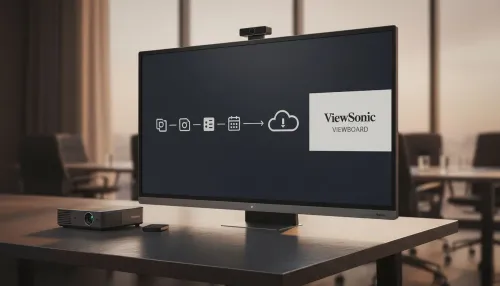
• Audit setup • Link accounts • Configure ViewBoard • Test workflows Integrate Google Workspace with ViewSonic ViewBoard to enable secure SSO, calendar and Drive sync, and smooth collaborative whiteboarding 🔗📋
Read more
Discover webcams that automatically adjust light and color for crystal-clear video calls 🎥✨. Boost your streaming quality today!
Read more
Discover webcams that blend into your workflow 🎯 Capture moments while you work, stream, or create. Upgrade your setup with smart, multitasking tech!
Read more
Dedicated media keys give streamers one-touch control to mute, switch scenes, clip highlights, and adjust audio — cutting task time and boosting consistency 🎛️⚡
Read more
PBT vs ABS keycaps: Clear, local guide for South African gamers—compare feel, sound, durability and where to buy. Find the best material for your budget and playstyle 🎮🇿🇦
Read more
- Multi-Function Digital Dial: define benefits - Show gamer setups and macros - Offer buying and setup tips Multi-Function Digital Dial puts programmable control at your fingertips for faster actions and smoother streaming. 🎮⚙️
Read more
- Explain benefits; - Show the science; - Compare options; - Recommend picks. Magnetic wrist rest for gaming cuts wrist strain and boosts comfort during long sessions 🕹️✨
Read more