Memory-cleaner software cannot create capacity. It can only close, trim or move data that applications may need again. The effective way to free up RAM without buying more is to remove unnecessary startup work, reduce browser and overlay load, and identify the one process consuming memory before it disrupts the session.
Quick Answer
Open Task Manager, sort processes by memory use and close applications you recognise but do not need. Disable unnecessary startup entries, reduce browser tabs and remove duplicate game overlays. If the normal workload still approaches the physical limit after cleanup, software has reached its boundary. In Evetech's July 2026 list, Kingspec's 8GB DDR4-3200 module cost R1,499 and the 16GB KLEVV alternative was R2,699 for compatible systems that genuinely need more capacity.
🔍 Find the consumer before changing settings
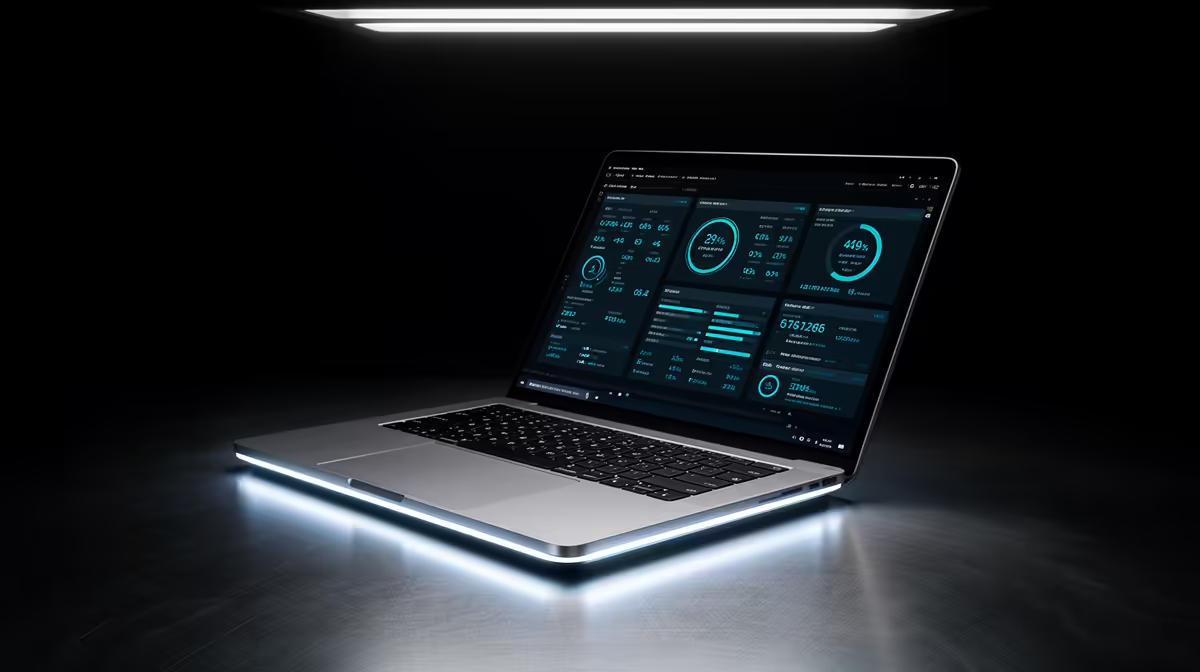
Press Ctrl, Shift and Esc to open Task Manager, then use the Processes view to sort by memory. Observe the machine during the slow workload, not immediately after a fresh boot. The browser, game, communication tools and launchers need to be present for the reading to mean anything.
Look at committed memory as well as the percentage. Windows uses spare RAM for caching and releases it when applications need space, so "used" memory is not automatically wasted.
A process that grows continuously can indicate a memory leak. Save work, restart the application and compare a fresh session with a long one. More RAM may delay the crash without fixing the leak.
Do not end unfamiliar Windows services at random. Search the process name, check its file location and use the application's own settings where possible.
🌐 Tame browsers, launchers and overlays
Browser tabs can hold complex applications, video and large pages. Use built-in sleeping-tab or memory-saving features, bookmark research groups and close sessions that are no longer active.
Extensions also consume resources and can keep working in the background. Remove those you no longer use and test the browser with extensions disabled if memory use seems disproportionate.
Game launchers may remain open after a title starts. Some are required for ownership or updates; others can be configured not to launch with Windows. Voice chat, capture tools, RGB utilities and performance overlays add more processes around the game.
Keep one overlay for the information you need. Running platform, GPU-driver, voice-chat and monitoring overlays together creates memory use and can complicate troubleshooting.
🚀 Clean the startup path
Task Manager's Startup apps section shows software configured to run at sign-in. Disable applications you recognise and can launch manually when required. Security tools, hardware drivers and accessibility software need more caution.
Uninstalling unused software is cleaner than repeatedly closing it. Review applications through Windows Settings, remove old launchers and restart after changes. Keep installation files or account details only where needed.
Visual effects use some memory, but disabling animations rarely transforms a seriously constrained gaming PC. Start with large applications and background tools, where the return is more meaningful.
Avoid third-party RAM cleaners. Forcing cached data out can make the system slower when Windows immediately reads it back from storage. A clean-looking percentage is not the same as improved response.
📊 Know when cleanup is finished
Repeat the same workload after each group of changes. Record committed memory, page-file activity and whether the original hitching or tab reloads improved. This keeps cleanup evidence-based.
If the normal session now has comfortable headroom, stop. Further disabling can remove useful functions for no practical gain.
If it still sits close to capacity, check whether the laptop or desktop supports an upgrade. Confirm DDR generation, module form factor, slot count, maximum capacity and soldered memory. Evetech's DDR5 memory range is only relevant to compatible DDR5 systems; older machines may need another generation.
The memory best sellers provide a broader local shortlist. Buy a matched configuration for the measured requirement, then run a proper memory test after installation.
Frequently Asked Questions
How can I free up RAM without buying more?
Close unnecessary applications, reduce browser load, disable unneeded startup items and remove duplicate overlays.
Do browser tabs use much memory?
They can. Video, web applications and complex pages consume more than simple documents, and extensions add background use.
Which startup apps are safe to disable?
Disable software you recognise and can launch manually. Leave security, driver and accessibility components alone unless their vendor says otherwise.
Can game launchers use RAM while idle?
Yes. Launchers, stores, update agents and overlays can remain active around the game.
Do Windows visual effects matter?
They use some resources, but disabling them rarely solves severe memory pressure. Large processes should be addressed first.
How do I identify the biggest user?
Sort Task Manager's Processes list by memory during the real workload and watch for applications that grow over time.
Is a RAM cleaner worth installing?
No. It can evict useful cached data and create more storage reads without increasing physical capacity.
Ready to prove whether software cleanup is enough?
Measure the full session, remove only unnecessary background work and compare compatible Evetech memory once the reading shows a genuine hardware ceiling.