A PC that restarts in the middle of a game gives you almost no explanation. Windows may record only that power disappeared unexpectedly. Start by describing exactly what happened, return the machine to stock settings and isolate one load at a time. Repeated full-system torture tests can hide the clue and stress a failing part.
Quick Answer
Note whether the PC instantly rebooted, powered off, showed a blue screen or only closed the game. Check Reliability Monitor and Event Viewer around that time, while remembering that a Kernel-Power entry records an unexpected shutdown rather than its cause. Load BIOS defaults, disable memory and CPU tuning, monitor temperatures, then test CPU and GPU separately. The median power-supply price in Evetech's July 2026 in-stock snapshot was R2,099, but do not replace the PSU until the symptoms and connections give you a reason.
📝 Capture the failure before reproducing it
Write down the game, time, scene and what the screen and fans did. Did the PC restart at once, remain off, or display an error code? Did you smell hot electronics, hear a pop or see a flash? If there is smell, smoke, liquid or visible cable damage, unplug the system and stop testing.
Open Windows Reliability Monitor and look at the day of the restart. Check Event Viewer under System for hardware errors, bug checks and driver events just before power was lost. A critical power event after the fact confirms the restart was not clean; it rarely identifies the guilty component alone.
Save crash dumps and photograph error codes. A repeatable blue-screen stop code offers more direction than a list of every warning Windows has logged since installation.
Evetech's gaming PC range provides component context while you document the build that is failing.
↩️ Return the PC to a known baseline
Load BIOS defaults or disable CPU undervolts, GPU overclocks and XMP or EXPO one at a time if you need to preserve a working setting trail. Remove newly added monitoring or tuning profiles. Use the normal Windows power plan and close background stress tools.
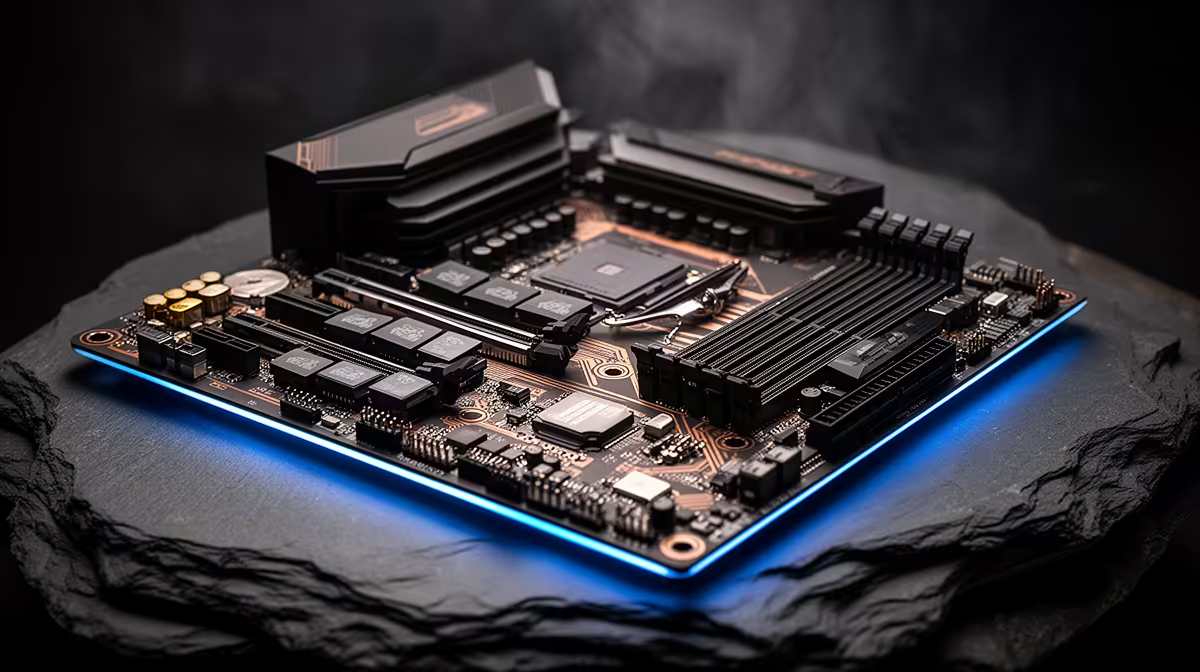
Check that total RAM and storage appear correctly. Reseat external power and display cables. Inside the case, with the system off and unplugged, inspect motherboard, GPU and CPU power connectors for incomplete seating or heat marks.
Do not open the power supply. Its internal capacitors can retain dangerous energy after disconnection. Cable inspection ends at the sockets and leads intended for user access.
🌡️ Separate heat from electrical load
Monitor CPU and GPU temperature and clock behaviour in the game until the failure or a safe test limit. A cooler that lost mounting pressure or a stopped pump can cause shutdowns, though modern components may throttle first.
Run a moderate CPU-only workload. If it restarts, investigate CPU cooling, memory and motherboard power before adding GPU load. Let the machine cool, then run a graphics test. A failure only when the card draws hard points toward GPU power, the card itself or total supply load.
Combined load can reveal a PSU that handles either component alone but not both together. Use short, controlled tests. You do not need to prove a marginal supply can fail ten times.
⚡ Check the PSU and its cabling without guessing from wattage
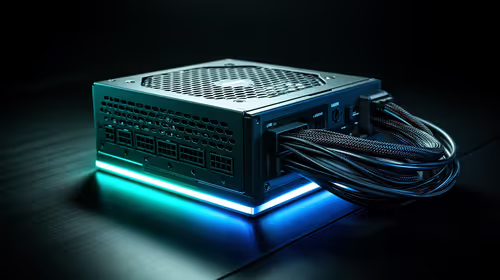
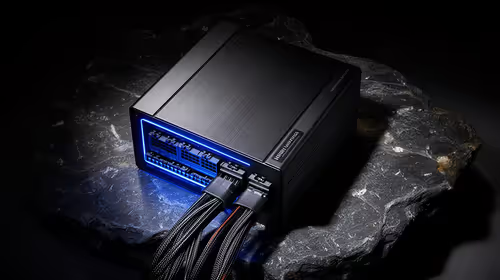
Read the power-supply model, watt rating and cable requirements. Compare them with the graphics-card and processor configuration, allowing for transient demand and ageing. A 750W label says little if the unit is poor quality, damaged or wired with the wrong modular cable.
Use only modular cables made for that exact PSU model or compatibility family. Connect separate PCIe leads where the card and supply instructions call for them. Never reuse a cable because the connector happens to fit; pinouts can differ at the power-supply end.
If possible, test with a known-good supply that meets the system's requirements. That swap is more useful than ordering a larger number from the symptom alone.
Evetech's PC best-sellers offer current system comparisons when power capacity is part of a wider component change.
🧠 Give memory its own test
An unstable memory profile can reboot, freeze or throw different application errors. Run at the platform's default memory settings and test the modules. If errors remain, test one module at a time in the motherboard's recommended single-stick slot.
Check the board manual before moving RAM. A socket problem, memory-controller issue or damaged module can produce similar symptoms. Keep notes on which stick and slot produced each result.
Once the PC survives stock CPU, GPU and memory tests, reintroduce any tuning one change at a time. The setting that brings the restart back has earned your attention.
Frequently Asked Questions
What is the first step in diagnosing random restarts?
Describe the exact failure and check Reliability Monitor and nearby system events before trying to reproduce it.
Could a weak PSU cause restarts under load?
Yes. Insufficient capacity, damage or bad cabling can remove power when system demand rises.
Should I stress test CPU and GPU separately?
Yes. Separate tests help reveal which load is present when the restart begins.
Can overheating cause a restart instead of just throttling?
Yes. Severe heat or a cooling fault can lead to shutdown or restart after throttling is insufficient.
Does an unstable RAM overclock cause restarts?
It can. Return memory to default settings and run a proper memory test.
Should I check for driver crashes before replacing hardware?
Yes. A blue screen, display-driver reset or application crash may identify a software path that an instant power loss does not.
Is it worth testing with one RAM stick at a time?
Yes, after checking the manual's correct single-module slot and returning memory settings to stock.
Narrowed the restart to a component or power condition?
Compare current gaming-PC configurations at Evetech, then replace or service only the part your controlled tests have isolated.