You fit the second SSD, boot Windows and find no new drive under This PC. That can be normal for a blank disk. Windows sees the hardware in Disk Management, but it needs a partition, file system and letter before File Explorer can use it. Initialising a second SSD takes a few minutes if you identify the right disk first.
Quick Answer
Open Disk Management, find the new drive by its model and capacity, initialise it as GPT, create a New Simple Volume and format it as NTFS for ordinary Windows use. Assign a drive letter and a clear label such as Games. Evetech listed the 512GB Dahua V800 SATA model at R1,499 in July 2026; double-check the capacity so you do not format an existing backup disk by mistake.
🔍 Confirm the hardware before formatting
Right-click Start and open Disk Management. A new blank drive may trigger an Initialise Disk window. Cancel for a moment if you cannot identify the disk with confidence.
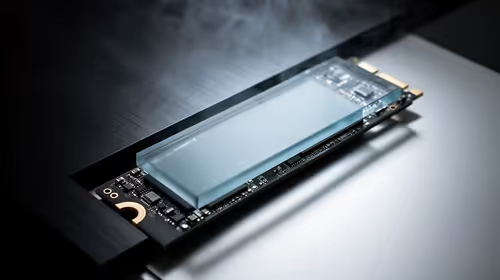
Compare the listed capacity with the SSD label and check Device Manager under Disk drives for the model name. If it appears nowhere, shut down and reseat the M.2 module or inspect SATA power plus data cables. Read the motherboard manual for M.2 slots that disable a SATA port.
A disk marked Offline may share a signature with a cloned drive. Do not initialise it. Right-click the disk label and read the status, then disconnect the source clone if both are present. Initialisation is for a blank new disk you have identified, not a shortcut for every drive missing from File Explorer.
Evetech's SSD category can help you distinguish 2.5-inch SATA, M.2 SATA and NVMe formats before installation.
🧭 Choose GPT for a modern Windows PC
Right-click the label area for the new disk and choose Initialise Disk. Select GPT for a current UEFI Windows system. MBR remains useful for some old devices and operating systems, but it carries partition and size limits you do not need on a new gaming PC.
Initialising writes the partition map. It does not format a usable volume yet. The main area should now appear as Unallocated with a black bar.
If the SSD already contains partitions, stop and work out why. It may be a returned drive, a clone target or a disk from another PC. Open files through the correct system before deleting anything, and run a health check when its history is unclear.
📦 Create and label the volume
Right-click the unallocated area and choose New Simple Volume. Use the full size unless you have a clear reason to split the disk. Assign an unused drive letter, choose NTFS and enter a label that tells you what belongs there.
A quick format suits a new SSD. Leave allocation unit size at Default for general files and games. After the wizard finishes, the drive should appear in File Explorer.
Open Properties and confirm NTFS, capacity plus the expected label. Copy a test folder, eject or restart where appropriate, and open the files again. This catches a loose SATA cable or unstable enclosure before the drive receives your whole game library.
Turn on drive encryption only after the volume behaves, and save its recovery key away from the SSD. That keeps setup faults separate from access problems.
🗂️ Point Windows and launchers at it
Create folders for Games, Projects or Media rather than dropping everything at the root. Add the Games folder as a library in Steam or another launcher. Change Windows default save locations only for the file types you want moved.
Restart once and confirm the drive letter remains. Check SSD health and firmware through the maker's tool, then copy a test folder and open it. The best-selling SSD list at Evetech gives you larger options if 512GB will fill after two or three game installations.
Frequently Asked Questions
Why does a new second SSD not show in Windows?
A blank drive may lack a partition, format and letter. Hardware or shared-lane issues can also keep it out of Disk Management.
How do you initialise a new SSD?
Open Disk Management, identify the blank disk, right-click its label, choose Initialise Disk and select GPT.
Should you choose GPT or MBR?
Choose GPT for a modern UEFI Windows PC. Use MBR only when an older compatibility requirement calls for it.
What file system should a second SSD use?
NTFS suits general Windows storage and game libraries. Other devices or operating systems may need another format.
Do you need to assign a drive letter?
File Explorer and most launchers expect one. You can also mount a volume into a folder for an advanced setup.
Can you use a second SSD without formatting it?
Windows needs a recognised formatted volume before it can store ordinary files on a blank drive.
Adding a second drive for games or projects?
Compare SATA and NVMe SSDs at Evetech, check the free motherboard connection, and label the new Windows volume before moving files.