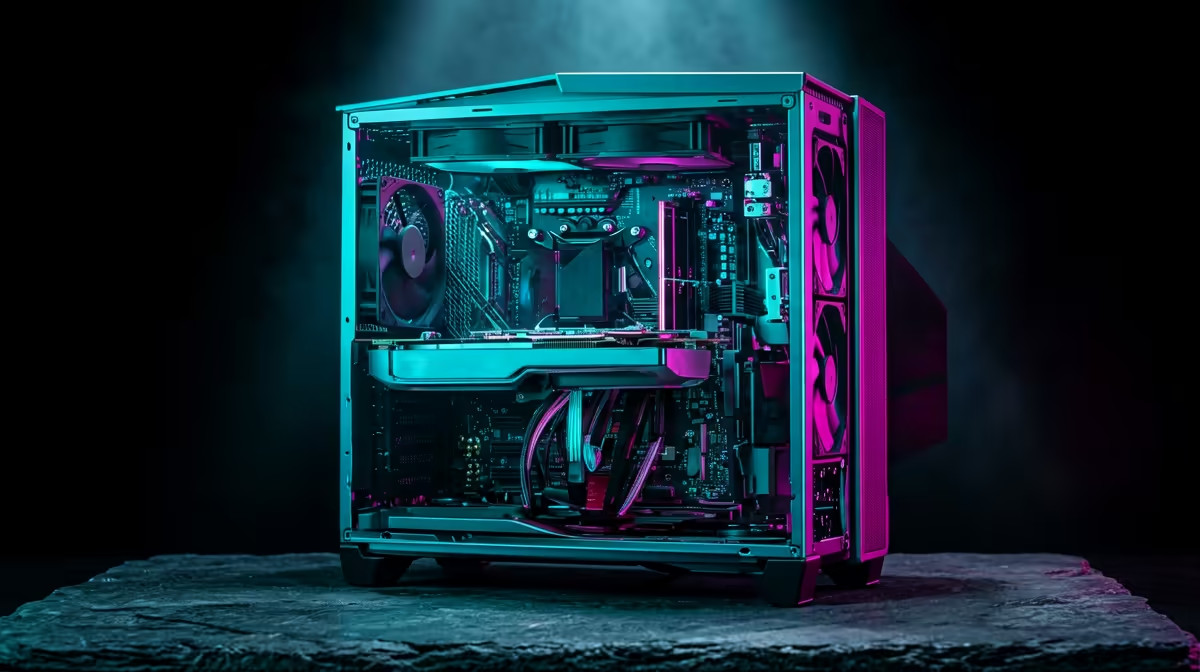
That moment of silence. You hit the power button, ready for a gaming session, but get nothing back. No whirring fans, no RGB glow... just a dead box. When your gaming PC won't boot, it’s a uniquely sinking feeling for any South African gamer. But before you panic or start pricing new components, take a breath. More often than not, the fix is simpler than you think. Let's get our hands dirty and bring your rig back to life. 🔧
First Steps: The Obvious (But Crucial) Checks
Before you even think about opening your case, let's rule out the simple stuff. It sounds basic, but you'd be surprised how often a gaming PC won't boot because of a loose cable. This is the first thing any tech pro would check.
- Power Cable: Is it firmly plugged into both the wall socket and your Power Supply Unit (PSU)? Try a different wall socket just to be sure.
- PSU Switch: Most PSUs have a small rocker switch next to the power cable port. Make sure it's flipped to the 'I' (On) position, not 'O' (Off).
- Monitor Cable: Ensure the HDMI or DisplayPort cable is securely connected to both your graphics card (not the motherboard port!) and your monitor.
- Monitor Power: Is the monitor itself turned on? A PC that seems to not be booting might actually be working fine, just with no way to show you.
Once you’ve confirmed these, you can move on, knowing you’ve covered the most common culprits preventing you from enjoying even a simple session of Minecraft.
Decoding the Signs: What Is Your PC Trying to Tell You?
Okay, so the cables are solid, but your PC is still not starting properly. Now, we need to play detective. What is it actually doing? The symptoms can point you directly to the problem. 🤔
- Absolutely No Power: No lights, no fans, nothing. This often points to a power delivery issue. It could be the wall socket, the power cable, or a dead PSU.
- Fans Spin, Lights On, No Display: This is one of the most common issues when a gaming PC won't boot. It means the system is getting power, but it's failing a critical self-test (called the POST) before it can send a signal to your monitor. This usually points to a problem with your RAM, GPU, or CPU.
If your motherboard has a small speaker, you might hear a series of beeps. These "beep codes" are a diagnostic language; a quick search for your motherboard model + "beep codes" can tell you exactly what's wrong. This can be the difference between a quick fix and hours of frustration trying to get back to dropping in Fortnite.
Inside the Box: A Hands-On Component Check
If the external checks didn't work, it's time to open up the case. Safety first! Unplug your PC from the wall and touch a metal part of the case to ground yourself before handling any components.
Reseating Your RAM
Loose or dusty RAM sticks are the number one cause of a PC turning on but showing no display.
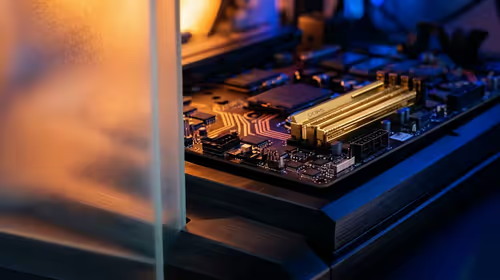
- Locate your RAM sticks on the motherboard.
- Push down the clips on either end of each stick.
- Gently pull the RAM stick straight out.
- Blow any dust out of the slot (use compressed air if you have it).
- Line the notch on the stick up with the notch in the slot and push it back in firmly until both clips click into place.
Often, this simple reseat is all it takes to get your PC booting again, ready for running demanding titles like Cyberpunk 2077.
Checking the GPU and Storage
Similar to RAM, your graphics card can sometimes work its way loose. Ensure it's fully seated in its PCIe slot and that its power cables (if it has them) are securely connected. A loose GPU is a common reason a computer won't turn on properly, especially after being moved. The same goes for your storage drives; check that the SATA data and power cables are firmly connected, so you can get back to exploring the vast world of GTA V. Ensuring every component is secure is key to having a powerful PC for Microsoft Flight Simulator.
The CMOS Reset Trick ⚡
If reseating components doesn't work, a CMOS reset is a great next step. This resets your BIOS UEFI settings to their factory defaults. Power off and unplug the PC. Find the small, silver, coin-like battery on your motherboard. Carefully pop it out, wait 30 seconds, and then pop it back in. This can solve a surprising number of boot issues caused by a bad setting.
When It’s Time for a Professional Look
You’ve tried everything, but your gaming PC won't boot. What now? Sometimes, a component has simply failed. A dead PSU or motherboard can be tricky to diagnose without spare parts. At this point, it might be time to bring it to a professional technician or consider if this is the universe telling you it's time for an upgrade. A stable system is non-negotiable for competitive play, whether it's the intense firefights of PUBG or the tactical gameplay that is crucial for games like Overwatch 2. A faulty rig just won't cut it when you need a stable rig for Counter-Strike 2 or a reliable machine for Call of Duty: Warzone. ✅
Time for a Fresh Start?
If your PC is giving you more headaches than headshots, it might be time for an upgrade. A PC that won't boot can be the final sign. Explore Evetech's massive range of custom-built gaming PCs and get back in the game with a rig built for performance and reliability.