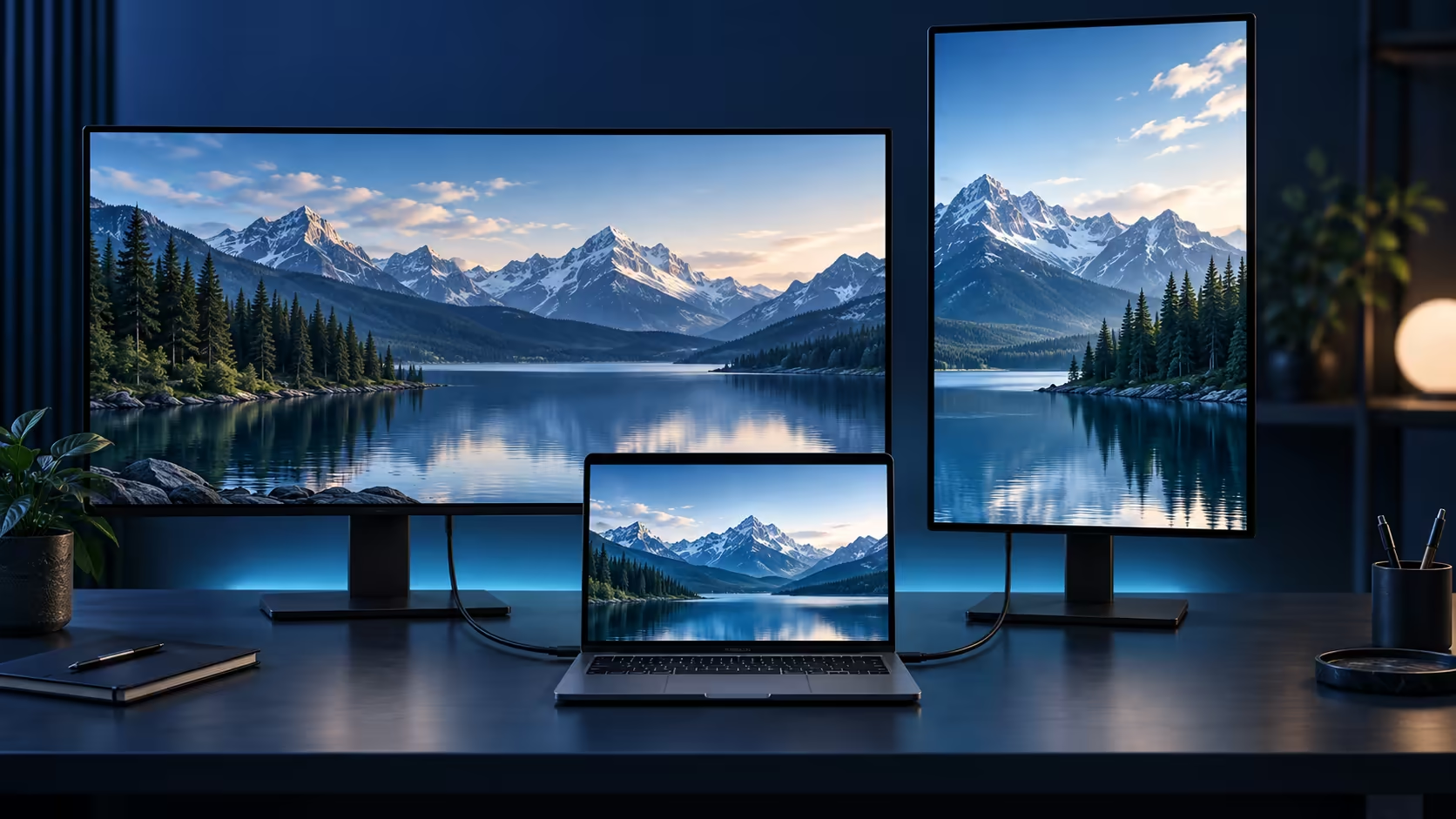
A monitor can advertise a beautiful picture that your connection cannot deliver. Googlebook external display planning starts at the laptop output and ends at the screen input, with every cable and adapter in between. Once that path is supported, scaling determines whether the workspace is comfortable to use.
Quick Answer
Confirm the exact Googlebook's external-display support before choosing a resolution, refresh rate or number of monitors. The built-in panel specification is not the external-output specification. Use an existing supported display for a R0 layout trial where possible, then buy around the text size and workspace you actually need.
🖥️ Separate panel pixels from useful workspace
Resolution describes a grid of pixels. A higher grid can provide sharper detail, but the physical screen size determines how tightly those pixels are packed. The interface scale then determines how large letters, buttons and menus appear. These three factors work together rather than replacing one another.
For reading and document work, begin with a comfortable text size at your normal distance. If you need to lean forward to read a sidebar, the extra nominal workspace is not helping. Increasing scale can make a high-resolution screen more pleasant while reducing the amount of content visible at once. That is a sensible trade-off, not a failure to use the panel properly.
Consider two tasks you want visible together, such as a document and a reference page. The useful question is whether both remain readable side by side. A promotional image filled with tiny windows does not answer that. Rehearse the arrangement with your actual applications and typical content.
Compare Evetech monitor options with screen size and adjustment range beside the resolution. A stand that positions the screen comfortably can improve daily use more than an output mode you cannot sustain through the intended connection.
🔗 Follow the signal from source to screen
Write down the laptop port, cable, adapter or dock, second cable if used and monitor input. For each part, obtain the supported mode. A cable may fit perfectly while lacking the capability needed for the desired signal. An adapter can also impose a lower limit than either endpoint advertises.
DisplayPort over USB-C is one standardised way to transport video through a USB-C connector. It requires the relevant support along the path. USB data transfer or charging through that same-shaped port does not prove video capability. Use the exact host specification rather than a generic description of USB-C.
The monitor's inputs can differ too. A display may offer one mode through a particular input and a different combination through another. Read its connection table alongside the host and adapter documentation. Avoid buying a cable on the assumption that every input on the screen accepts the maximum number printed on the box.
For more than one display, establish the laptop's supported configuration explicitly. The number of connectors on a dock does not guarantee the same number of independent desktops on every host. Mirrored outputs and extended workspaces are different outcomes. A successful single-monitor connection is a useful starting point, not proof of the whole multi-screen plan.
🔍 Test the mode you will actually use
Connect the simplest supported path first. Check the display's reported input mode and the available configuration in the laptop's current interface. Follow the Googlebook-specific instructions for changing it; a familiar Windows or Chromebook settings route should not be assumed to apply.
Open the documents, videos or applications that matter to you. Look for readable text, correct image proportions and stable operation. A desktop appearing on the screen establishes only the initial signal. It does not prove that a demanding mode remains reliable through a long session or alongside every docked accessory.
If the expected mode is missing, work backwards through the chain. Try a supported direct connection if available, verify the monitor input and compare the adapter's documented limit. Change one part at a time. That approach tells you more than buying several different cables without recording the results.
Portable displays add charging and mounting considerations. Browse portable monitor choices only after establishing whether the screen needs separate power and which input path the laptop supports. Include those cables in the portability calculation rather than treating the screen as a standalone rectangle.
Finally, save a short note of the working combination: laptop model, port, cable, monitor input and chosen mode. It is useful when you rebuild the desk after travel or replace one component later. A known-good chain makes future troubleshooting far simpler than remembering only that the monitor once worked.
Frequently Asked Questions
Does Googlebook screen resolution set the external limit?
No. The built-in panel specification does not establish supported external display modes or the number of connected monitors.
Can a USB-C connector carry video?
It can when the host, cable and receiving equipment support the required video mode. The connector shape alone is insufficient.
What does display scaling change?
Scaling changes the apparent size of text and interface elements, affecting readable workspace without simply changing panel pixel count.
Is mirroring the same as extending a desktop?
No. Mirroring repeats a view; extending provides additional workspace where the platform and setup support it.
Buy the display mode your whole setup can support.
Compare desktop and portable monitors at Evetech with your confirmed connection path and preferred reading size.