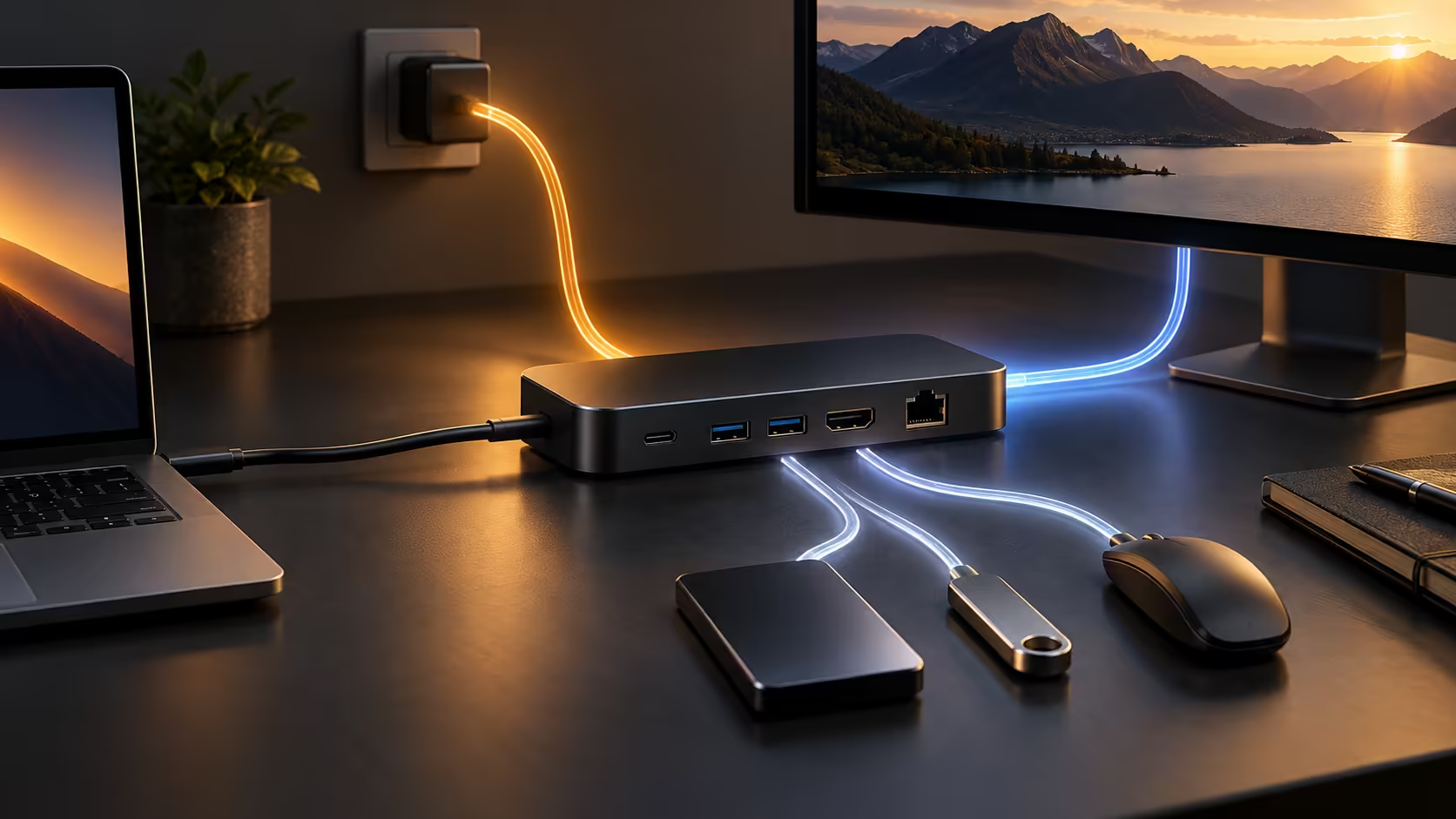
One cable can make a desk wonderfully simple, but only after several capabilities line up. A Googlebook USB-C dock must provide the power, display route and data connections your exact laptop can use. The socket shape is a physical connection, not a complete specification.
Quick Answer
Match the laptop's documented port capabilities with the dock's host output, display technology and data requirements. Check the cable as part of that chain, including the power actually delivered to the laptop. Write the connection plan before buying; this R0 exercise can reveal a mismatch that an expensive dock cannot fix.
⚡ Follow power in both directions
A dock may receive power from an adapter and pass some of it to the laptop while using the rest for its own electronics and attached equipment. That is why maximum input and maximum host output are not automatically the same figure. Look for both numbers in the specification rather than relying on the largest wattage on the product image.
USB Power Delivery defines how compatible equipment agrees on power. The charger, dock, cable and laptop all participate in the practical result. A high-capacity adapter cannot force an unsupported power mode into a host. Conversely, a cable or dock with a lower capability can restrict what the chain delivers.
Use the laptop manufacturer's required charging specification as the starting point. If the dock provides less than needed under the intended workload, charging may be slower or the battery may still decline while working. Do not promise a particular result without the model's requirements and the dock's delivered output.
For a shared charger, read the simultaneous-use table where one is supplied. Connecting another device can change the allocation between ports. Test the normal combination, not just the laptop by itself. A setup that works during a quiet desktop session may behave differently while charging other equipment.
🖥️ Identify how the dock creates video
Some docks carry a native display signal supplied by the host. Others use a USB graphics approach that depends on software support. The presence of HDMI or DisplayPort sockets on the dock does not tell you which route it uses. Read the technology description and supported operating systems.
Do not assume a Windows or macOS driver is available for Googlebook. If a product requires a driver, obtain explicit support for the platform before buying it for that purpose. A dock may still provide some functions while its display output does not work, so partial success can be misleading.
For native video, verify the laptop output mode, cable capability and dock display limit together. A two-screen claim can depend on the host and the combination of resolutions. Ask whether the intended displays are independent or mirrored and whether the required refresh rates are supported simultaneously.
Browse Evetech docking stations with a short specification list in hand. Write the desired display count and modes, charging output and essential data ports. That makes the comparison about a known requirement instead of the greatest number of sockets.
💽 Share the data connection sensibly
A dock's connected devices ultimately share the capabilities of its host link. A keyboard uses little bandwidth, while a fast external drive or camera can create a more demanding combination. The dock cannot make the host port faster than its supported mode, and not every port on a dock necessarily offers the same data rate.
Plan around simultaneous work. If you copy large files while using a webcam and another peripheral, evaluate that combination rather than testing each accessory in isolation. Keep transfers complete before unplugging storage, and use the device's supported removal procedure where applicable.
USB hubs may be enough for a simpler requirement. If you only need additional data connections, compare USB hub options instead of automatically buying a full display dock. Confirm that the hub supports the devices and any required power, especially for equipment that draws more from the connection.
Commission the setup in stages. First establish the laptop and dock connection, then one display, then each remaining accessory. Record the stage where a problem begins. Swap only one suspected component at a time and retain the known-good arrangement while investigating.
Label the host cable if several similar leads sit on your desk. A charging cable from another device may fit without supporting the same data or video path. Keeping the proven cable with the dock prevents a small packing change from becoming an unexplained display failure next week.
The goal is a repeatable connection you can trust. Once the full chain is supported and tested, the convenience of one cable becomes a practical result rather than a promise based on the connector alone.
Frequently Asked Questions
Does a dock labelled 100W deliver 100W to the laptop?
Not necessarily. Distinguish maximum input power from host output after the dock reserves power for itself and connected devices.
Will a USB-C hub provide an external display?
Only if it includes a compatible display path and the host supports that path. A data-only hub does not add native video capability.
Are all dock display technologies interchangeable?
No. Native display transport and driver-dependent USB graphics have different support requirements.
Can a cable cause charging or display problems?
Yes. Its power, data and video capabilities must match the intended chain, even when the connectors fit.
Choose the dock from a complete connection list.
Compare docks and hubs at Evetech against the host power, display and data requirements of your exact laptop.