So, you’ve saved up your hard-earned Rands for a shiny new graphics card. You’ve watched the reviews, benchmarked the performance, and you're ready to pull the trigger. But wait… will it actually work with your current setup? In South Africa, where every component counts, ensuring graphics card compatibility isn’t just a good idea—it’s essential for avoiding a costly paperweight. This guide will walk you through everything you need to check for your ZA PC build. 🚀
The Physical Fit: Will Your GPU Actually Slot In?
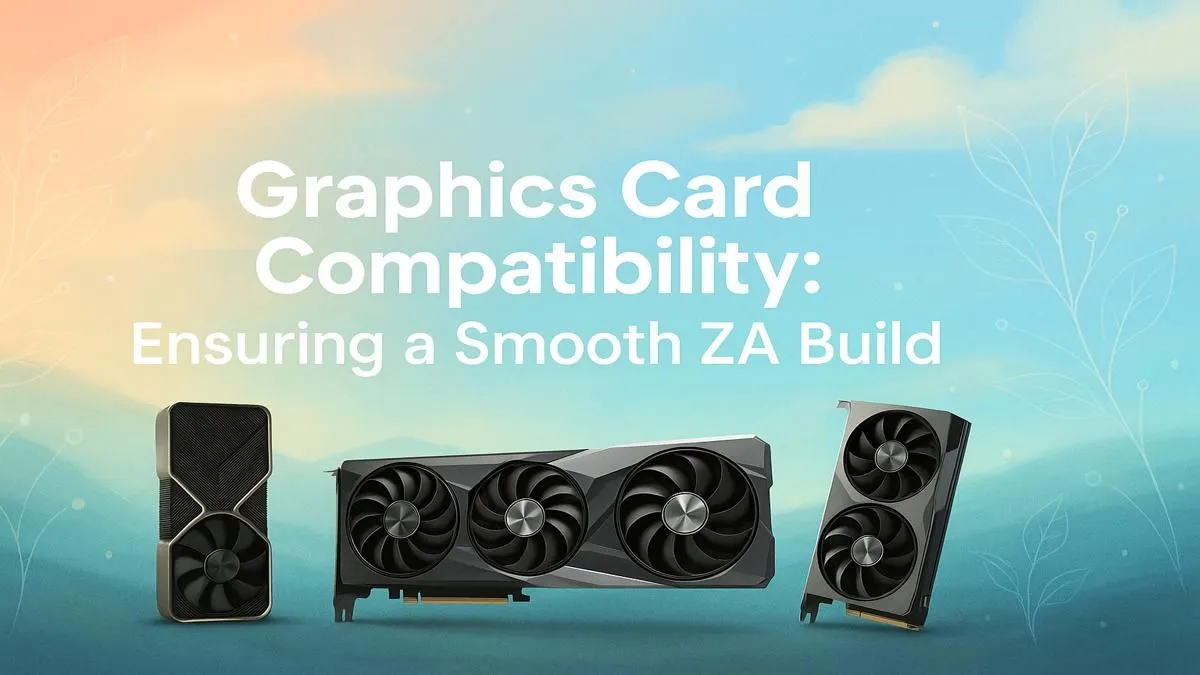
Before you even think about drivers or power, the first graphics card compatibility check is purely physical. Modern GPUs are bigger than ever, and a card that doesn't fit in your case is a non-starter.
Case Clearance
This is the most common issue. Check three dimensions:
- Length: Measured from the I/O bracket to the end of the card's shroud. Your case specifications will list a "Max GPU Length".
- Height: From the bottom of the PCIe connector to the top of the card. This matters in smaller or slim form-factor cases.
- Width: How many expansion slots the card occupies. Most gaming cards are 2-slot or 3-slot designs, and some beefy models can be even thicker. Ensure you have enough free slots on your motherboard and case.
Motherboard & PCIe Slot
Your GPU plugs into a PCIe x16 slot. While virtually all modern motherboards have one, make sure it’s the top-most slot for the best performance and that there are no obstructions like large chipset heatsinks or awkwardly placed SATA ports that could block the card.
Powering Your Pixel Pusher: PSU Compatibility
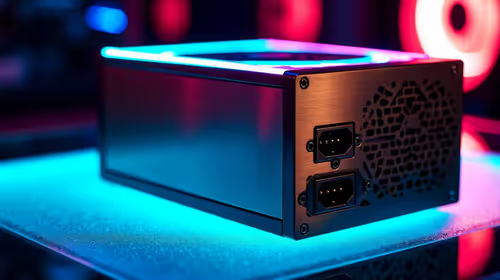
A powerful GPU needs a strong and stable power supply unit (PSU). Getting this wrong can lead to crashes, poor performance, or even damage to your components. This is a critical step in your GPU compatibility check.
The main thing to look for is the manufacturer's recommended PSU wattage. A 650W PSU might have been fine a few years ago, but a high-end card today might demand an 850W unit or more. It’s not just about the total watts, though. You also need the right connectors. Modern cards from NVIDIA's GeForce lineup and their rivals often require one or more 6-pin, 8-pin, or the newer 12VHPWR power connectors. Check your PSU's available cables to confirm you can plug it in.
PSU Pro Tip ⚡
Don't just look at the total wattage on your PSU. Check the sticker on the side for the '+12V Rail' amperage (A). This rail powers your CPU and GPU, the most power-hungry parts. Multiply the volts (12V) by the amps to see the real power available to your core components. This is a much better indicator of a PSU's capability than the big number on the box.
The Digital Handshake: Motherboard and CPU Synergy
Once you know the card fits and has power, you need to ensure it can talk to the rest of your system effectively. This part of graphics card compatibility is about avoiding performance bottlenecks.
PCIe Version (e.g., PCIe 4.0 vs 5.0)
Modern graphics cards use PCIe 4.0 or 5.0 interfaces. The good news? These are backward compatible. You can plug a PCIe 4.0 card into a PCIe 3.0 motherboard slot, and it will work just fine, albeit with a tiny, often unnoticeable performance dip in most gaming scenarios. For peace of mind and future-proofing, matching your card's PCIe version to your motherboard is ideal.
Avoiding the CPU Bottleneck
Pairing a top-tier RTX 4080 with a ten-year-old Intel i5 processor is a recipe for disappointment. The CPU won't be able to feed the graphics card data fast enough, "bottlenecking" its performance. You'll have paid for a Ferrari but will be stuck in first gear. As a general rule, try to keep your CPU and GPU in a similar performance tier and generation for a balanced build. Both AMD's Radeon cards and their competitors benefit hugely from a capable CPU.
Your Final Compatibility Checklist ✨
Feeling a bit overwhelmed? Don't be. Just run through this quick checklist before you buy:
- Case: Does my case's max GPU length/width support the new card?
- Motherboard: Do I have a free PCIe x16 slot with no obstructions?
- PSU Wattage: Is my PSU's total wattage at or above the GPU's recommendation?
- PSU Connectors: Do I have the correct 6-pin, 8-pin, or 12VHPWR cables?
- CPU: Is my processor modern enough to avoid severely bottlenecking the new GPU?
Answering "yes" to these questions means you're almost certainly good to go. The final step is finding a card that fits your budget and performance needs, which is where browsing the latest graphics card deals can help you snag a fantastic upgrade at a great price.
Ready to Power Up Your Build? Ensuring graphics card compatibility is the smartest first step to a flawless PC build. Now for the fun part… finding the perfect GPU. Explore our massive range of PC components and lock in the performance your dream rig deserves.