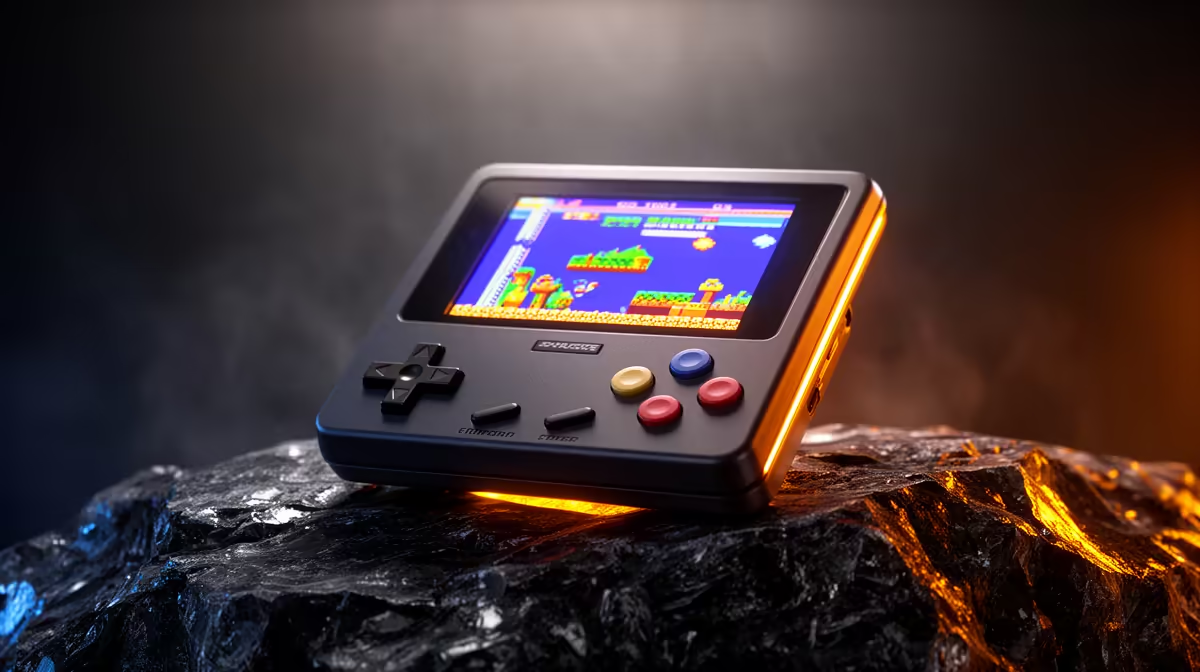
Some consoles will not emulate at all without their original firmware. Load a PlayStation game on a fresh handheld and you get a black screen, not because the game is broken but because the emulator is missing the BIOS files it needs to boot. The fix is simple once you know where each file goes and how the emulator expects it named: drop the right files into the system folder, match the names exactly, and the consoles that demand firmware spring to life.
Quick Answer
Place each required BIOS file directly in your emulator's system folder, named exactly as the core expects, with no subfolders. For RetroArch that is the RetroArch/system directory; for a standalone frontend it is the firmware path shown in its settings. The original PlayStation needs files like SCPH1001.bin, and Sega CD needs region BIOS files for US, Japan, and Europe. Match the filename and case precisely or the core will not find them.
Which systems actually need a BIOS
Most cartridge-based systems, like the SNES, Mega Drive, or Game Boy, emulate fine with no firmware at all. The ones that require a BIOS are mainly the disc-based and more complex machines. The original PlayStation is the big one, and Sega CD, Sega Saturn, and a handful of others also need their firmware to run accurately. If a particular system loads everywhere except on one handheld, a missing or misnamed BIOS file is almost always the cause.
Step 1: Find your emulator's system folder
Before copying anything, locate where the BIOS files belong. In RetroArch, open Settings, then Directory, and look at the System/BIOS entry. That path is where every BIOS file goes, directly inside it, not tucked into a subfolder. On handhelds running a custom firmware such as Knulli or a similar distribution, there is usually a dedicated bios folder on the storage card, and standalone emulators each point to their own firmware location shown in their own settings. Note the exact path now so you are not guessing later.
Step 2: Gather the correct files for your systems
Work out which BIOS files the systems you want actually require. For the original PlayStation, the common files are named like SCPH1001.bin, SCPH5500.bin, and SCPH7502.bin, each tied to a region (US, Japan, Europe). Including more than one region's BIOS maximises game compatibility, since a Japanese disc may want the Japanese firmware. Sega CD similarly wants the US, Japanese, and European region files, typically run through the Genesis Plus GX core. Source these firmware files from your own original hardware, as they are copyrighted and not something to download casually.
Step 3: Name the files exactly right
This is where most people trip up. Emulator cores look for a precise filename, and on the Linux-based systems most handhelds run, the name is case-sensitive. SCPH1001.bin in uppercase is not the same as scph1001.bin in lowercase, and the core will simply not see the wrong one. Confirm the exact name and case the core expects, then rename your file to match character for character. A single wrong letter or extension is enough to leave you staring at a black screen.
Step 4: Copy the files into the system folder
With the right files correctly named, copy them straight into the system or bios folder you identified in step one. Place them at the top level of that folder, not inside a subfolder, because the core checks the folder itself by default. Pull the storage card and use a card reader on a PC for this if your handheld does not make file transfer easy, then return the card to the device.
Step 5: Verify the BIOS is being read
Do not assume it worked. RetroArch can confirm it: many cores show a BIOS or system files status in their information screen, telling you whether the required file was found. For extra certainty, advanced users check the file's MD5 hash against known-good values to confirm the file itself is intact and the correct dump, which rules out a corrupt or wrong-region file masquerading as the right one. The real-world test is simply launching a game on the system in question. If a PlayStation title boots to its proper start-up sequence instead of a black screen, the BIOS is in place and working.
When it still will not boot
If a game refuses to load after all this, run back through the checklist in order. Confirm the file is in the system folder itself and not a subfolder. Confirm the filename and case match exactly what the core wants. Confirm you have the right region BIOS for the disc you are running. Nine times out of ten the fault is one of those three, and the same disciplined checking applies whether you are setting up PlayStation, Sega CD, or any other firmware-dependent system. A solid handheld makes the whole process smoother, and the retro handheld range at Evetech covers devices from pocketable entry models up to more powerful units, while complete systems worth pairing them with show up among the most popular PCs for a desk-side library.
Frequently Asked Questions
Where exactly do BIOS files go in RetroArch?
Directly inside the RetroArch/system folder, with no subfolders. You can find or change this path under Settings, then Directory, then System/BIOS. The core checks that folder by default, so files placed in a subfolder will not be detected.
Why does my PlayStation game show a black screen?
Almost always a missing or misnamed BIOS file. The original PlayStation needs a firmware file such as SCPH1001.bin in the system folder, named exactly and in the correct case, before any game will boot.
Do all retro systems need BIOS files?
No. Most cartridge systems like the SNES and Mega Drive emulate without any firmware. BIOS files are mainly required by disc-based and more complex systems such as PlayStation, Sega CD, and Sega Saturn.
Does filename case really matter?
Yes, on the Linux-based systems most handhelds run. SCPH1001.bin and scph1001.bin are treated as different files, so the name and case must match exactly what the core expects or the BIOS will not be found.
How do I check the BIOS file is correct, not just present?
Compare its MD5 hash against the known-good value for that file. This confirms the dump is intact and the right one, which rules out a corrupt or wrong-region file that appears correctly named but still fails to work.
Got your firmware sorted and ready for a handheld that runs every system cleanly? Browse the retro handheld range at Evetech and build a library that boots first time, every time.