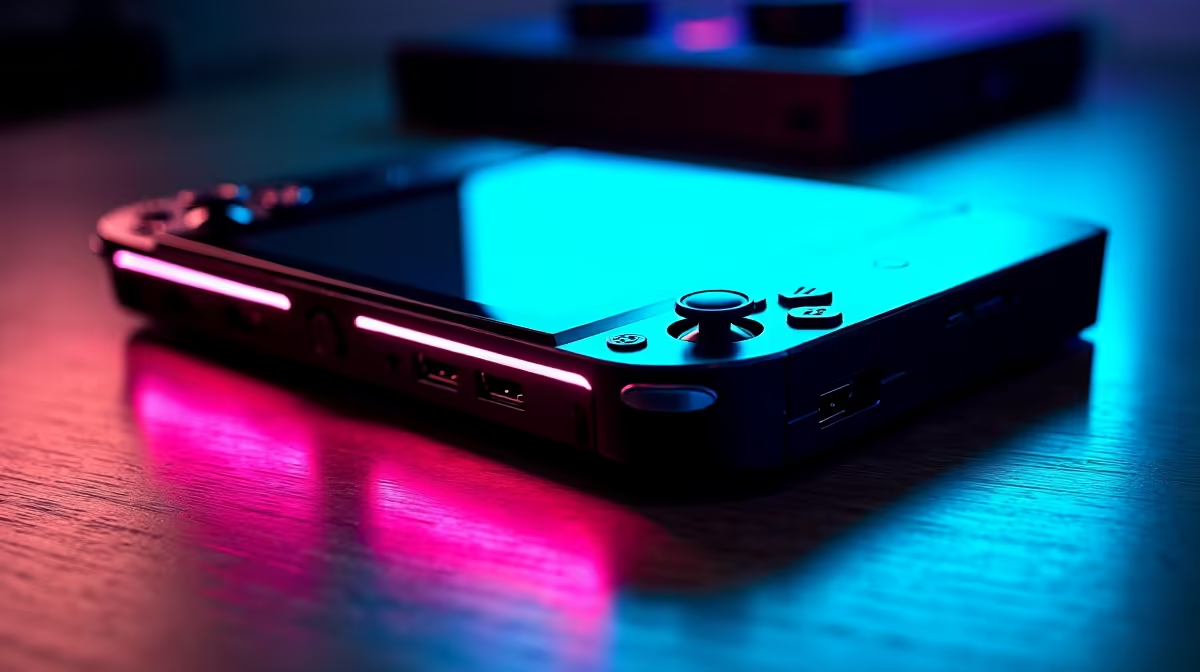
A handheld that fits in a backpack can plug into a graphics card the size of a brick and suddenly game like a full tower. The original ROG Ally makes this possible through its OCuLink-capable port, a connection that pushes far more bandwidth than USB and turns the handheld into a desktop-class machine the moment you sit down at your desk.
Quick Answer
The original ROG Ally has an OCuLink-capable port delivering PCIe 4.0 x4, roughly 64 Gbps, with almost no protocol overhead. That is enough bandwidth to drive a card as powerful as an RTX 4070 in an external GPU enclosure, giving the handheld desktop-grade performance when docked. You play portable on the move and plug into real graphics power at home.
Why OCuLink Beats USB4 for an eGPU
External GPUs have always been bottlenecked by the cable. USB4 and Thunderbolt run an eGPU over a protocol layer that eats into the usable bandwidth and adds latency, so a strong card never quite delivers its full punch. OCuLink takes a more direct route: it carries raw PCIe signalling, the same lanes a desktop card uses internally, with minimal translation in the middle.
The result is that an RTX 4070 hanging off the Ally's OCuLink port behaves much closer to how it would in a desktop than the same card on a USB4 link. You lose a little to the x4 lane count, but the near-zero overhead is what makes the setup genuinely worthwhile rather than a half-measure.
What You Need for the Build
Putting this together is straightforward once you have the right parts:
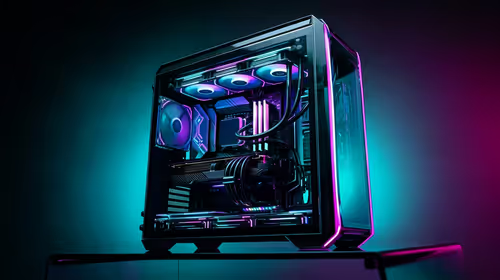
- An OCuLink-equipped eGPU dock or enclosure that accepts a full-size desktop graphics card and supplies its own power.
- A desktop GPU sized to your monitor; an RTX 4070 class card is the sweet spot the Ally's bandwidth can feed without heavy bottlenecking.
- The OCuLink cable, usually supplied with the dock, connecting the Ally's port to the enclosure.
- A power supply rated for the card, which most dedicated eGPU docks include or accommodate.
- An external monitor, since driving a desktop card to a bigger screen is the whole point.
Step-By-Step: Connecting the eGPU
Start with everything powered off. Seat the desktop graphics card firmly in the enclosure and connect its power cables. Plug the OCuLink cable into both the dock and the Ally's OCuLink-capable port, making sure it is fully clicked in, then connect your external monitor to the graphics card's own outputs rather than the handheld.
Power on the enclosure first so the card is ready, then boot the Ally. Windows should detect the external GPU; install or update the graphics drivers if prompted, then set the external card as the preferred high-performance GPU in the driver control panel. Point your games at the external monitor and you are running on desktop-class hardware.
Getting the most out of it
Drive games to the external display, not the Ally's built-in screen, because routing back to the handheld panel adds latency and wastes some of the gain. Keep your graphics drivers current, and if a game refuses to use the eGPU, force it to the high-performance card in Windows graphics settings. For the connection hardware itself, the docking stations and OCuLink docks at Evetech are where to start, and pairing the right card from the GPU best sellers is what determines how far the performance actually climbs.
Frequently Asked Questions
How much bandwidth does the ROG Ally's OCuLink port provide?
The original Ally's OCuLink-capable port runs PCIe 4.0 x4, around 64 Gbps, with very little protocol overhead. That is substantially more usable bandwidth than a USB4 eGPU connection, which is why it suits powerful cards.
What is the strongest GPU worth pairing with it?
A card around the RTX 4070 class is the practical sweet spot. The x4 lane will mildly bottleneck the very fastest flagships, so a 4070-tier card extracts close to its full performance without paying for power you cannot fully feed.
Does OCuLink work better than USB4 for an external GPU?
Yes, for this purpose. OCuLink carries raw PCIe signalling with near-zero overhead and lower latency, so a given card performs closer to its desktop potential than it would over USB4, which adds a protocol layer that costs bandwidth.
Do I have to use an external monitor?
For best results, yes. Running the game on an external display connected to the graphics card avoids the latency of routing the image back to the handheld's built-in screen, which is where you lose some of the performance advantage.
Will every ROG Ally model support this?
This applies to the original ROG Ally's OCuLink-capable port. Always confirm your specific model exposes an OCuLink connection before buying a dock, since not every handheld revision offers the same port.
Turn your handheld into a desktop rig. Match an OCuLink enclosure from the docking station range at Evetech with the right card and game at full power when you get home.