You plug a USB-C cable into your laptop, connect a monitor, and nothing appears. The frustrating truth is that the USB-C port shape tells you nothing about whether it can carry video. Two identical-looking ports can behave completely differently, and the only way to know is to check for the right standard before you buy a cable or a screen.
Quick Answer
A USB-C port outputs video only if it supports DisplayPort Alt Mode, Thunderbolt, or USB4. The connector shape is the same regardless, so you must check the spec sheet or a small icon next to the port. Without one of those three standards, the port carries data and power but no video signal.
Why the shape lies
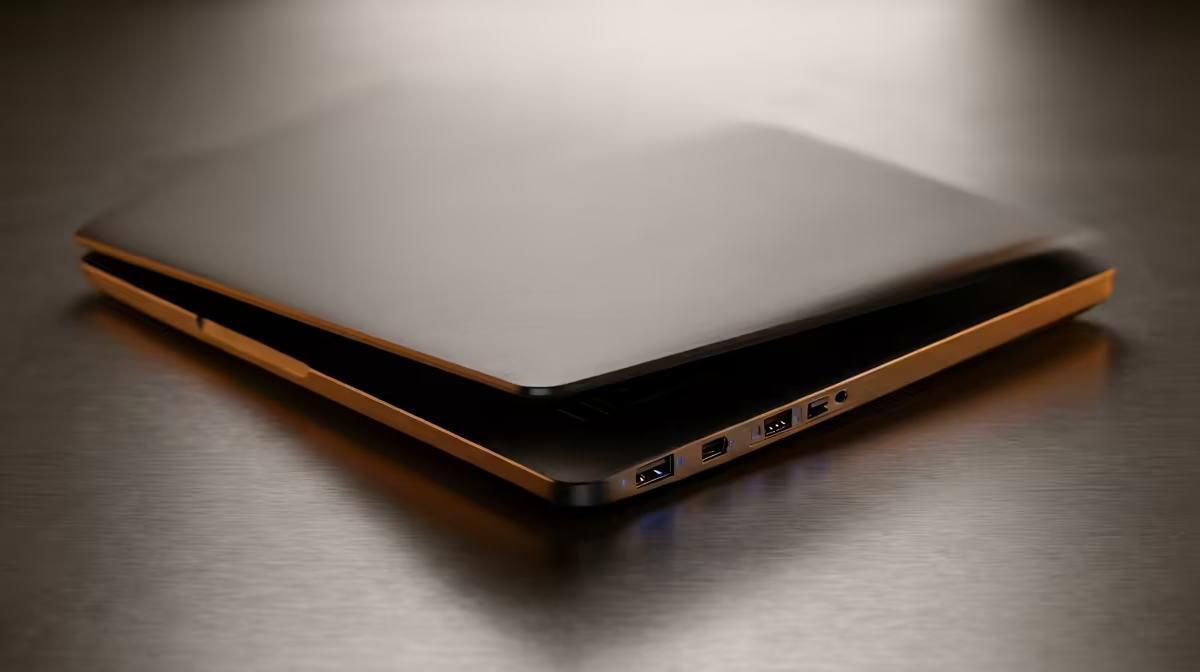
USB-C is a connector, not a feature set. The same oval port can be wired for data only, for data plus power delivery, or for data, power and video together. Manufacturers decide which capabilities to route to each port, and they often differ even on the same laptop. One port might drive a monitor while the identical-looking one beside it cannot.
The capability that carries video is called DisplayPort Alternate Mode, usually shortened to DP Alt Mode. Thunderbolt and USB4 ports include it as part of their wider standard. If none of those three is present, the port simply has no video lanes wired to it.
How to check, step by step
1. Look for an icon next to the port
Many laptops print a small symbol beside a video-capable port. A "D" or "DP" marking signals DisplayPort Alt Mode. A lightning-bolt symbol indicates Thunderbolt. A "USB4" label or a "10/40" speed marking often accompanies a fuller-featured port. No marking is not proof either way, so treat icons as a hint, not the final word.
2. Read the official spec sheet
This is the reliable method. Find your exact laptop model on the manufacturer's specification page and look under ports or display output. The wording you want is "DisplayPort over USB-C", "DP Alt Mode", "Thunderbolt", or "USB4". If the page lists USB-C only as "data" or "charging", that port will not send a picture to a monitor.
3. Check the operating system
On Windows, display settings will detect a second screen the moment a working video link is made. On macOS, the displays panel does the same. If you connect a known-good monitor and cable to the port and nothing is detected, the port likely lacks video support rather than the cable being faulty.
4. Confirm the cable and adapter too
A port can support video while a cheap cable does not carry the video lanes. Use a cable rated for video, or a verified USB-C to HDMI or DisplayPort adapter. Charging-only cables are a common reason a capable port appears dead.
For a portable second screen that connects over a single USB-C cable, the portable monitor selection lists units designed to draw both video and power from one compatible port.
What to do if the port has no video
Not all is lost. If your laptop has a full-size HDMI port, use that instead. If it truly only has data-only USB-C ports, a powered docking station that explicitly converts the laptop's available output can still drive an external display, but only if at least one port supports the video standards above or the laptop has another video output to route through.
The honest takeaway is that buying a dock or adapter before confirming the port's capability is the most common wasted purchase here. Verify the standard first, then buy. Once you know your port works, you can compare screen options on the monitor best sellers at Evetech to see which portable and desktop panels SA buyers are choosing.
Frequently Asked Questions
Does every USB-C port support a monitor?
No. The connector is identical whether or not video is supported, so many USB-C ports carry only data and power. You must confirm DisplayPort Alt Mode, Thunderbolt, or USB4 is present on that specific port.
How do I know if my port has DisplayPort Alt Mode?
Check the manufacturer's spec sheet for your exact model and look for "DP Alt Mode", "DisplayPort over USB-C", "Thunderbolt", or "USB4". A small "D" or lightning-bolt icon by the port is a helpful hint but not a guarantee.
Why is my monitor not detected over USB-C?
Either the port lacks video support, or the cable is data-only, or the adapter is faulty. Confirm the port supports video on the spec sheet first, then test with a video-rated cable and a known-good monitor.
Can a USB-C dock add video to a port that has none?
Generally no. A dock cannot create video lanes that the laptop does not provide. It can split and convert existing output, but it needs a port that already supports the video standards or a separate video output to work from.
Is Thunderbolt the same as USB-C?
Thunderbolt uses the USB-C connector but is a more capable standard that always includes video and high-speed data. So all Thunderbolt ports are USB-C shaped, but not all USB-C ports are Thunderbolt or carry video.